



The autonomy of mobile devices continues to be, today, the great “Achilles heel” of modern technology. In the Samsung ecosystem, the One UI customization layer is known for being one of the most complete and visually attractive in the Android market. However, this wealth of functions and services in the background comes with an energy cost that is not always managed efficiently with the factory configuration. Whether you own a next-generation Galaxy S series device or a model from the popular mid-range Galaxy A seriesthe operating system shares a common power management core that, if configured correctly, can transform the daily use experience.
Users often assume that saving battery life requires giving up the phone's smart features, turning it into a basic device. Nothing could be further from the truth. The objective of this analysis is to explore five technical configurations present in the vast majority of current Samsung terminals—from the mid-range to the high-end—that allow a significant percentage of battery to be recovered without sacrificing essential functionality. It's not about magic tricks, but about understanding how One UI manages resources and cut unnecessary consumption where it really occurs: in invisible processes.
- Aggressive Application Management: The Deep Sleep
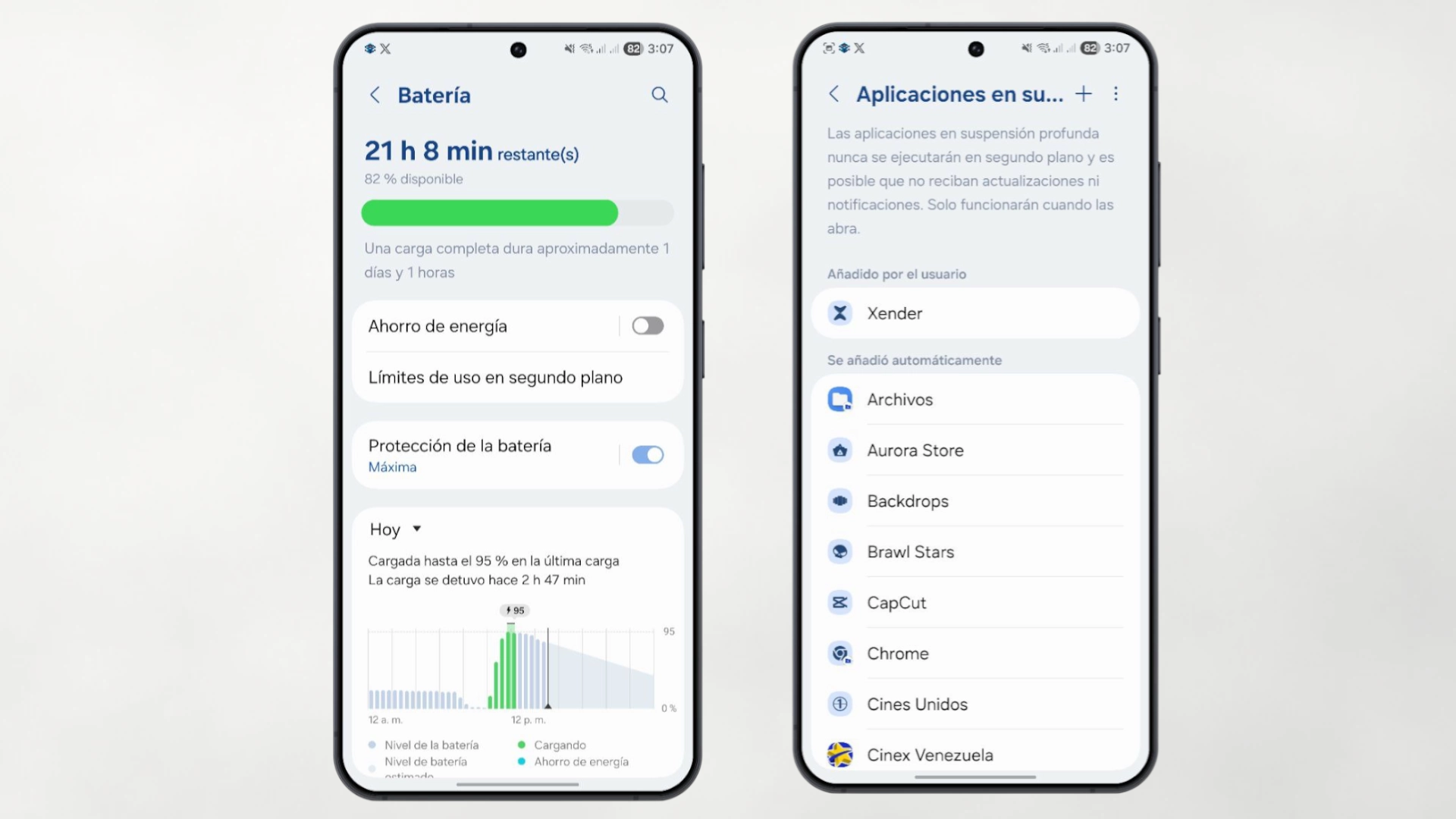
The biggest enemy of the battery on Android is not the screen on, but what happens when the screen is off. Many apps are designed to stay active in the background, checking for updates, location, or sending usage statistics. Samsung offers a very powerful native tool called “Deep suspension”which differs from traditional suspension. While normal sleep allows some occasional activity, deep sleep completely freezes the application.
To the operating system, a deep sleep application is as if it does not exist until the user manually opens it. This prevents sporadic applications (such as food delivery apps, clothing stores, or tools that are used once a month) from consuming battery cycles. CPU (processor) unnecessarily.
How to configure it in One UI: To access this menu, you must go to Settings and select Battery (or Device Care > Battery in older versions). Within this menu, there is the option Background usage limits. This is where the key lies: the section Deep suspension applications. It is recommended to manually add all those applications from which it is not necessary to receive notifications in real time. Doing so frees the processor from an invisible but constant workload.
- The Silent Vampire: Finding Nearby Devices
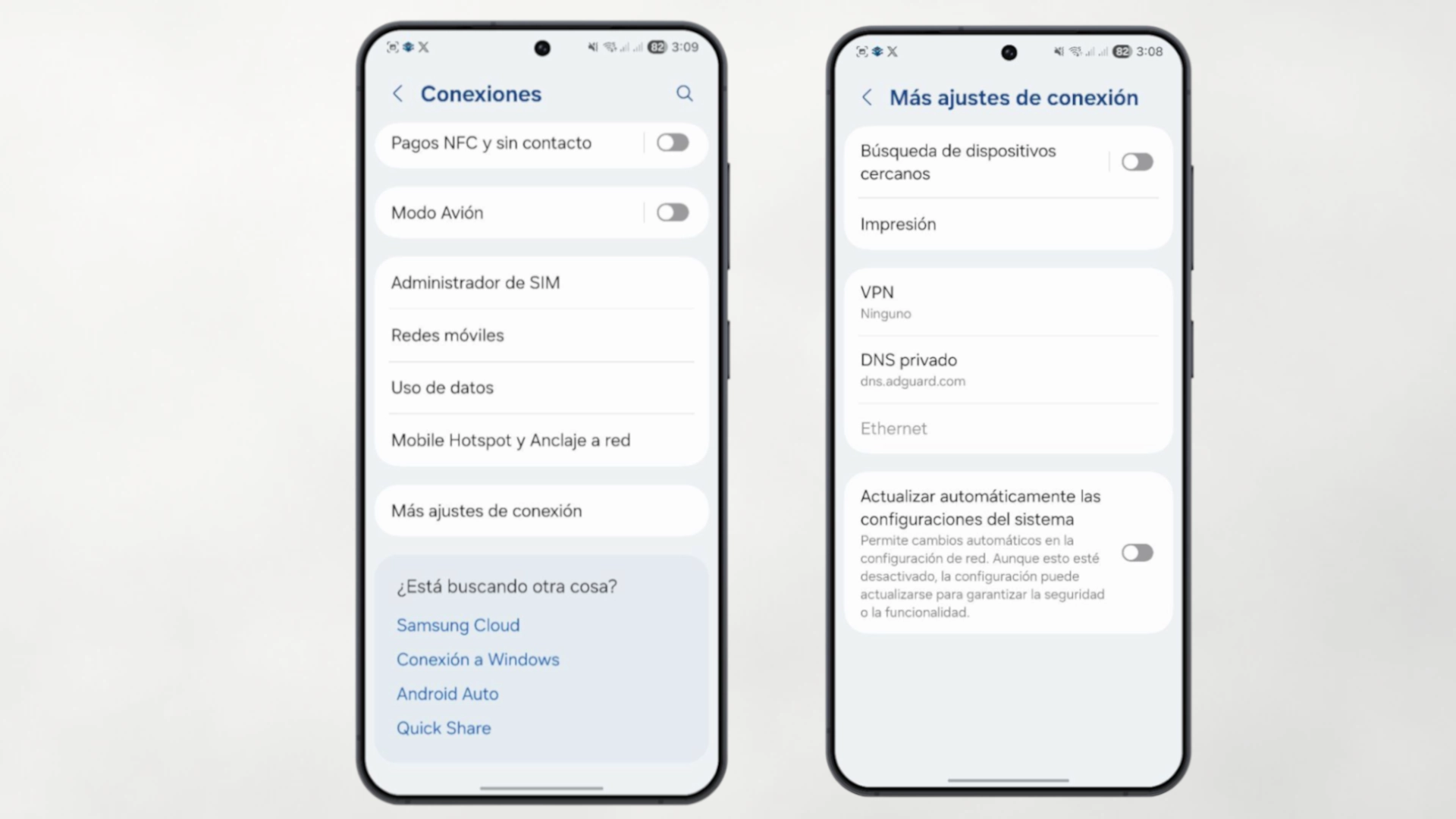
There is a function that is activated by default in practically all Samsung phones and that goes unnoticed by the vast majority of users: the “Search for nearby devices.” This feature allows the phone to continuously scan the environment using Bluetooth and WiFi (even if these appear disabled or are not being used) to detect headphones, smart watches or other Galaxy phones for functions such as Quick Share.
The reality is that unless the user spends the day pairing new accessories, this feature is a waste of money. superfluous energy. The phone is constantly “asking” its surroundings if anyone is there, which prevents the device's modem from entering low-power states as frequently as it should.
The procedure to deactivate it: This option is usually somewhat hidden. You must navigate to Settingsenter the section Connections and search at the end of the list More connection settings. The switch will appear there. Search for nearby devices. By disabling it, you do not lose the ability to connect to already paired devices (such as the car system or regular headphones); It simply stops constantly scanning for new equipment, which is a significant relief for the battery over a 12 or 14 hour day.
- The AMOLED screen as an ally: The true power of Dark Mode
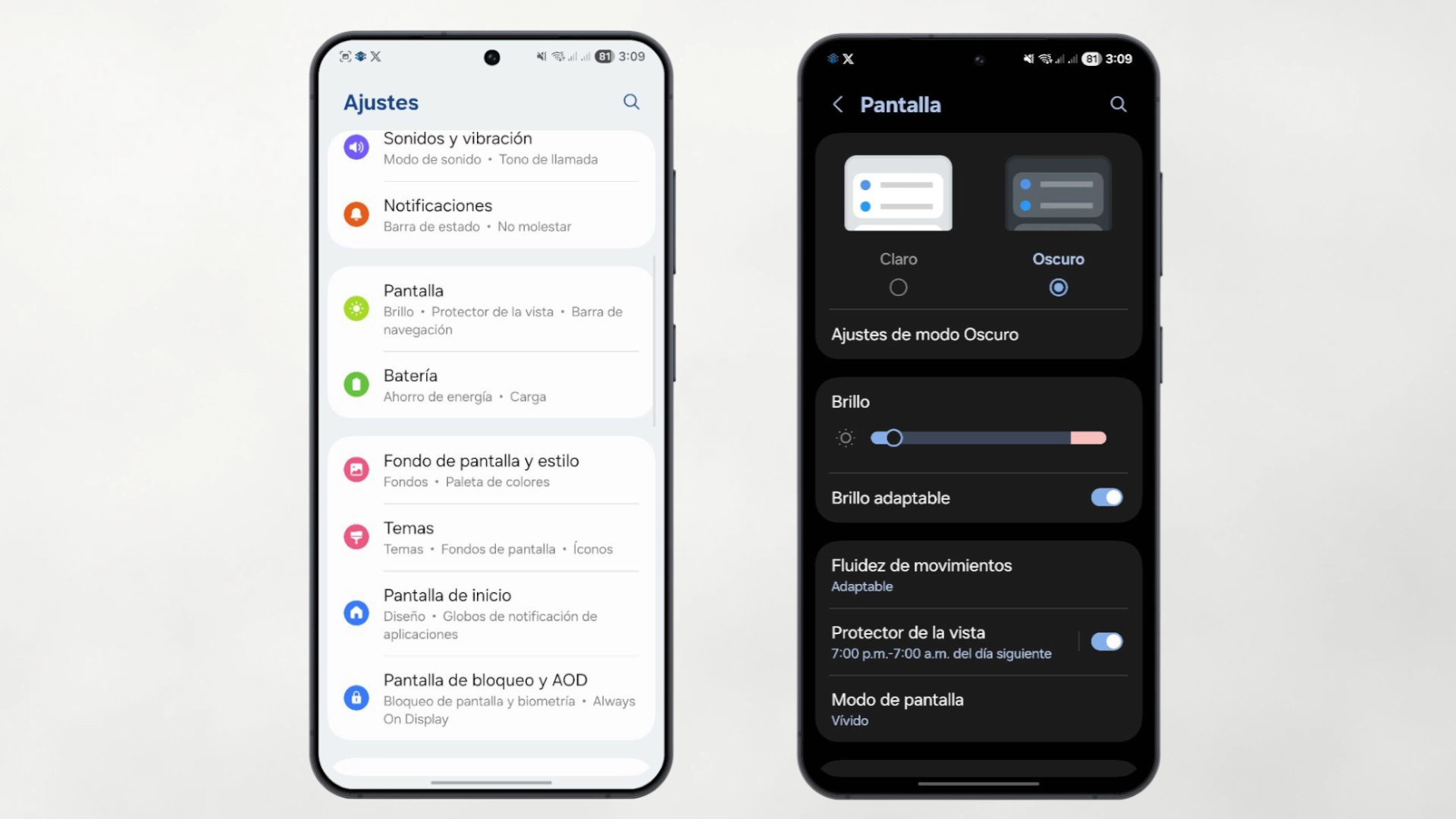
The vast majority of Samsung phones, from the mid-range (like the Galaxy A34 or A54) To the top of the range, they use panels with AMOLED technology. Unlike traditional LCD displays, which require a backlight panel to be on all the time, OLED and AMOLED technology illuminates each pixel individually. This means one simple thing: the color black is literally an off pixel.
When using an interface with a white background, millions of pixels are being turned on at maximum. Activating Dark Mode not only rests your eyes, but also physically turns off large areas of the screen. In interfaces like One UI, where menus and backgrounds are pure black or very dark gray, the energy savings are tangible and direct. The more black there is on the screen, the less energy the panel consumes.
Recommended implementation: It can be activated from the quick settings panel or by going to Settings > Screen and selecting Dark. To maximize the effect, it is also suggested to apply wallpapers with predominantly black tones and ensure that third-party applications (such as Instagram, Twitter or YouTube) follow this system pattern. On a day of intensive use with many hours of active screen, the difference between using light and dark mode can mean between 5% and 10% extra battery.
- Control fluidity: Refresh rate and motion management
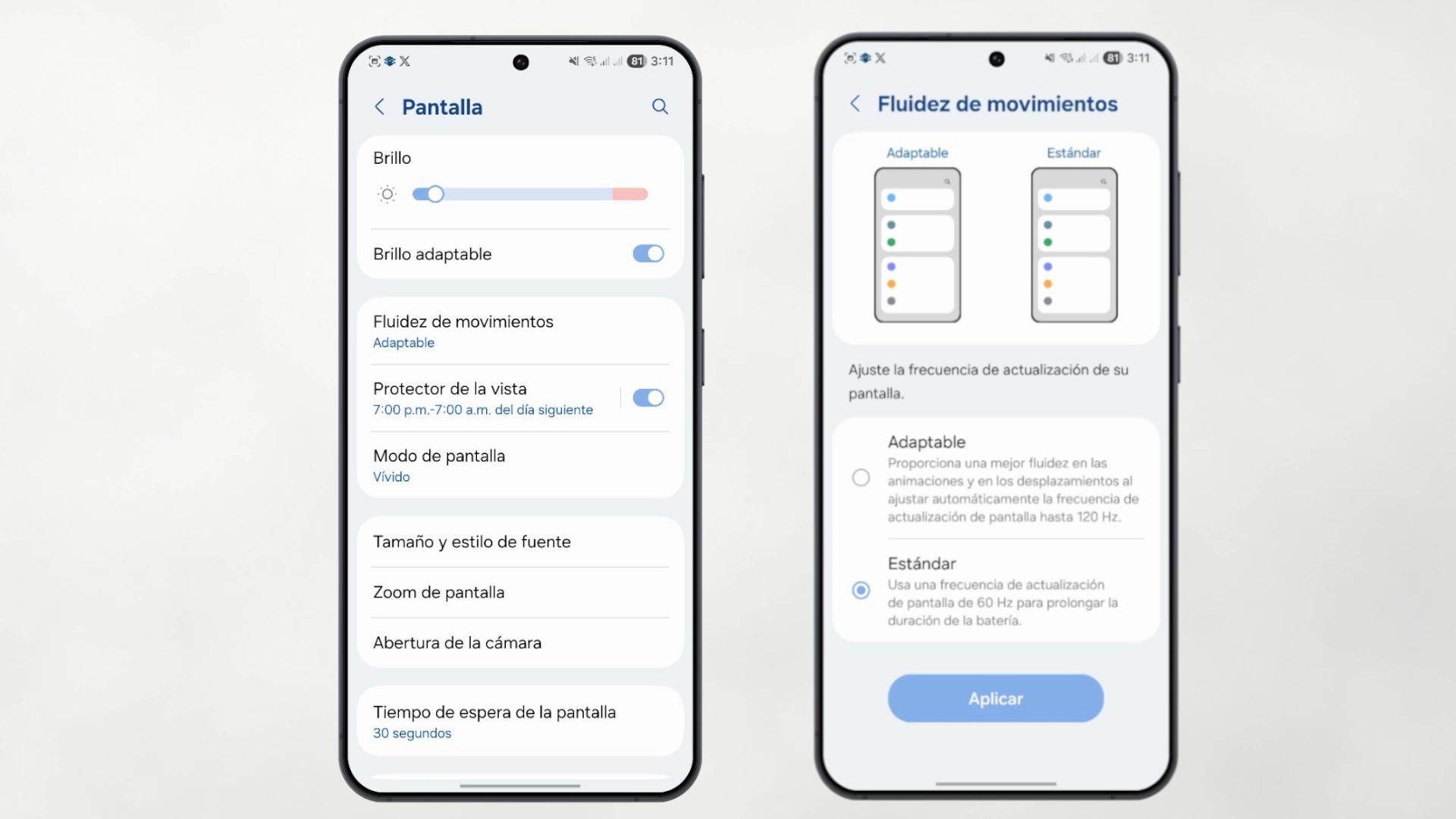
One of the features that Samsung has democratized in recent years is the high refresh rate (90Hz or 120Hz) in almost all its ranges. This makes animations and web scrolling feel incredibly fluid. However, rendering 120 images per second requires twice as much effort from the GPU (graphics unit) as rendering the standard 60 images.
Although more expensive models like the Galaxy S25 Ultra They have LTPO screens that lower the rate to 1Hz when the image is still to save money, many mid-range models do not have that fine adaptation capacity and can get “stuck” at high frequencies, consuming more than they should. If the user knows they are going to have a long day away from a charger, managing this is vital.
Usage strategy: In Settings > Screen > Fluidity of movementsyou can choose the mode Standard (60Hz). Although you lose that “butter” feeling when scrolling, the battery savings are drastic. For advanced users, you can create Routines (using the native “Modes and Routines” app) so that the phone uses 120Hz normally, but automatically drops to 60Hz when video applications such as YouTube or Netflix are opened, since the video usually plays at 24 or 30 or 60 frames, so having the screen at 120Hz at those times is a waste of resources.
- Always On Display: Constant drain-free functionality
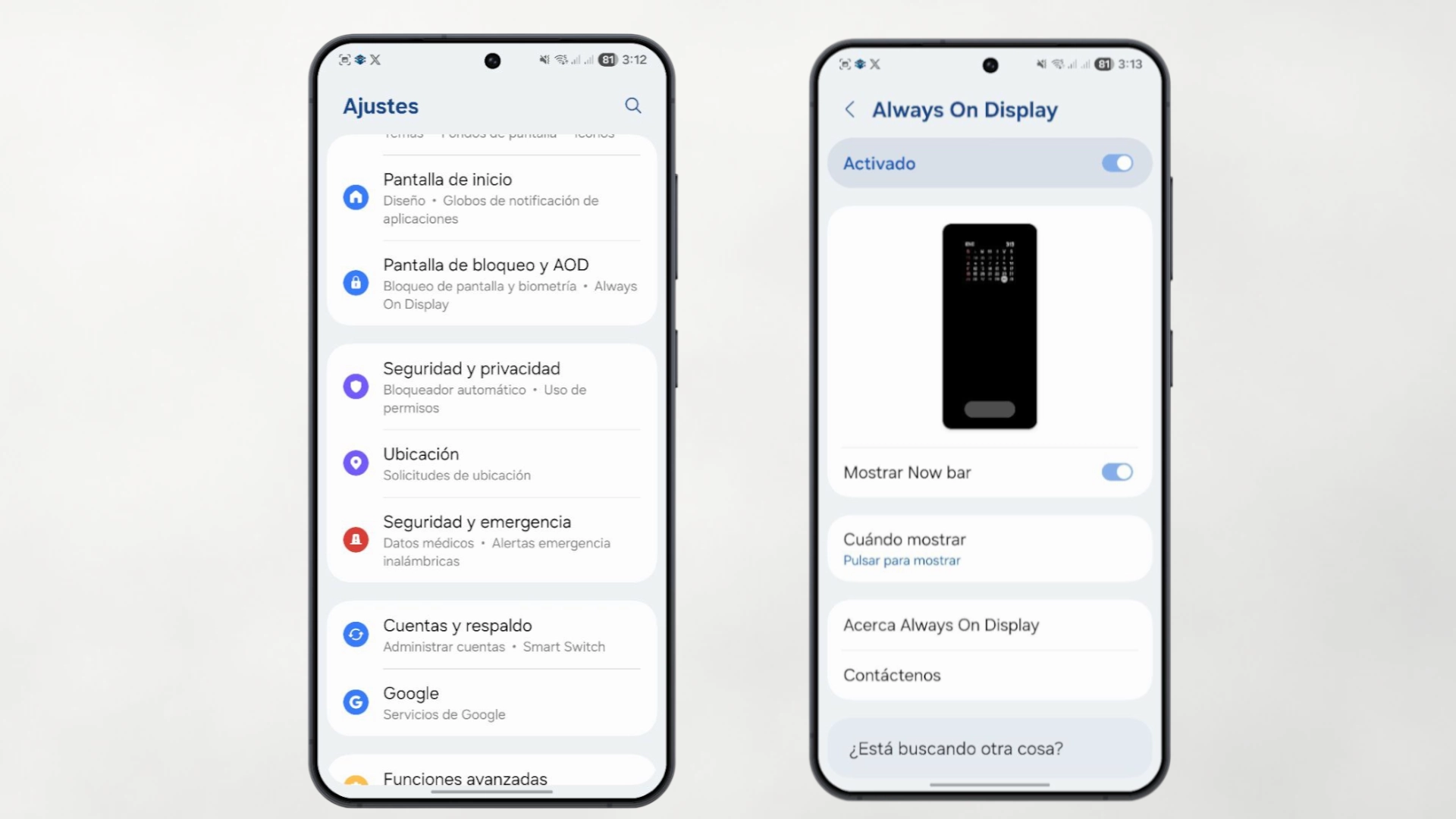
The “Always On Display” (AOD) screen is a hallmark of Samsung. Allows you to see the time and notifications without touching your phone. However, keeping the watch on permanently prevents the phone from entering deep sleep mode. (“Deep Doze”) for Androidconsuming approximately 1% battery per hour. At the end of the day, this can take up about 15-20% of the total battery just from displaying the time.
Samsung, aware of this, introduced an intermediate option that balances the scales: «Click to show». With this configuration, the screen remains completely black and off, but if the user needs to check the time, just tap the glass for the information to appear for a few seconds and then turn off again.
Optimal settings: To modify this behavior, you must access Settings > Lock screen and click on the text Always On Display. There you must select the option Click to show. In this way, the usefulness of the function is maintained without the passive energy cost that comes with having it always active. It is the perfect compromise between aesthetics and efficiency.
- The reality about 5G: Stability versus speed
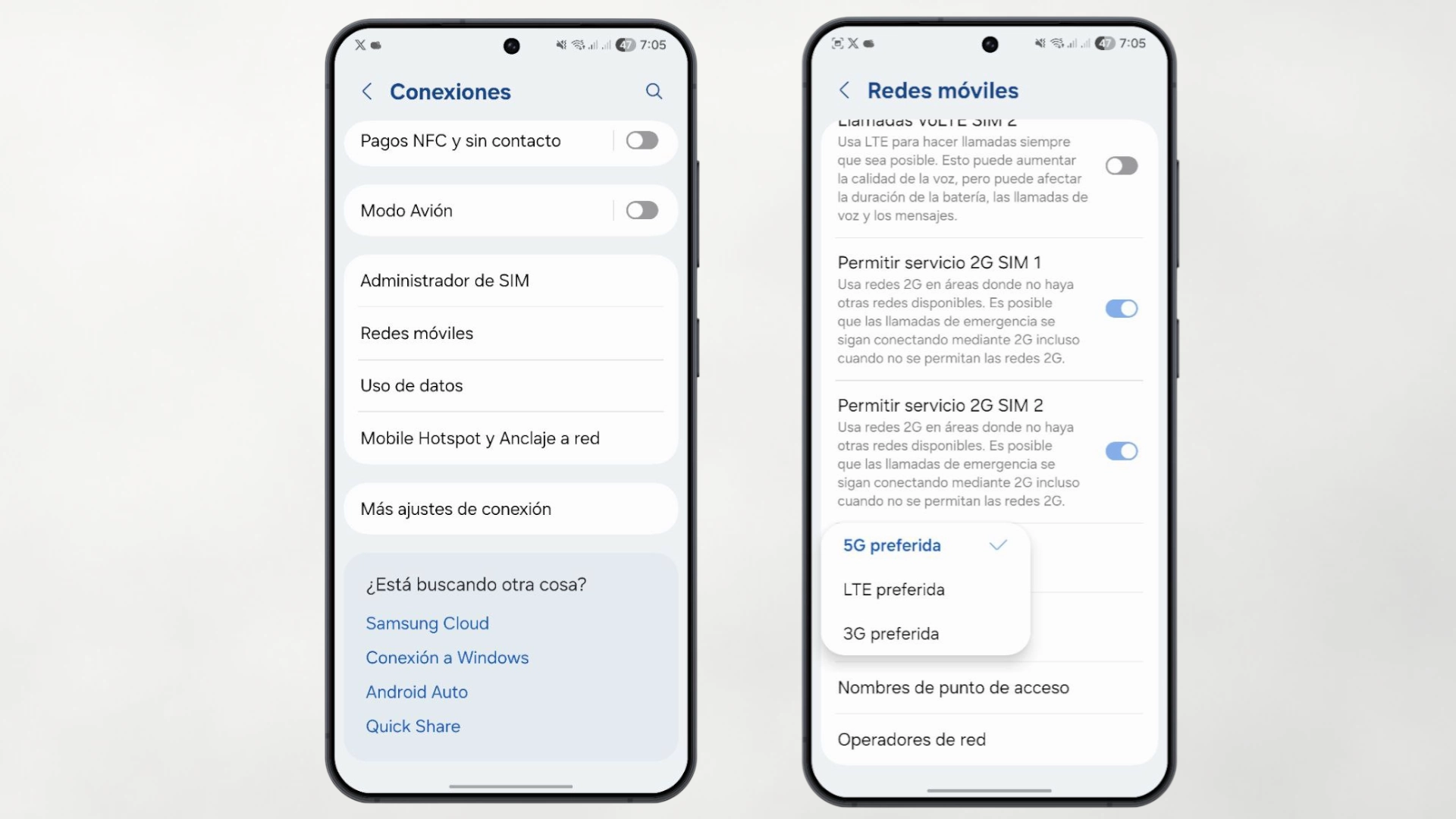
Although 5G promises breakneck speeds, its infrastructure is not yet perfect in all areas. If the 5G signal is not very strong in the area where the user is located, the mobile will spend an excessive amount of energy trying to maintain that unstable connection. In many everyday situations, the 4G network (LTE) It turns out to be much more stable and energy efficient.
For those days when the priority is to arrive at night with battery, or if you live in an area with patchy 5G coverage, the recommended setting is clear: go to Settings > Connections > Mobile networks > Network mode and manually select the option LTE/3G/2G. This simple change prevents the phone's modem from working hard searching for distant antennas.
7. Long-term care and battery protection
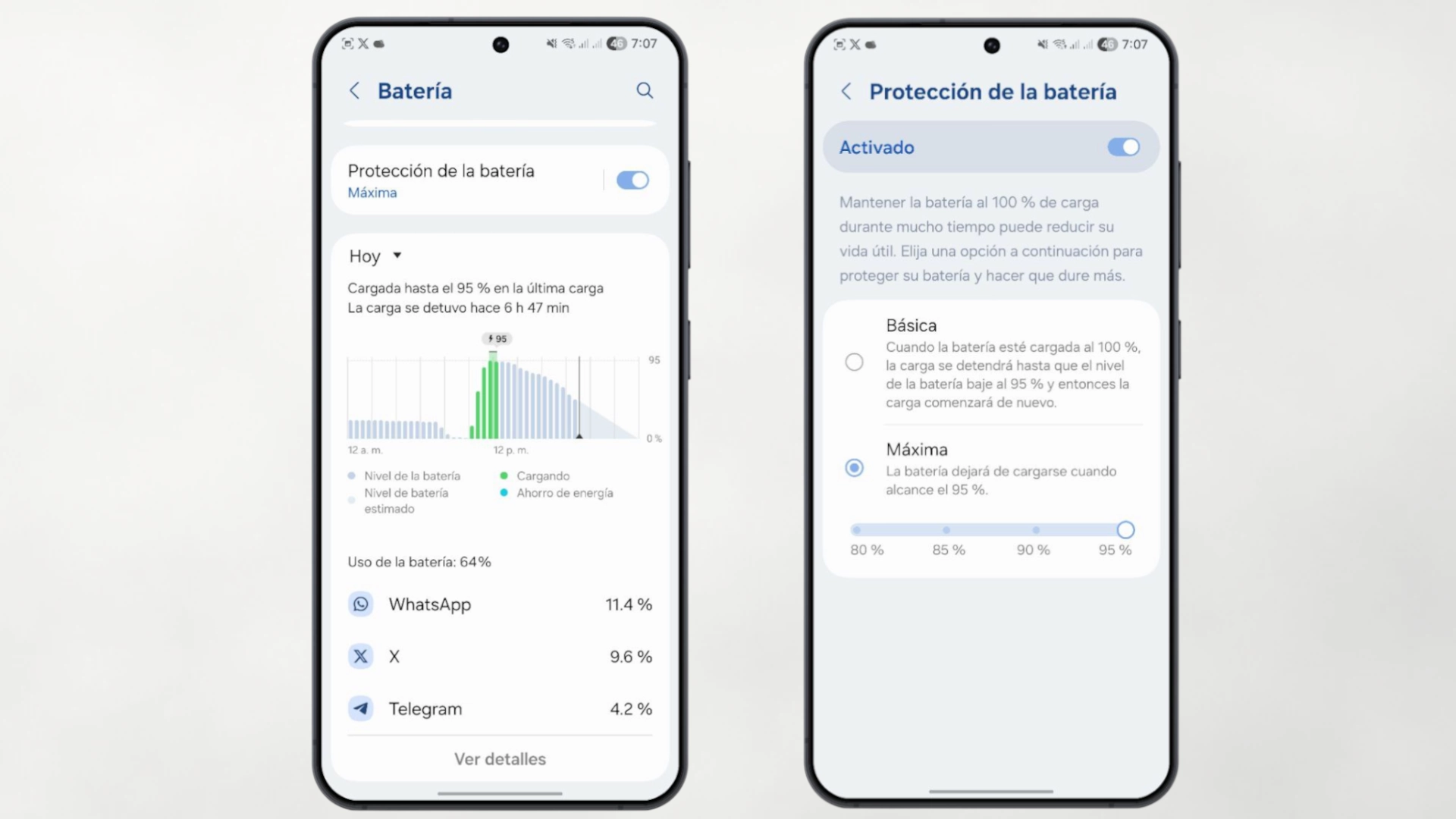
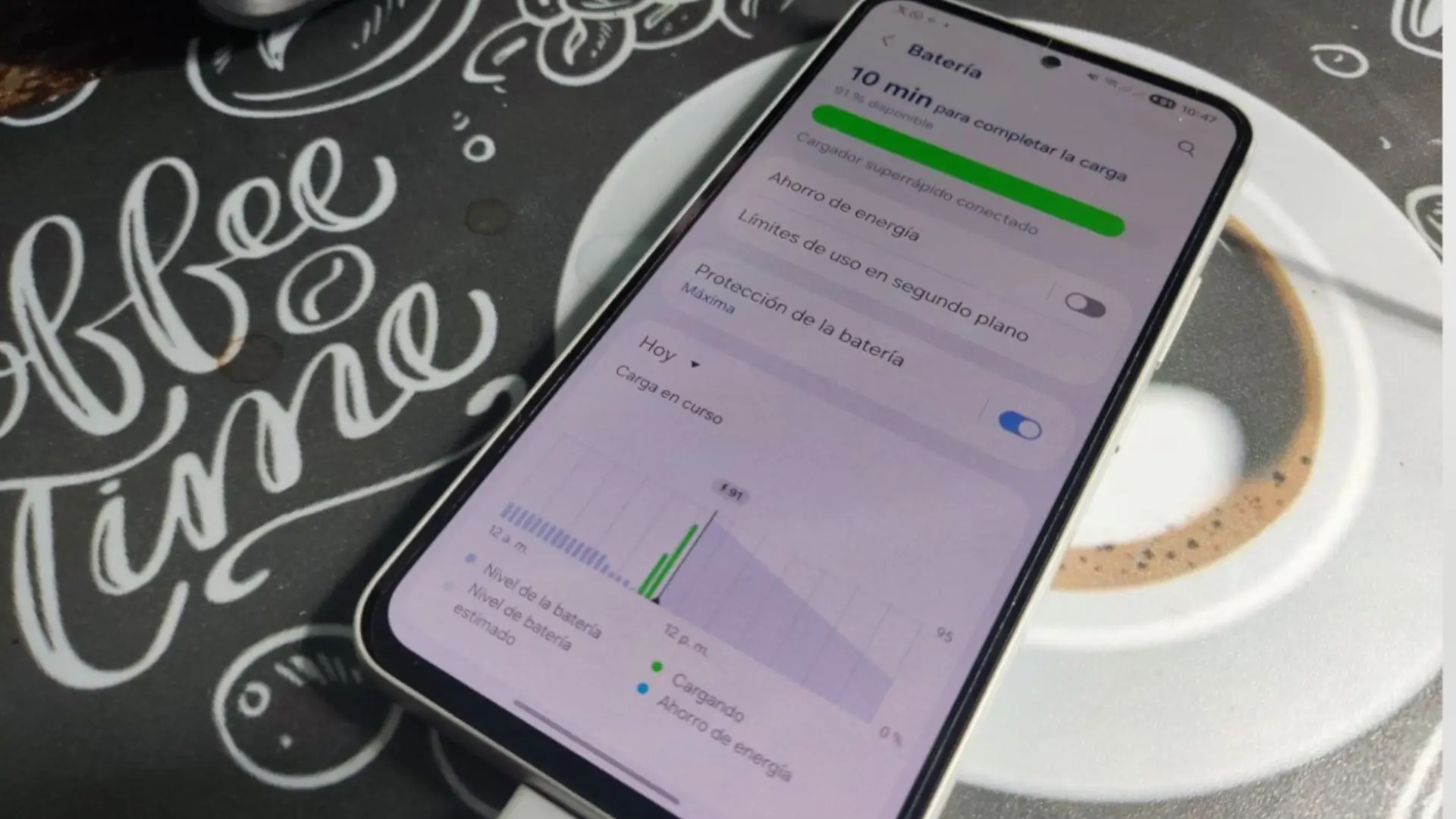
Range is not just about how long the battery lasts today, but how it will perform two years from now. If you want the battery to last over time, it is essential to activate the Battery protection.
Especially in recent versions like One UI 6.1 onwards, the system offers advanced options like “Adaptive” or “Maximum”. The “Maximum” option, for example, offers you the possibility of stopping charging from the 80% up to 95%avoiding the chemical stress that lithium cells suffer when constantly charging at 100%. This prevents the battery from degrading quickly, ensuring good long-term component health.
Optimizing a Samsung Galaxy device does not require engineering knowledge or the installation of third-party applications that promise miracles and are often counterproductive. The key lies in using the tools that One UI makes available to the user. By limiting vampire apps with deep sleep, turning off unnecessary sensors like device search, taking advantage of screen physics AMOLED with dark mode and intelligently manage the screena more efficient and reliable device is achieved. These settings, available in the vast majority of the brand's catalog, show that it is possible to enjoy advanced technology without living glued to a charger.