



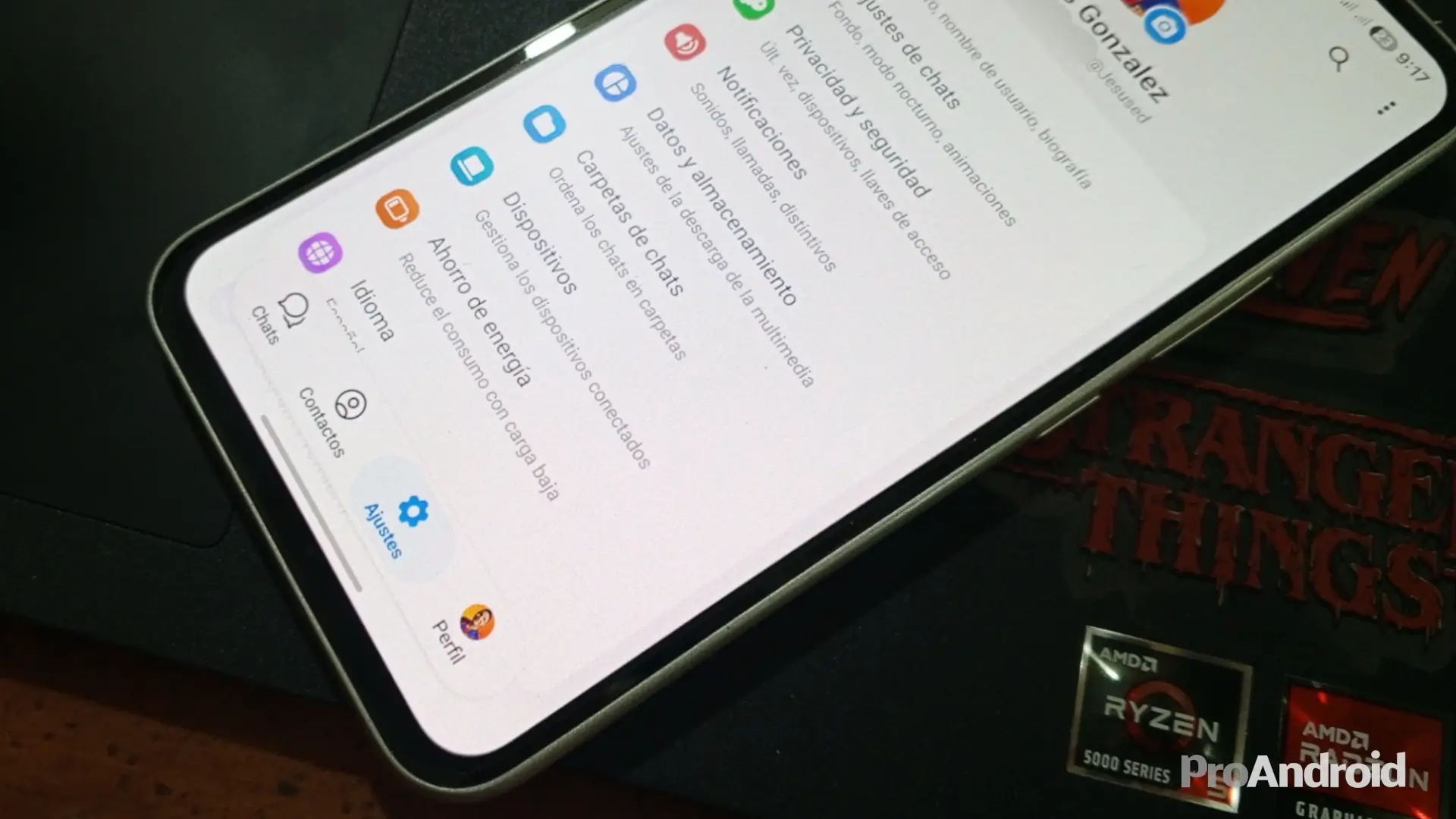

If you've ever thought that Telegram is just “that other app” you use when WhatsApp goes down, get ready to change your mind. While the competition focuses on being a messaging tool, Telegram has quietly evolved into a hybrid platform: half social network, half productivity and file management tool.
The amount of options you have hidden under the hood is overwhelming. Many times, we use the application for years without knowing that we had the solution to everyday problems just a click away, such as transferring photos to the computer without losing quality or translating texts instantly. I have compiled and thoroughly tested 20 functions—from the essential ones to the most unknown ones—so that you stop using 10% of the app and start making the most of 100%.
1. Your unlimited personal cloud (Saved Messages)
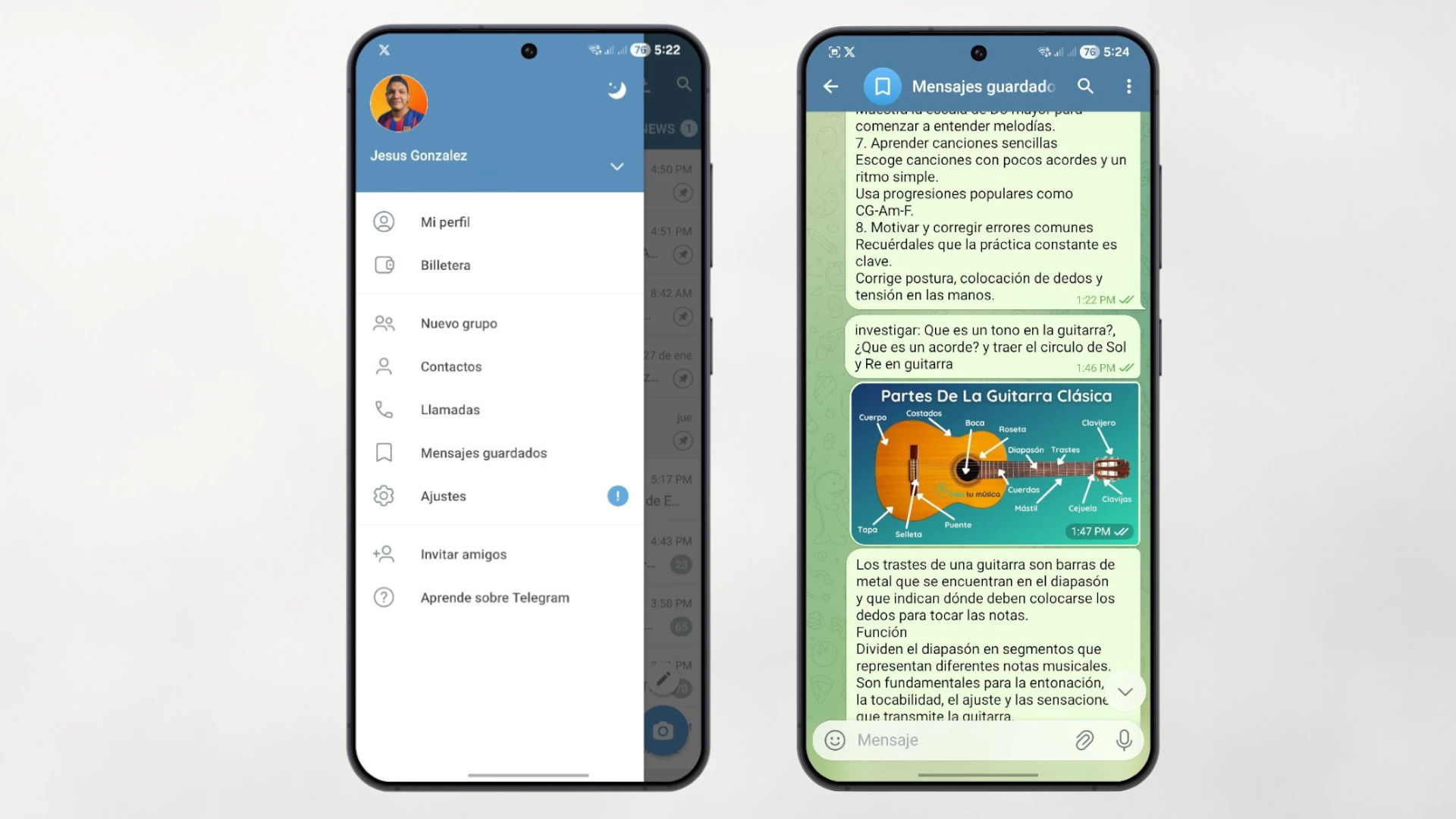
This is the reason why many never uninstall Telegram. The “Saved Messages” chat acts as a free and unlimited personal cloud in terms of the number of files. You can send photos, videos, documents or voice notes to have them accessible from any device (mobile, tablet or PC). The only limit is the size per individual file (2 GB in the free version, 4 GB in Premium), but you can upload as many as you want.
2. Send photos without compression (original quality)
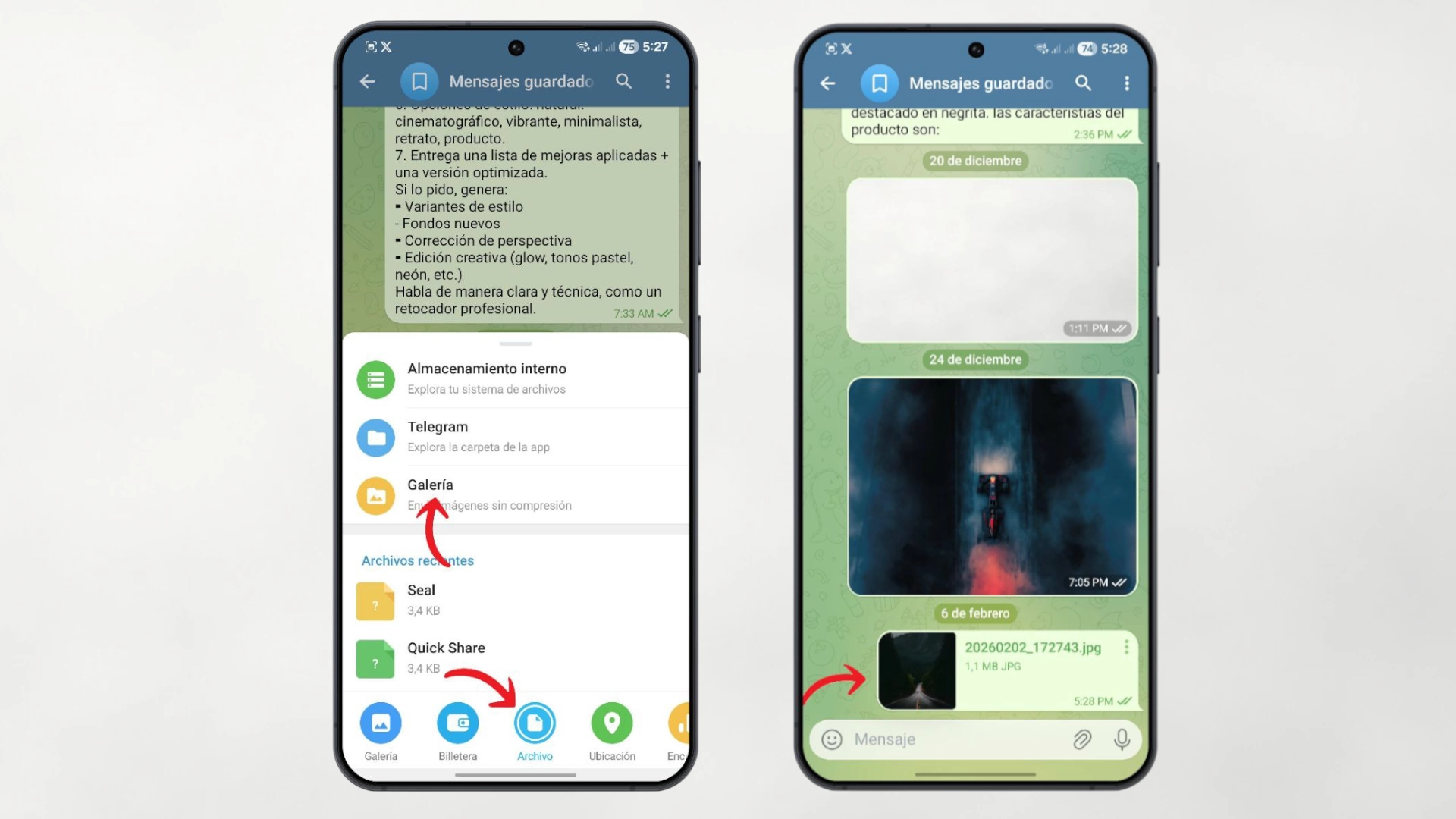
When you send a photo in the normal way, Telegram compresses it so that it weighs less and is sent quickly. But if you are a photographer or you need the other person to receive the image in detail to print it, there is a trick. When clicking on the clip to attach, do not select “Gallery.” Select “Archive” and then find the photo in your gallery. In this way, it will be sent as a data document, respecting the original size and quality pixel by pixel.
3. Advanced editing and multimedia replacement
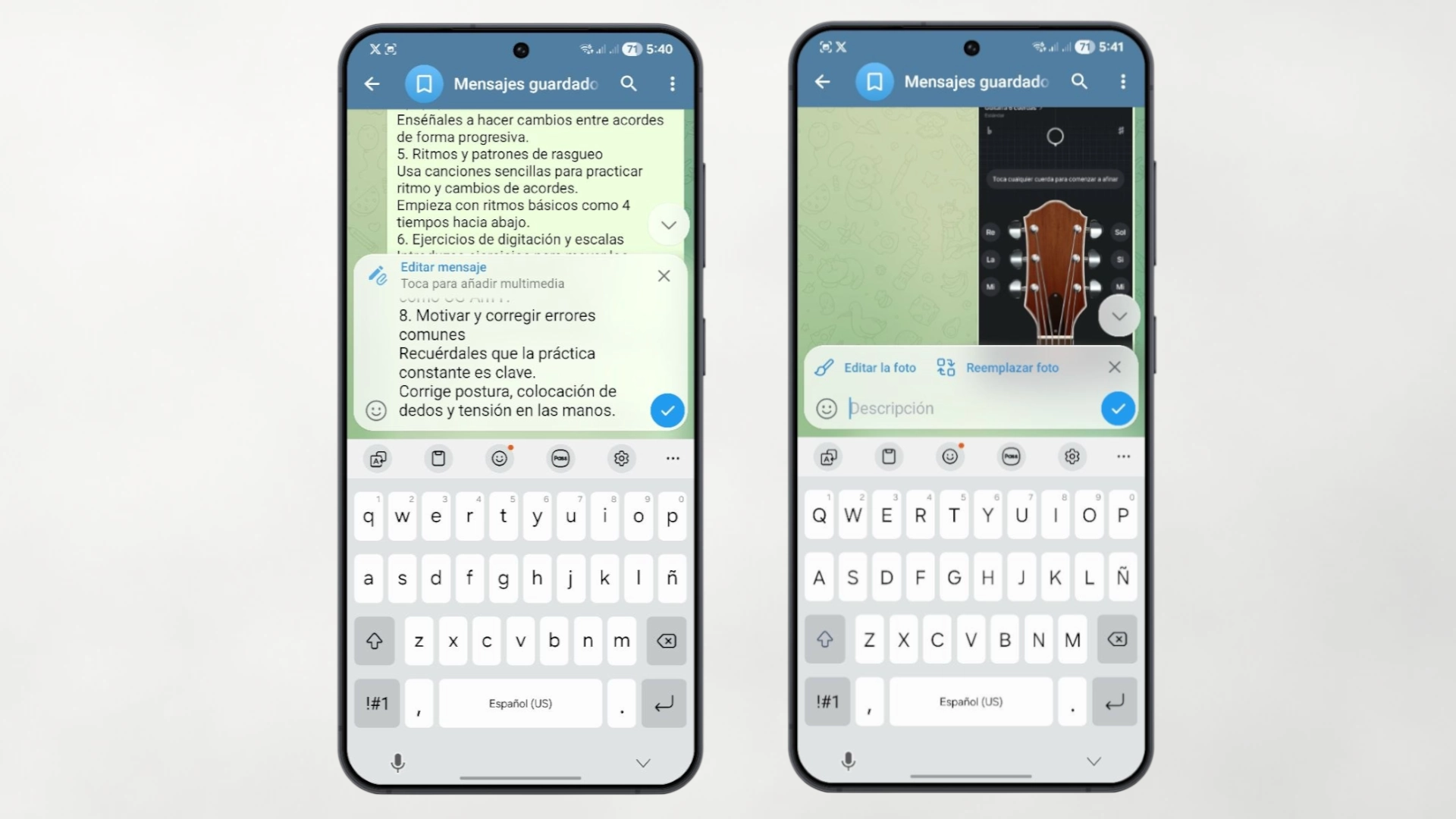
We all make mistakes when typing, but Telegram allows you to fix them elegantly. If you touch and hold a sent message, you can click “Edit”. The cool thing is not only correcting the text, but if you sent the wrong photo, you can also replace the media file without having to delete the message and type it all over again. Only a discreet “edited” label will appear in the chat history.
4. Scheduled messages
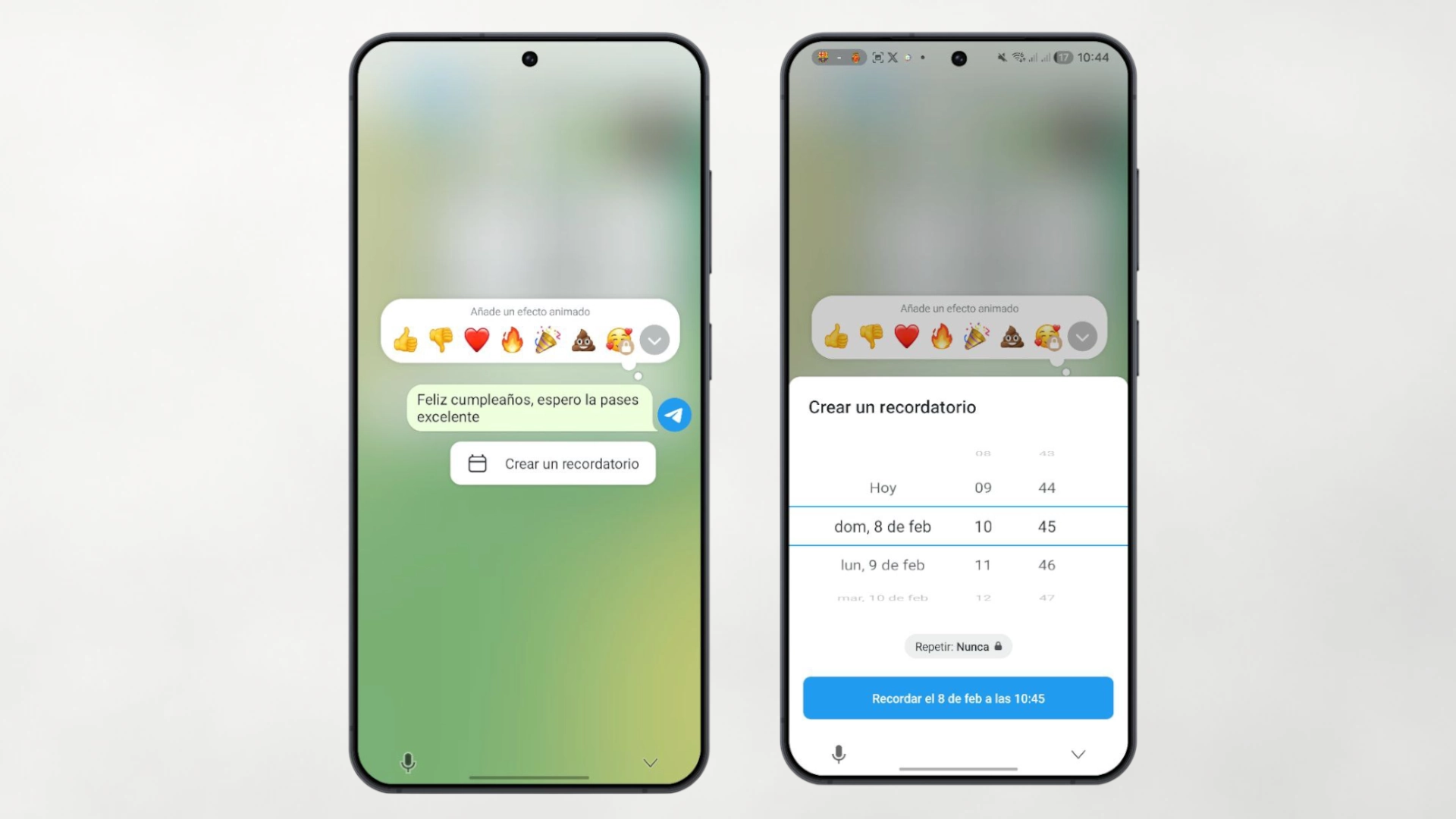
Ideal for night owls or working with teams in other time zones. If you hold down the send button (the little blue arrow), you will see two options:
5. Organize your life with Folders
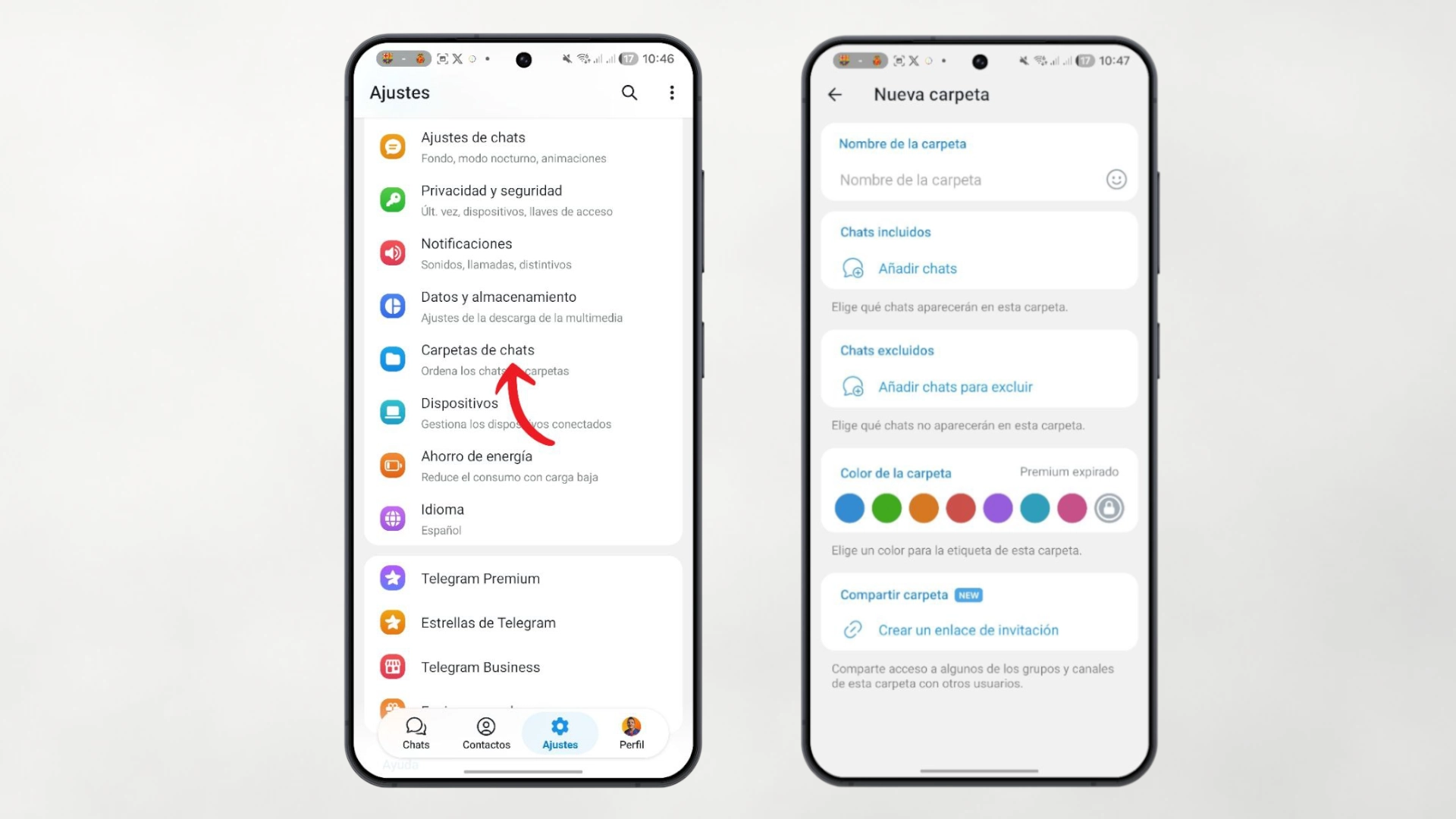
If you follow a lot of news channels, have friend groups and work chats, your home screen can be a mess. Go to Settings > Chat folders and create separate tabs. You can have one tab that is just “Work,” another “News,” and another “Family.” This way, when you go to work, you just look at that tab and avoid distractions.
6. Total privacy: Hide your number
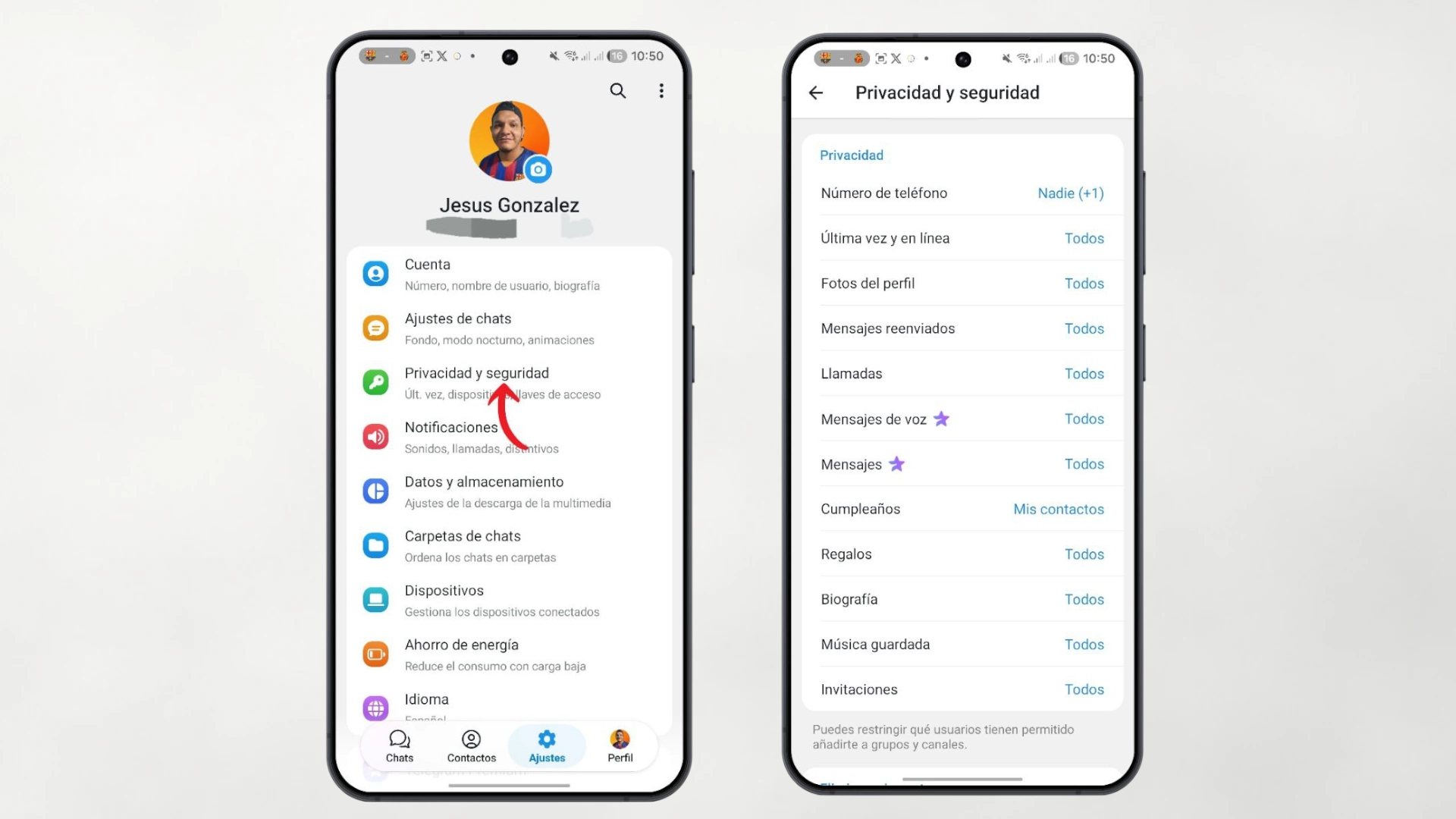
Unlike other apps, here your identity does not have to be linked to your public phone number. You can create a User name (alias) in the settings. If you give that alias to someone, they will be able to talk to you without ever seeing your number. Additionally, in the privacy settings you can configure who sees your last connection, your photo or even prevent them from finding your account by your number.
7. “Spoiler” format to avoid ruining surprises
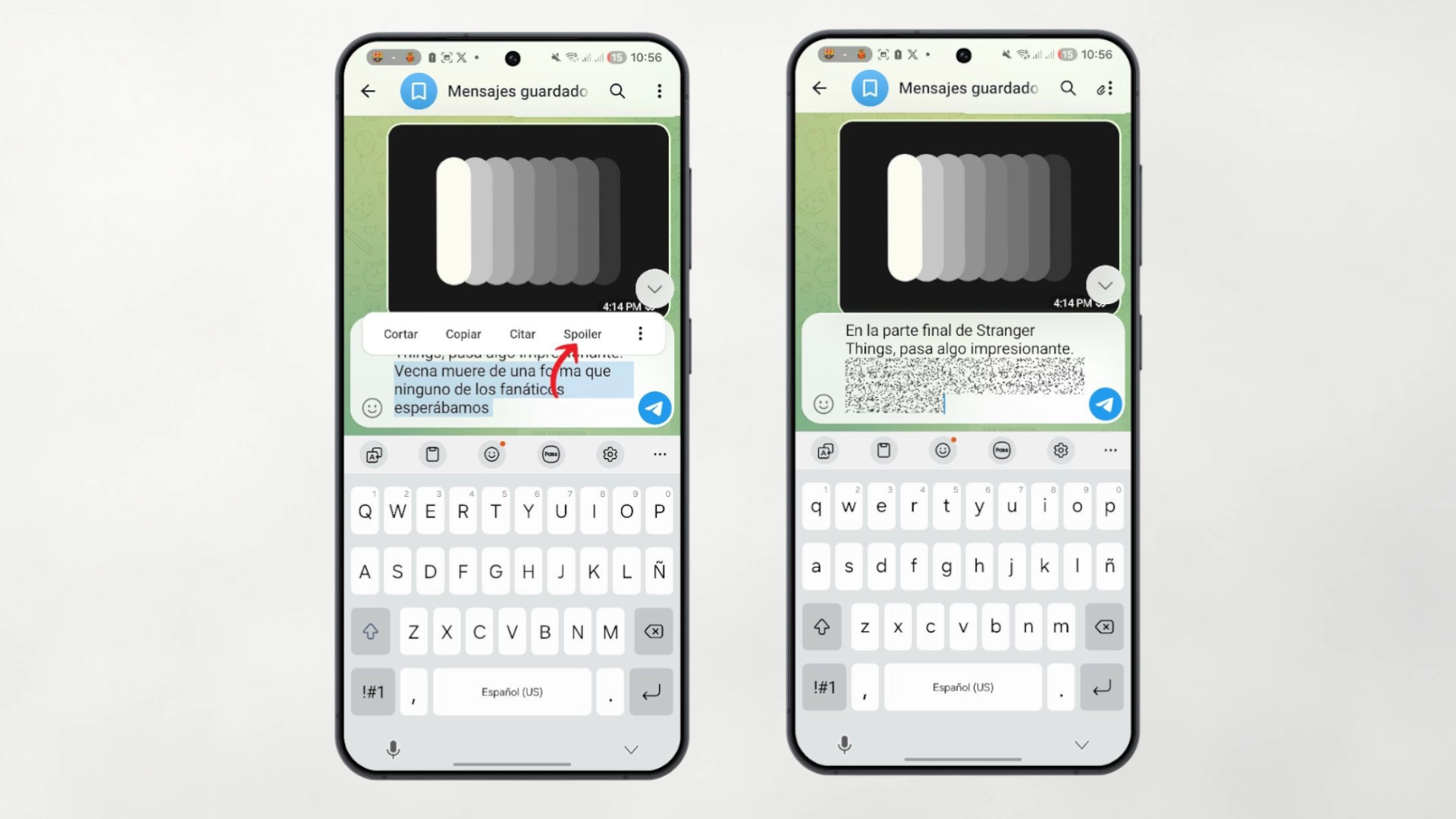
You're talking about the latest trendy movie in a group and you want to comment on the ending without annoying those who haven't seen it. Type the text, select it before sending and, in the format menu (where the bold is), choose “Spoiler”. The text will be sent covered by a cloud of animated pixels and will only be revealed if the user voluntarily touches it.
8. Translation integrated into the chat
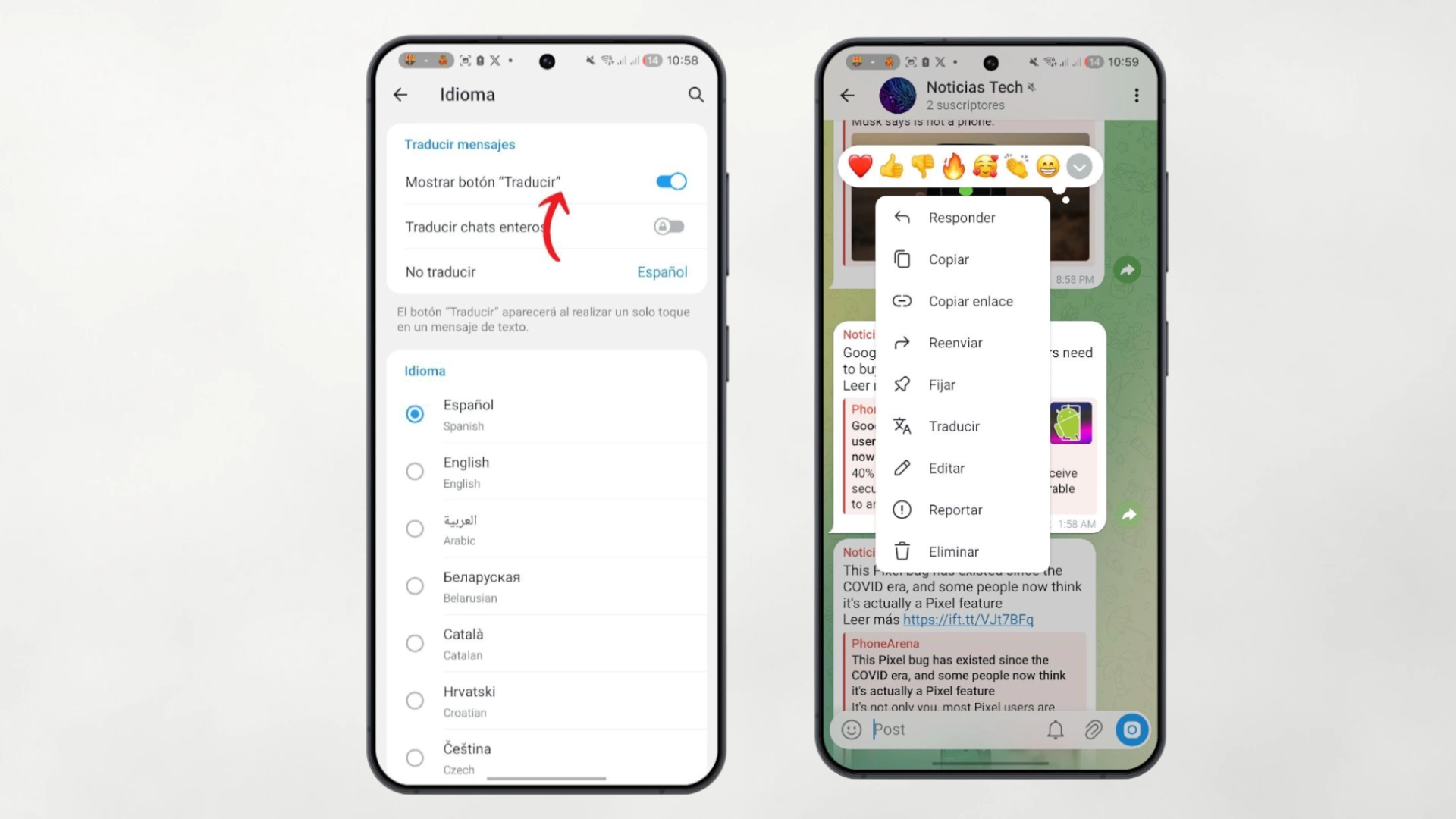
If you like to follow technology or international news channels that publish in English or other languages, this is vital. Activate the translation in Settings > Language. Now, when you touch any message in another language, the button will appear “Translate” and you will see the text in Spanish superimposed. It's incredibly fast and avoids having to copy and paste into Google Translate.
9. Video Notes (Video Messages)
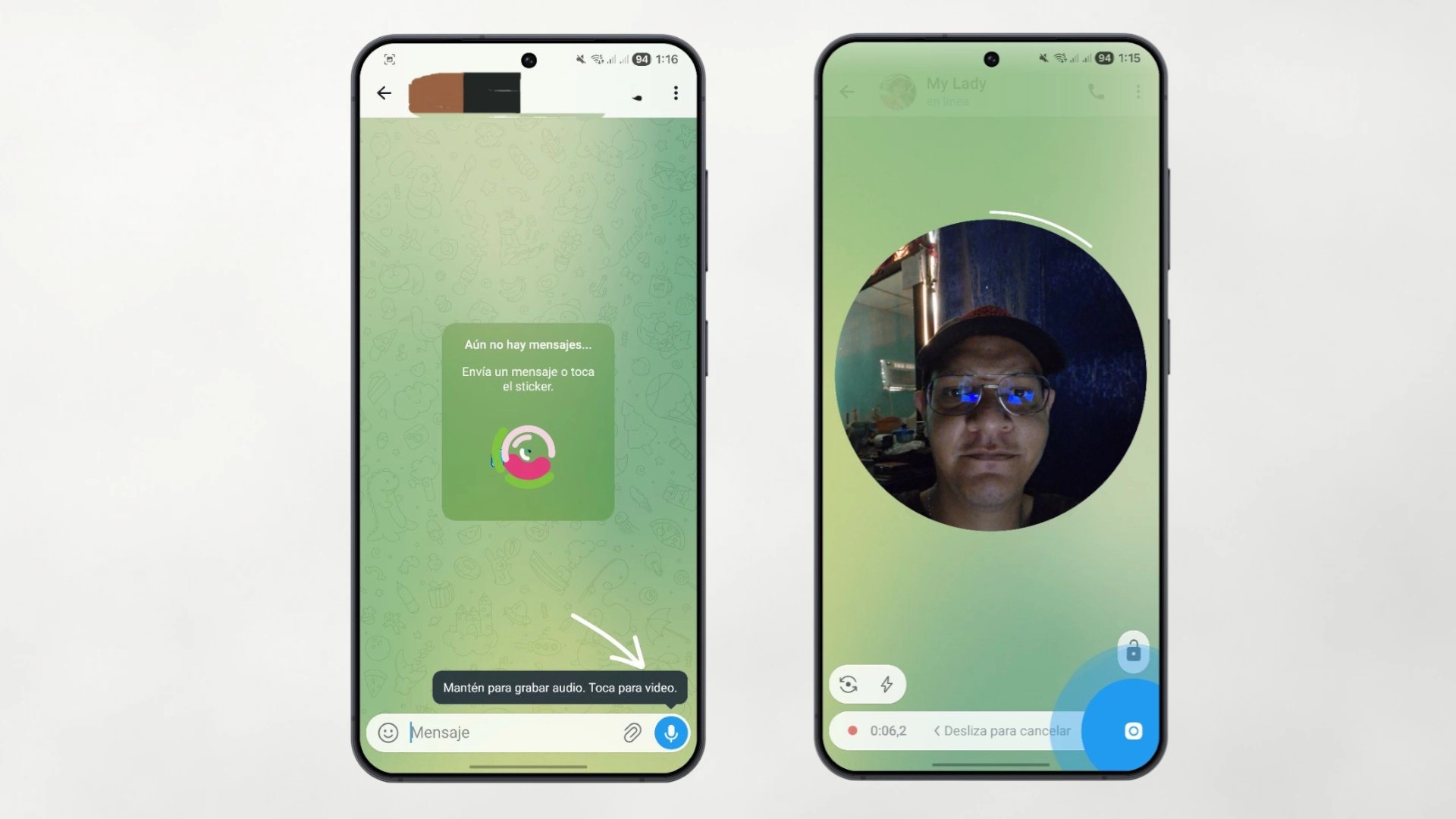
Sometimes a voice note falls short and a video call is too invasive. If you tap the microphone icon (bottom right) once, it will change to a camera. Press and hold to record a circular video of up to one minute. It is a much closer and personal format, perfect for quick reactions.
10. Search by calendar
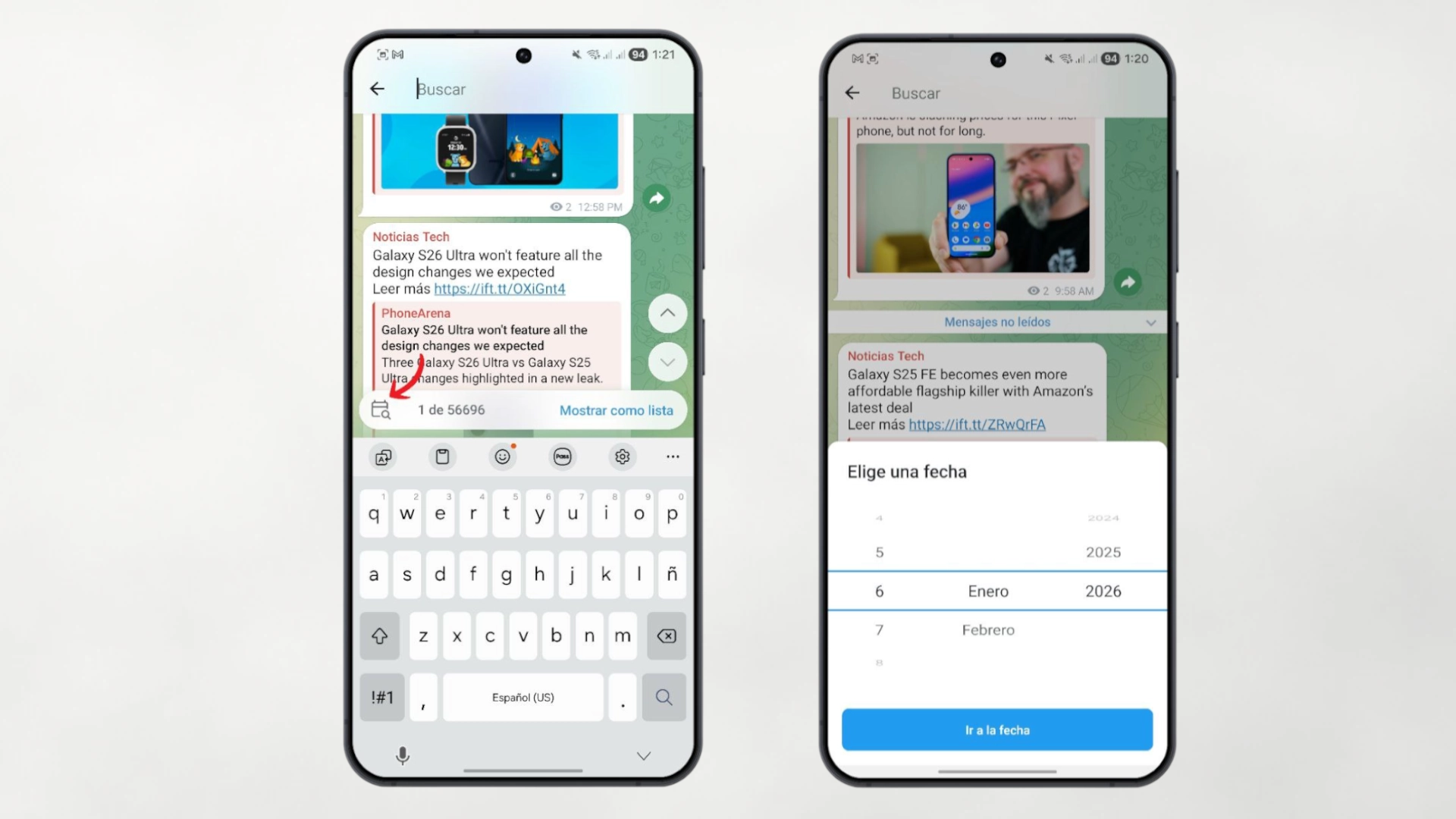
Do you remember that you sent an important photo “last month” but you are too lazy to do it? scroll infinite? Inside a chat, tap the floating date as you swipe, or go to search and tap the calendar icon. A calendar view will open where you can see which days messages were sent. It is the most visual and fastest way to travel to the past in a conversation.
11. Secret Chats and self-destruction
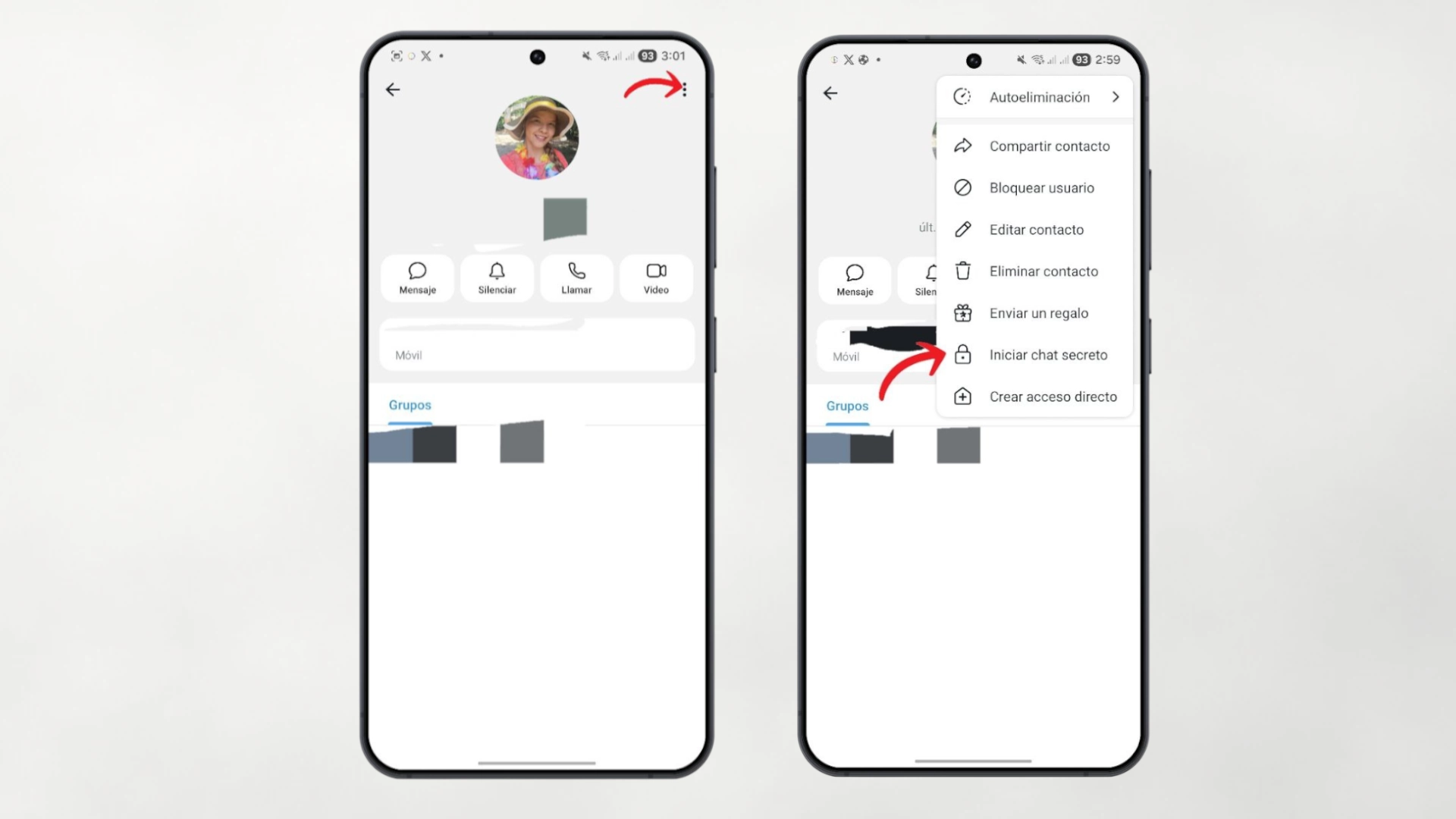
Although normal Telegram chats are secure (server-client encrypted), Secret Chats They offer end-to-end encryption (they can only be read on the device where they were launched, not in the cloud). To do this, you must click on the chat profile image, then in the upper right corner touch the “More options” option and “Start a secret chat”. Additionally, in these chats you can configure self-destruction: messages that are automatically deleted seconds after being read and that notify you if someone takes a screenshot.
12. Cross-platform drafts
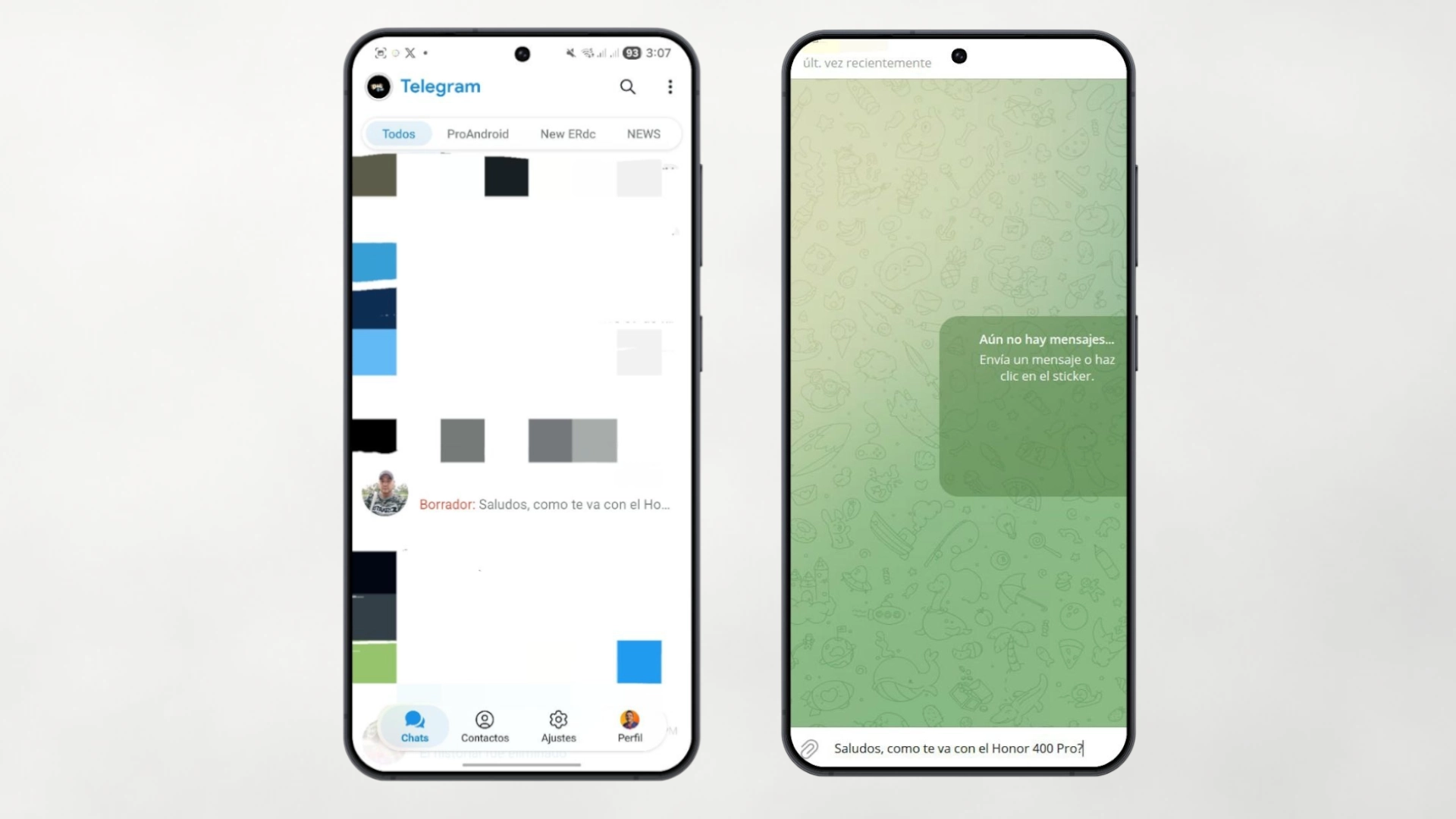
This is one of those silent productivity features that you love. You start writing a long message on your phone, they interrupt you and you close the app. When you get home and open Telegram on your computer, you will see that the text you left halfway is there, in the writing box, waiting for you to finish and send. The timing is impeccable.
13. Real-time location
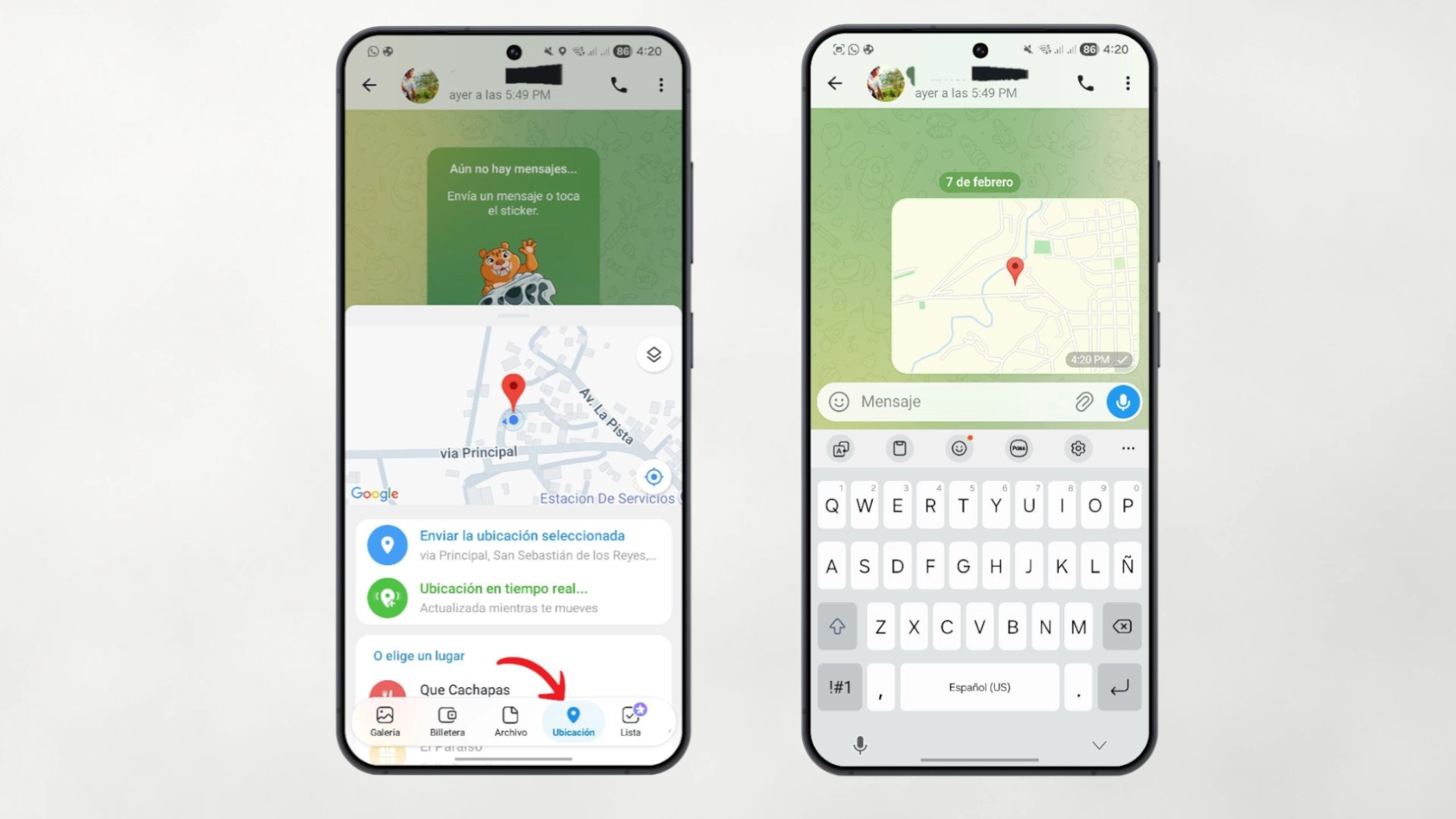
Static location sharing is fine, but real-time sharing is better for meetups. The interesting thing in Telegram is that you can set up a proximity alert. If you share your location with a friend, you can activate an option for your phone to automatically notify you when your friend is within 500 meters (or whatever distance you choose). No more asking “where are you coming from?”
14. Avoid forwarding your content
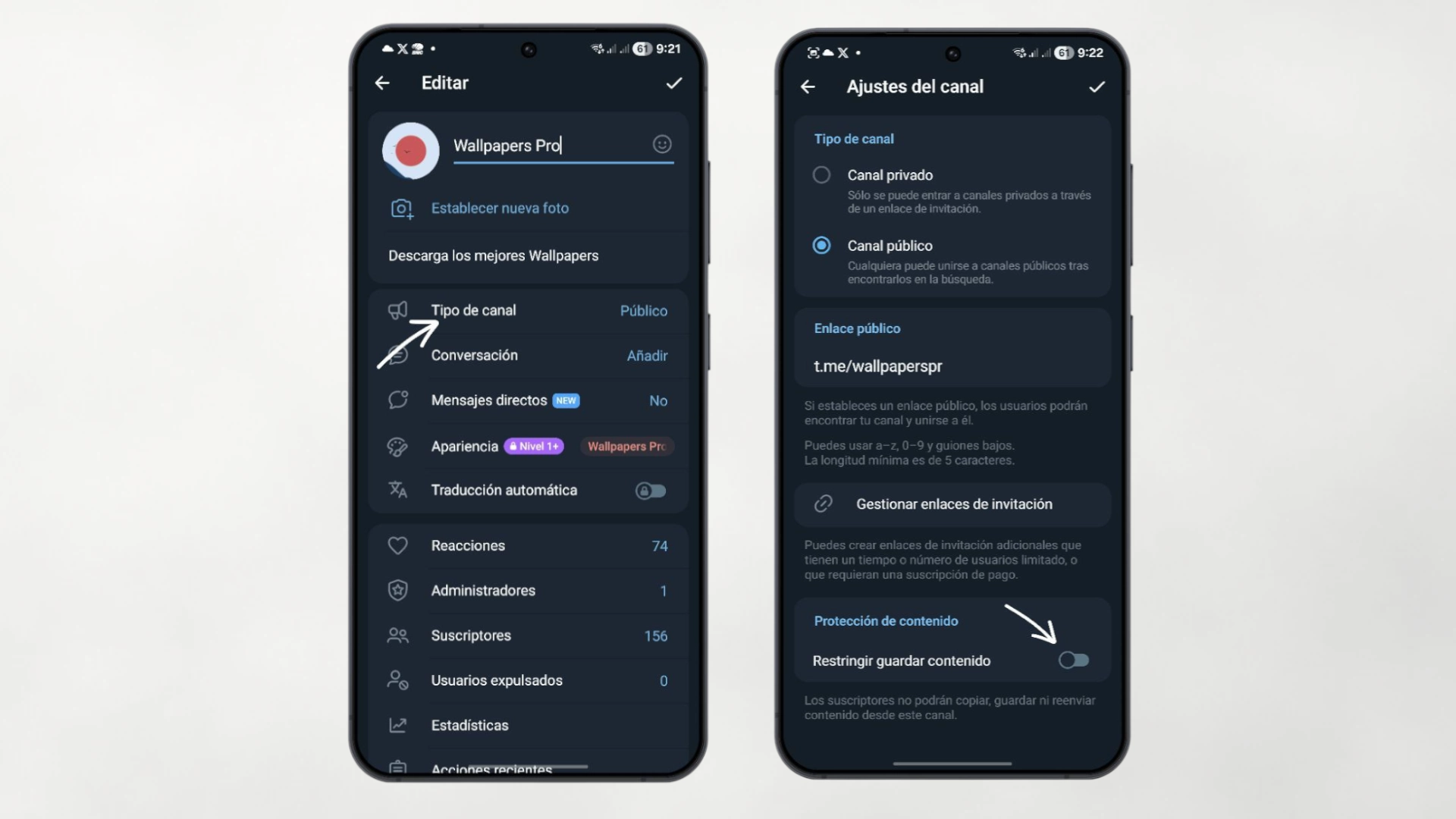
If you manage a channel or group where you share exclusive or sensitive content, you can protect it. In the group or channel settings, activate the option «Restrict saving content». This prevents members from forwarding your messages to other chats and blocks the ability to take screenshots or save photos to your phone gallery.
15. Multiple accounts in a single app
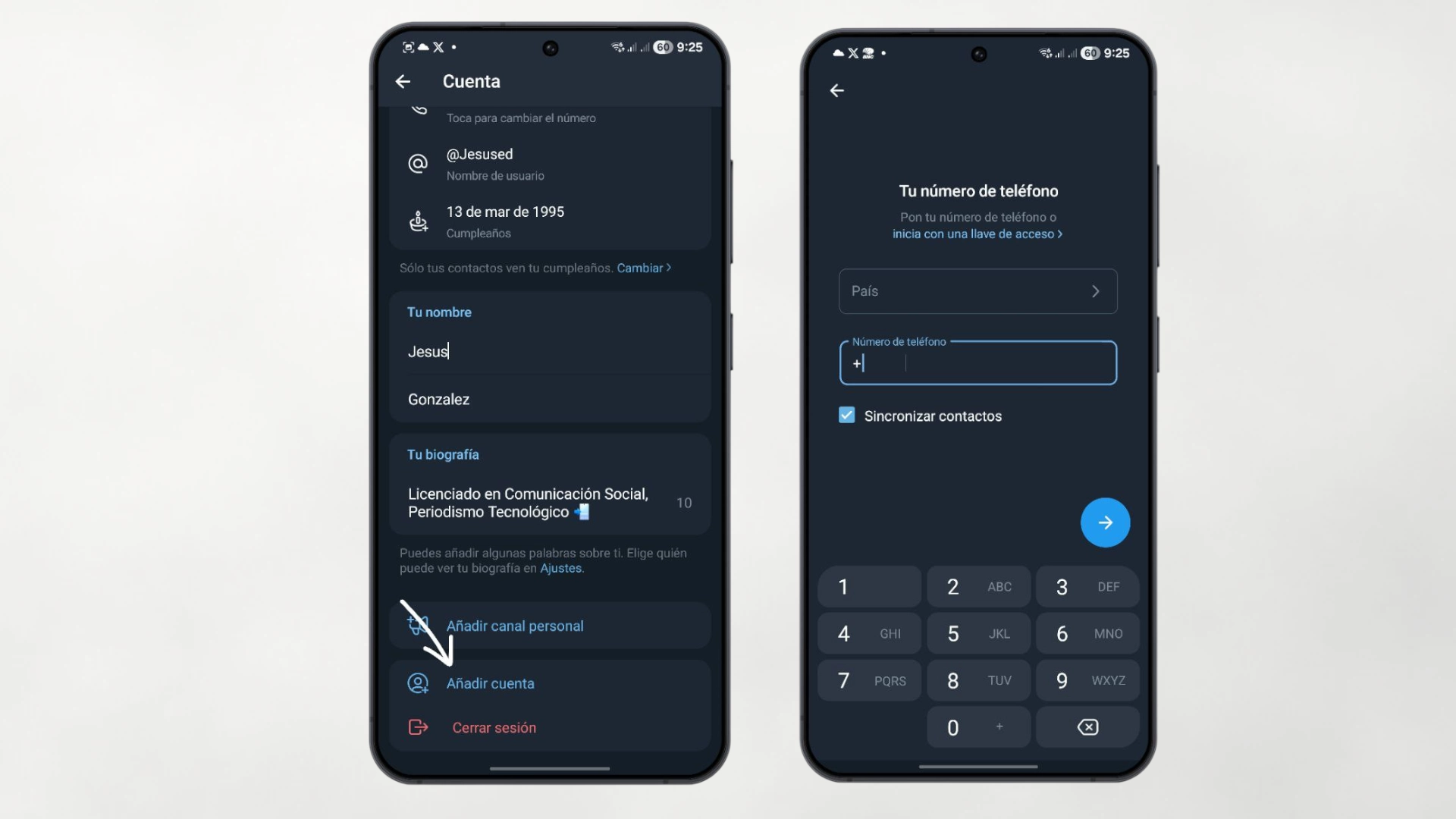
If you have a personal number and a work number, you don't need two phones or clone applications. Telegram allows you to have several accounts logged in at the same time in the same application. You display the side menu, add the new account and you can switch between them with a touch, receiving notifications from both (or silencing the one that doesn't interest you at that moment).
16. Advanced cache management
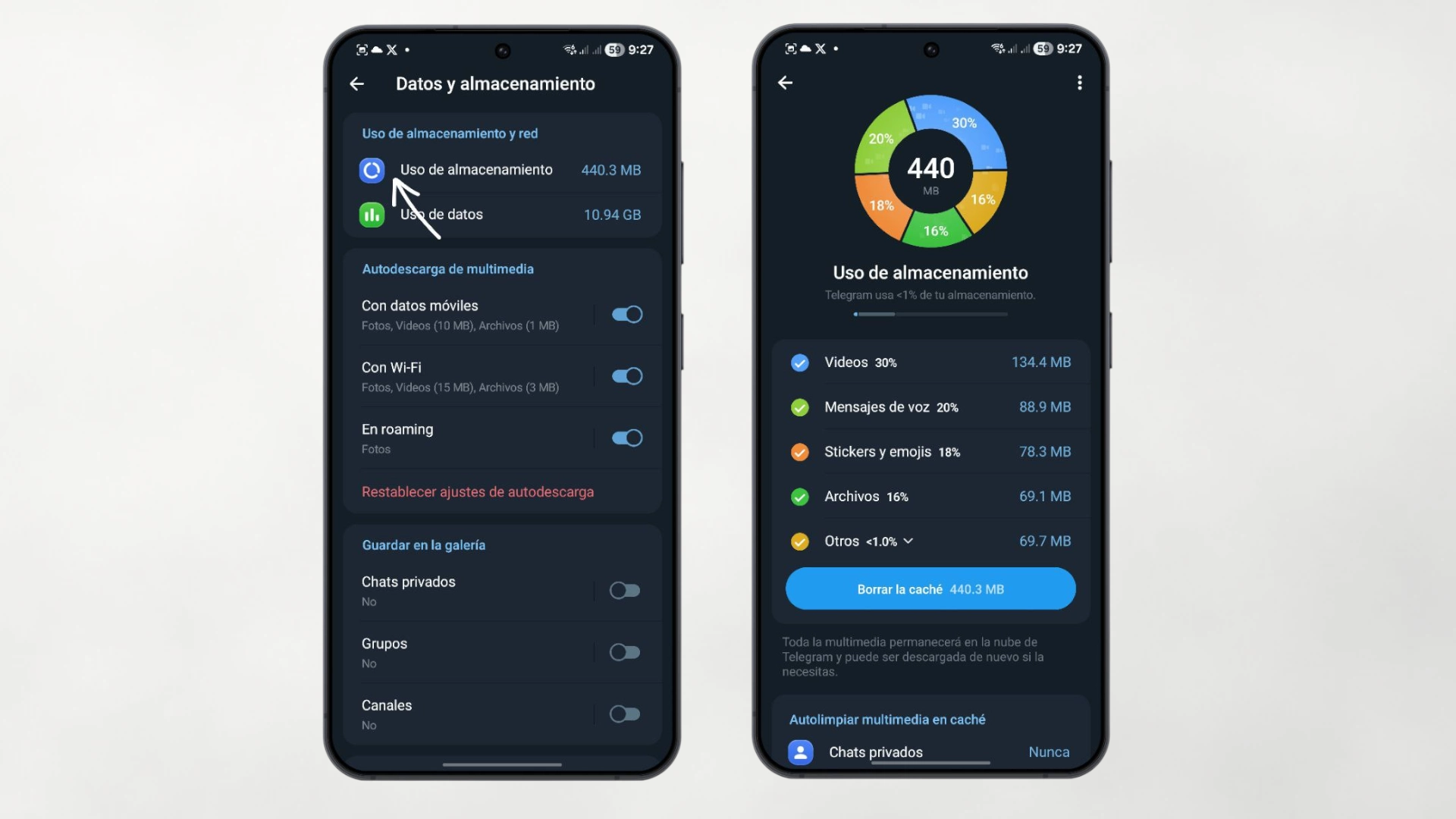
Telegram can take up a lot of space if you receive a lot of videos, but it has the best cleaning system on the market. In Data and storage > Storage usageyou can set the app to automatically delete files that you haven't looked at in 3 days, a week, or a month. Remember: when they are deleted from the cache they are not lost forever; They are still in the cloud and you can download them again whenever you want.
17. Interactive emojis and quick reactions
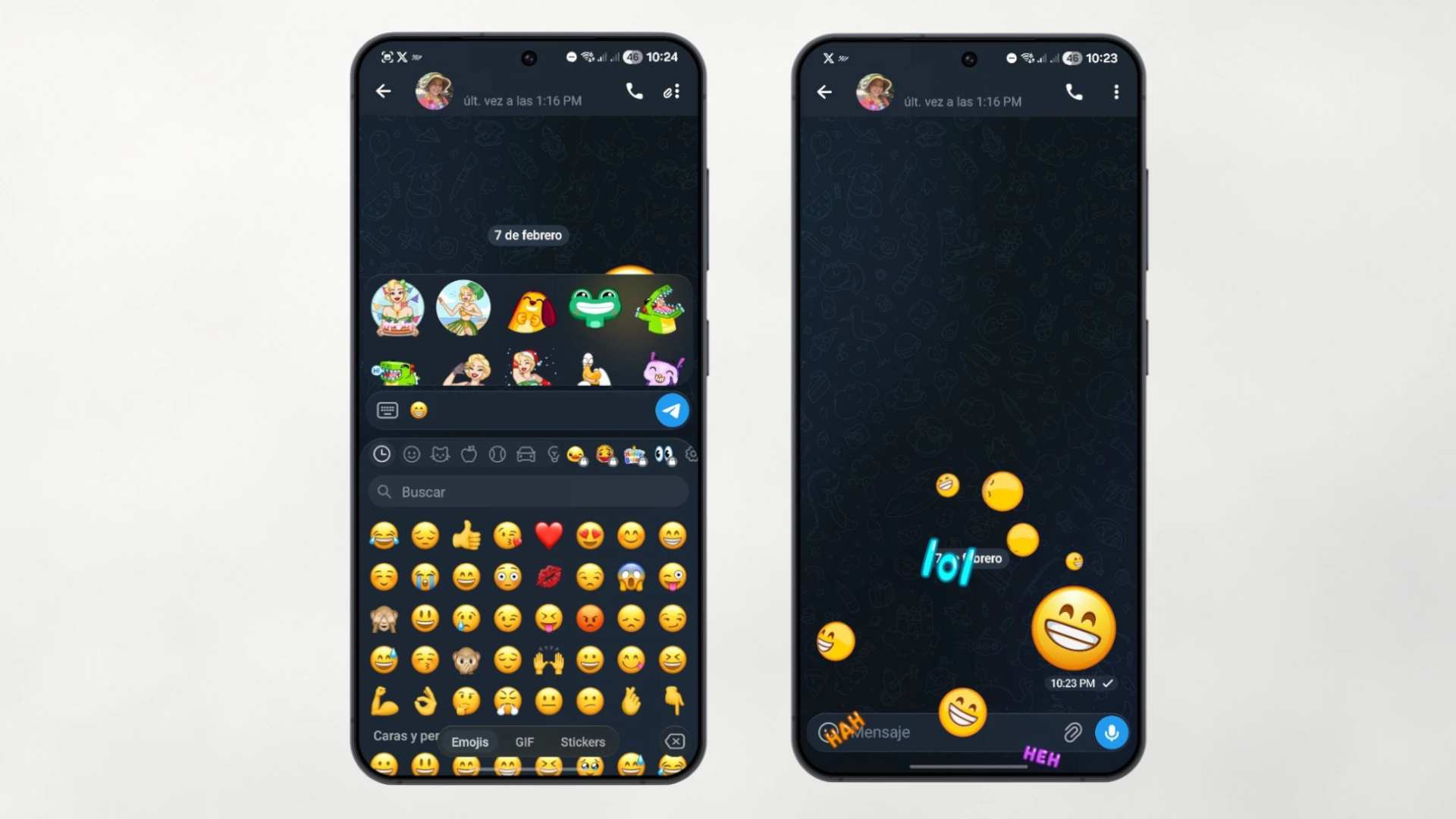
To make conversations more dynamic, if you send a single emoji (without text) of the classic ones (heart, fire, crying face, etc.), touching it displays a full-screen animation with synchronized vibration. Additionally, you can set up “double tap” on a message to send a quick reaction (like a thumbs up) without having to open the emoji menu.
18. Bots for everything
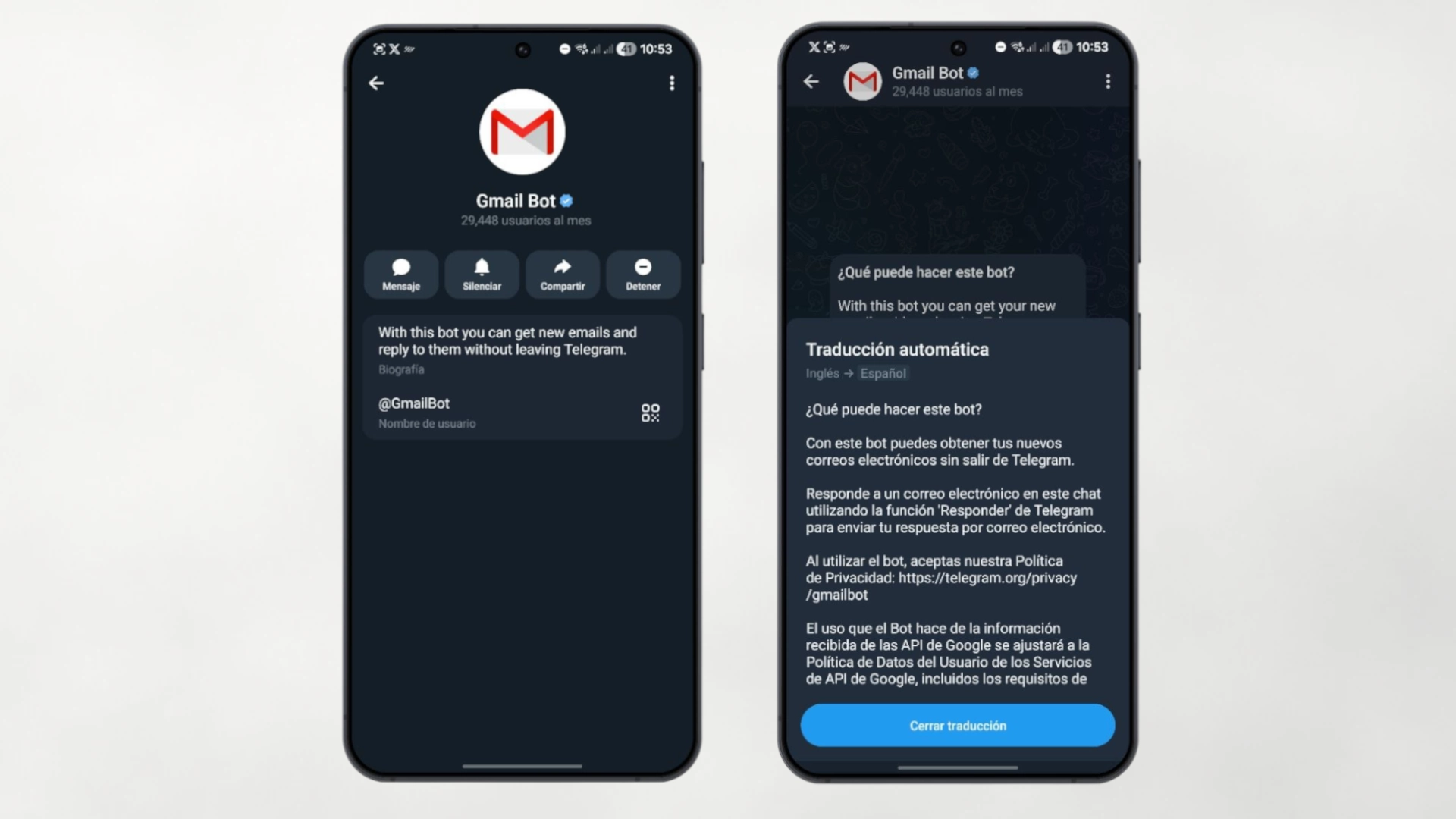
Bots on Telegram are like mini-apps. There are bots to convert format files, to download videos from social networks, to play trivia in groups, or to manage your email (Gmail Bot). Use the global search engine to find tools that automate tasks that previously took you a long time.
19. Extreme Customization (Themes)
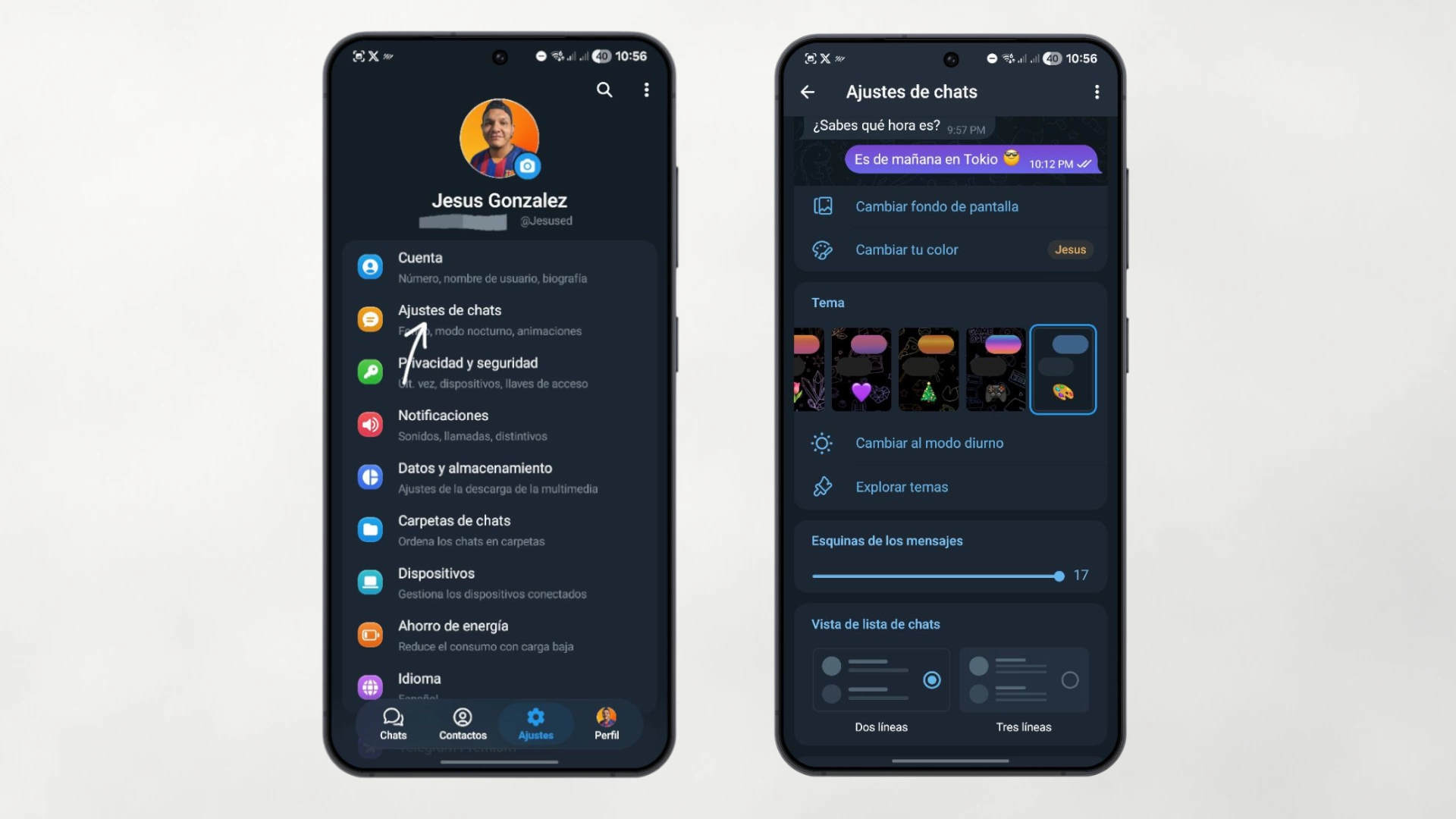
Finally, make the app yours. In the chat settings you can change the background, but also the complete color scheme of the application, the font size and even the app icon that appears in the menu of your mobile. You can even create your own theme from scratch and share it with friends via a link.
20. Surgical precision answers (Cite part of the text)
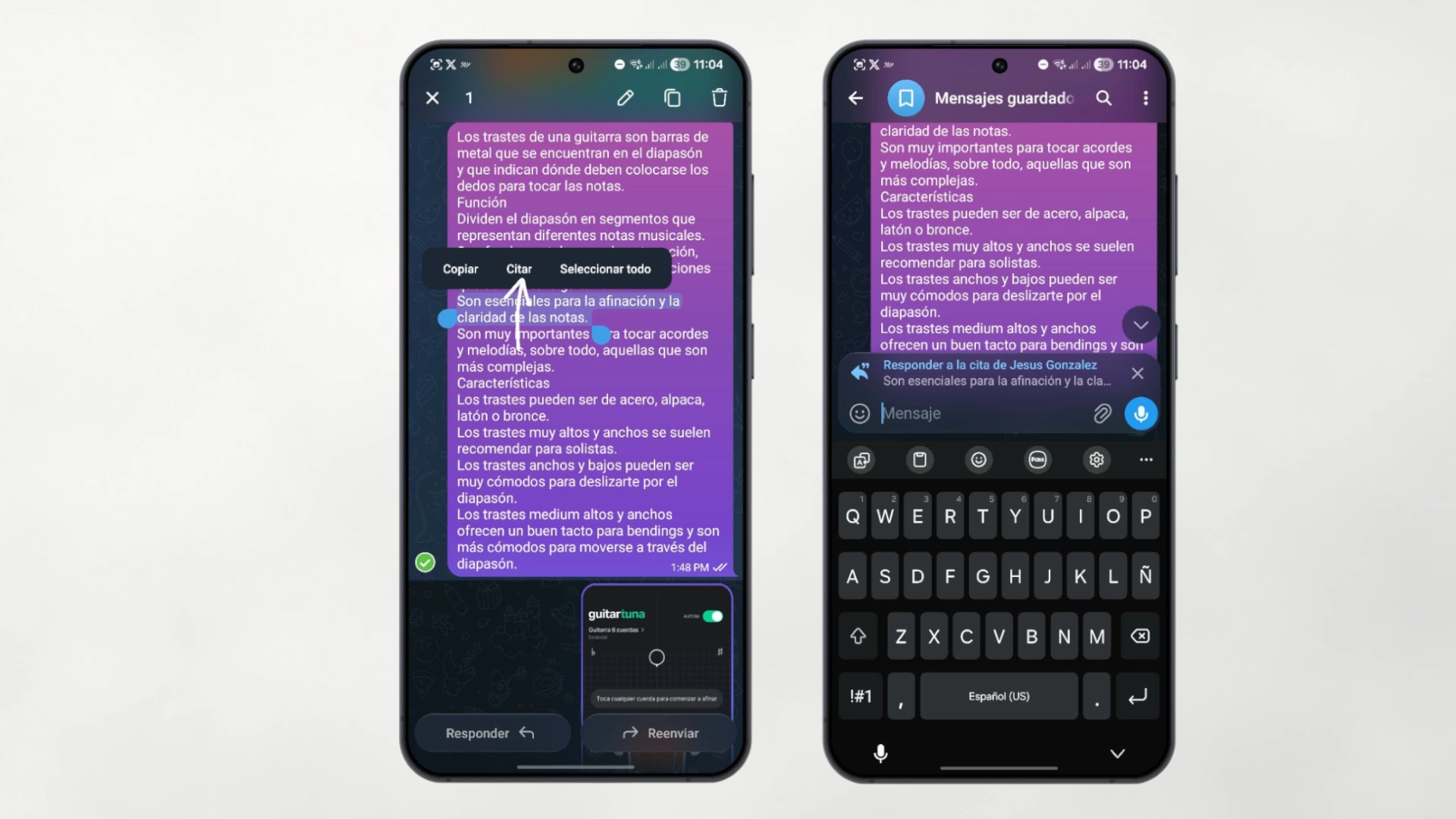
It has happened to all of us: someone sends us a three-paragraph “will” and we want to respond only to a specific phrase in the middle. Instead of responding to the generic message, in Telegram you can select with your finger only the fragment of text that interests you within the chat bubble. When you release, the option will appear “Cite”. Your response will be linked specifically to that phrase. It is a vital function for maintaining order in long discussions.
Telegram demonstrates with these 20 points that the barrier between a messaging application and a communication operating system is increasingly blurred. My recommendation is that you don't try to memorize them all today; Start using the “Saved Messages” and folders, and gradually add the rest. You will see how your digital productivity improves significantly.