





If it’s your first time using Apple Music, or you’ve simply never created one, today we’re going to see what playlists are, and how we can make one in a simple way, ideal for a car trip, a party with friends, and a thousand other situations, where we want to have it ready before that moment.
This method will work for the Music app on iPhones, Macs, iPads, etc., that is, the native Apple app, and will have nothing to do with Spotify or other apps, since each has its own system, and, at least as of today, they are not collaborative, so you will have to do it in the one you want to have it.
What are Apple Music Playlists?
Playlists on Apple Music are basically lists of songs that you choose and organize to your liking. You can create one for working out, one for relaxing, one with your favorite classics, or one with your latest discoveries. The great thing is that you can not only create your own playlists, but also follow playlists created by Apple or other users, with recommended music based on your tastes, as well as organize one with friends for a vacation or a road trip, as we mentioned.
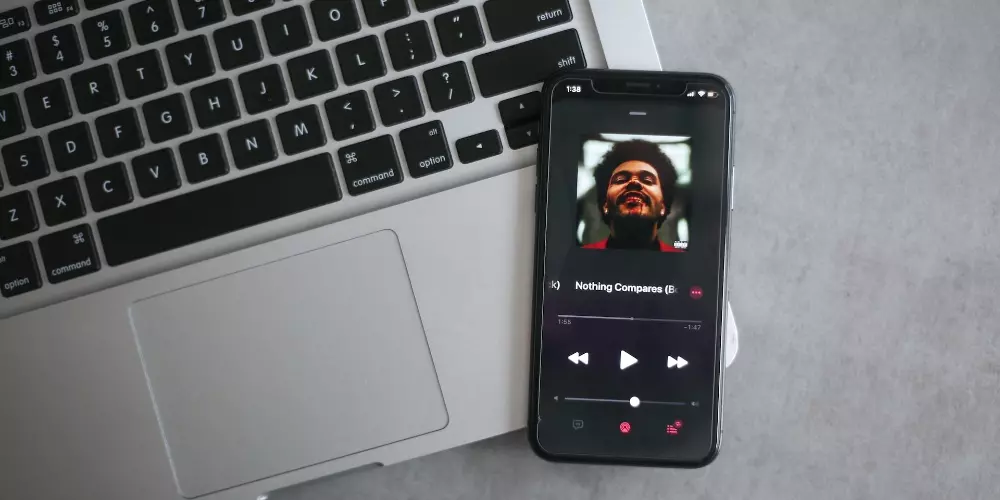
How to create a playlist step by step
To create a playlist or add songs to it, we’ll have to follow a few very simple steps, which will depend on whether we are using an iPhone, iPad, or Mac. However, everything you do on any of the devices will be reflected on the others, as long as you use the same Apple ID account.
From iPhone or iPad:
- Open the Apple Music app as usual.
- Find a song you like or want to save for later.
- Hold your finger down on the song until a menu appears.
- Tap the option that says “Add to a playlist. ”
- If you already have playlists created, you can choose one. If not, tap “New Playlist. “
- Enter any name you want for your playlist. You can also add an image or a short description if you’d like.
- Click “OK” or “Done,” and your playlist is now created.
- Every time you want to add another song, just repeat the process and choose that same playlist.
From Mac or PC:
- Open the Apple Music app. If you’re on Windows, it’ll be iTunes.
- At the top of the menu, click “File,” then “New,” and select “Playlist. ”
- A new blank list will be created in the sidebar. Give it a name.
- Search for songs and drag them directly into that list.
- You can put the songs in any order you like by simply dragging them up or down.
Create a collaborative playlist
While Apple Music didn’t allow this in the past, it’s been possible again for several versions now. You’ll be able to add and remove songs from a playlist along with the people you invite, as everyone will see the playlist and can edit the songs.
- Open the Apple Music app.
- Go to your library and enter a playlist that you created.
- Tap the more options button (the three dots).
- Select “Collaborate”.
- Activate the “Allow collaboration” option.
- You can choose to share the playlist via link or QR code with the people you want to invite.
- Guests will be able to add, remove, and rearrange songs (and see who added what).
Remember that all users must have an Apple account, regardless of whether they use an iPhone or not, and they only create one to contribute to the list. Without that ID, they won’t be able to do anything.
Frequently Asked Questions
We’ll analyze the most frequently asked questions you might have right now. If there’s anything missing, please leave a comment and we’ll try to add it.
- Can I make my existing playlists collaborative? Yes, you don’t need to start from scratch. Just go to your playlist, tap the three dots, and activate the collaboration option. Done, you’re ready to share.
- Can I see who added each song to a collaborative playlist? Yes, Apple Music shows you the name (and sometimes the photo) of the person who added each song. This way, you know who shared what.
- Can I delete songs that someone else added? Yes, everyone who contributes can remove songs, no matter who added them, so there won’t be an administrator, just everyone.
- Is there a limit to the number of people in a collaborative playlist ? There’s no exact number; it works well with several friends, and while Apple hasn’t given a number, we should keep in mind that too many people could cause quite a mess, so we don’t recommend more than 5 or 10.