


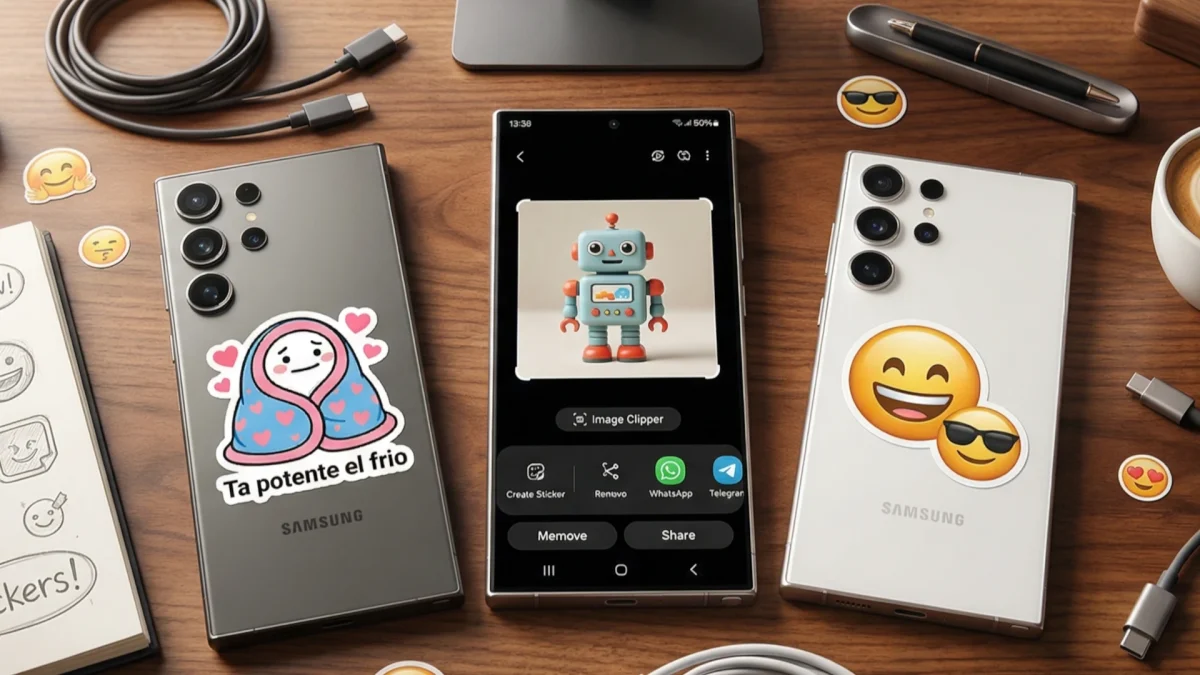

If you have a Samsung Galaxy with relatively recent One UI, you've probably been making old-fashioned stickers for a while: looking for packs on the internetinstalling third-party apps, cropping images by hand… when in reality your phone can already do all that on its own. In fact, you have two different ways to do it, and neither requires installing anything at all.
I'll explain how they both work.
Method 1: Turn any photo into a sticker from Gallery
This is the most intuitive option and the one that surprises the most when you discover it for the first time. The idea is simple: you open a photo, click on the object you want to convert into a sticker, and Samsung's AI automatically crops it by removing the background.
The steps are as follows:
- Open the app Gallery and enter the photo you want to use.
- Press and hold on the object or person you want to crop (you have to hold it for a few seconds, until the screen stops flashing and the marked crop appears).
- A small menu will appear with several options. Click on «Save as sticker» (or “Save as sticker”, depending on the version of One UI you have).
- Ready. The sticker is saved on the Samsung keyboard.
The AI does a pretty decent job of cropping out the subject, especially with people, animals, or well-defined objects on a relatively clean background. It is not perfect with complex backgrounds, but in most cases the result is more than usable.
Important: Stickers created from the Gallery only appear if you have the native Samsung keyboard active. If you use Gboard or another third-party keyboard, you won't see them. Of course, in Spain the majority of Samsung users use the brand's keyboard without knowing it, because it is configured by default.
Method 2: Create stickers from scratch with generative AI on the keyboard
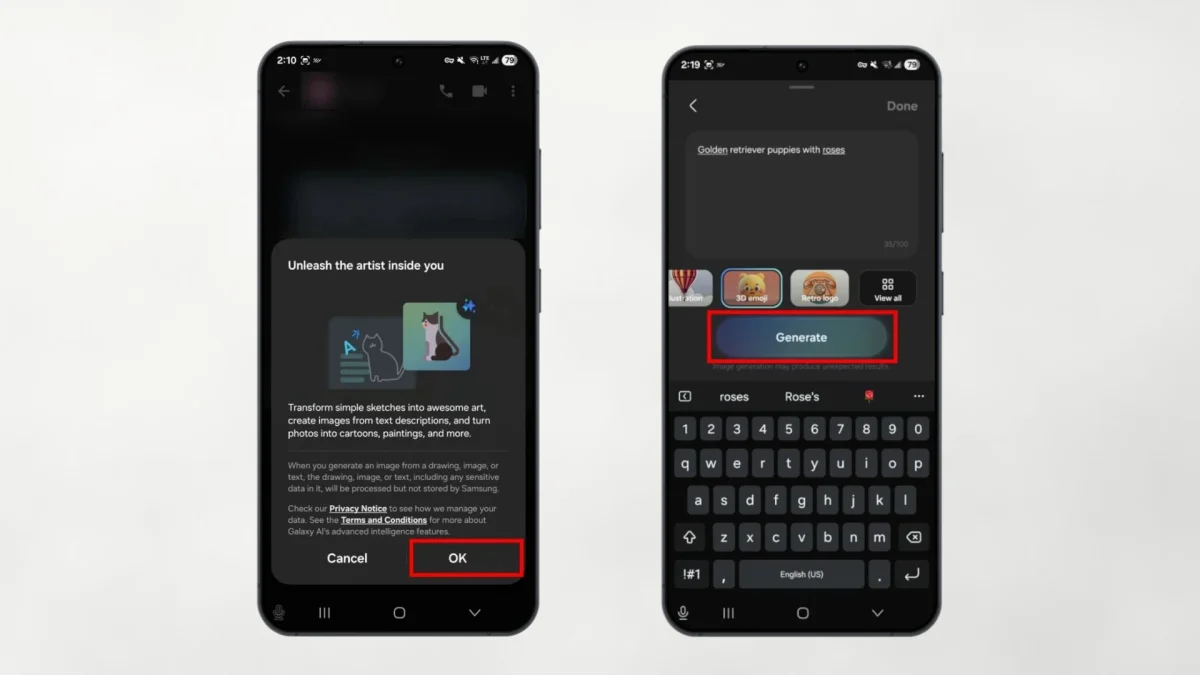
If what you want is to create a completely original sticker, without using any existing photos, Samsung has that solved too. This option lives in the own keyboard and uses Galaxy AI to generate the image from a text description.
To use it you need to have One UI 6.1 or higher and the Samsung keyboard active. Then:
- Open any app where you can write (WhatsApp, Telegram, whatever chat) so that the keyboard appears.
- Touch the emoji icon in the keyboard bar.
- Look for the option “Create” or the generative AI icon (usually a few stars or a wand).
- Write a description of what you want. For example: “dog with a cowboy hat” or “surprised cat with a colorful background.”
- Choose the visual style you prefer (there are illustration, pixel art, cartoon options…).
- Click on Create and wait a few seconds.
The AI generates several options for you to choose from. The sticker you select is sent directly in the chat and It is also saved on your keyboard to use whenever you want.
It is perhaps the most fun option, especially for groups where having something unique and personalized makes all the difference. Of course, it requires an internet connection because the processing is done in the cloud.
And on Telegram, what?
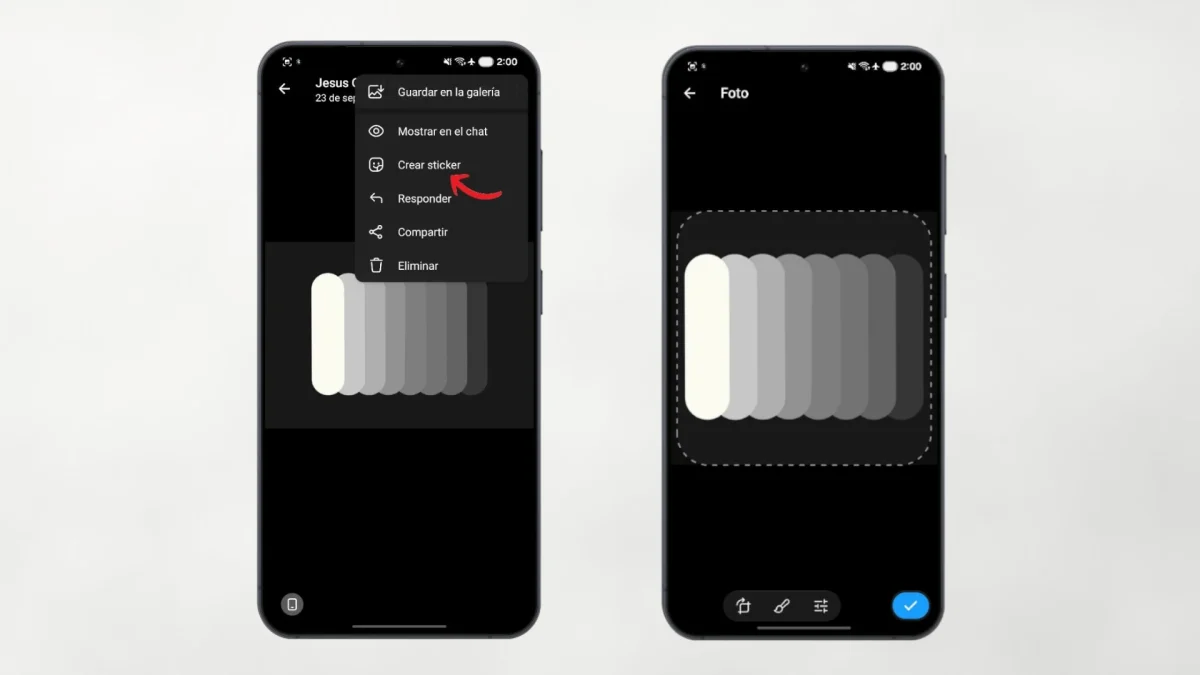
Telegram also has its own native tool for creating stickers, which is quite powerful. Since April 2024, the app includes an integrated editor that allows you to take any photo, crop the subject with a touch, add text, drawings, other animated stickers or emojis, and save the result as your own sticker or add it to a personalized pack.
To access it you just have to open the sticker panel from the writing field of any chat and press the button (+). From there you can create the sticker directly in the appwithout going anywhere else.
Once the sticker is created, you can group it into packs with your own name, share them with other users (each pack has its own t.me link) and even let your contacts add it to their own packs by just tapping on one of the stickers.
A detail that must be taken into account
Stickers created from Samsung Gallery or from the keyboard are saved in the system. keyboard stickersnot like regular image files. That means that when you send them via WhatsApp or Telegram, they are sent as full-fledged stickers, not as cropped photos. But if you change the default keyboard, you will no longer have access to them from the sticker tray.
If at any time you notice that the stickers you created have disappeared, the first thing you should check is precisely that setting: that the Samsung keyboard is still the default in the system settings.
In summary, both Samsung and Telegram have integrated these tools quite fluidly in the last two yearsand the result is that there is no longer an excuse to go around installing third-party applications for something that the mobile itself can do in less than a minute.
Oh, and since we are talking about mobile functions that many are unaware of: if your internet connection is slow when you use WhatsApp or Telegram from home, the problem may not be your rate but the WiFi configuration of the device itself. There are some settings in Android that limit background bandwidth or prioritize some apps over others, and they can make a noticeable difference.