




Slow WiFi on your mobile phone is one of those problems that makes anyone desperate, and the worst thing is that in most cases it has a solution without having to call the operator or buy anything new. You just need to know where to look. Here are seven adjustments and changes you can apply right now to notice the difference.
1. Check which band your mobile is connected to
Most modern routers broadcast on two frequencies: 2.4GHz and 5GHz. The problem is that mobile phones usually connect by default to 2.4 GHz because it has more range, although it is much slower and accumulates much more interference, especially if you live in a building with dozens of neighboring networks competing on the same spectrum.
If your cell phone and your router are relatively recent, it is most likely that they are both compatible with the 5 GHz band. This offers much higher speeds and much less congestion, although its range is more limited: it works well up to about 15 meters indoors and loses power if there are thick walls in the way.
The logic is simple: if you are close to the router, connect to the 5 GHz network and you will notice a clear jump in speed. If you move around the house and the router is far away, stick with the 2.4 GHz router to avoid losing coverage. And if you need the best of both worlds, some routers allow you to create two networks with different names so you can choose manually at any time.
2. Forget the network and reconnect
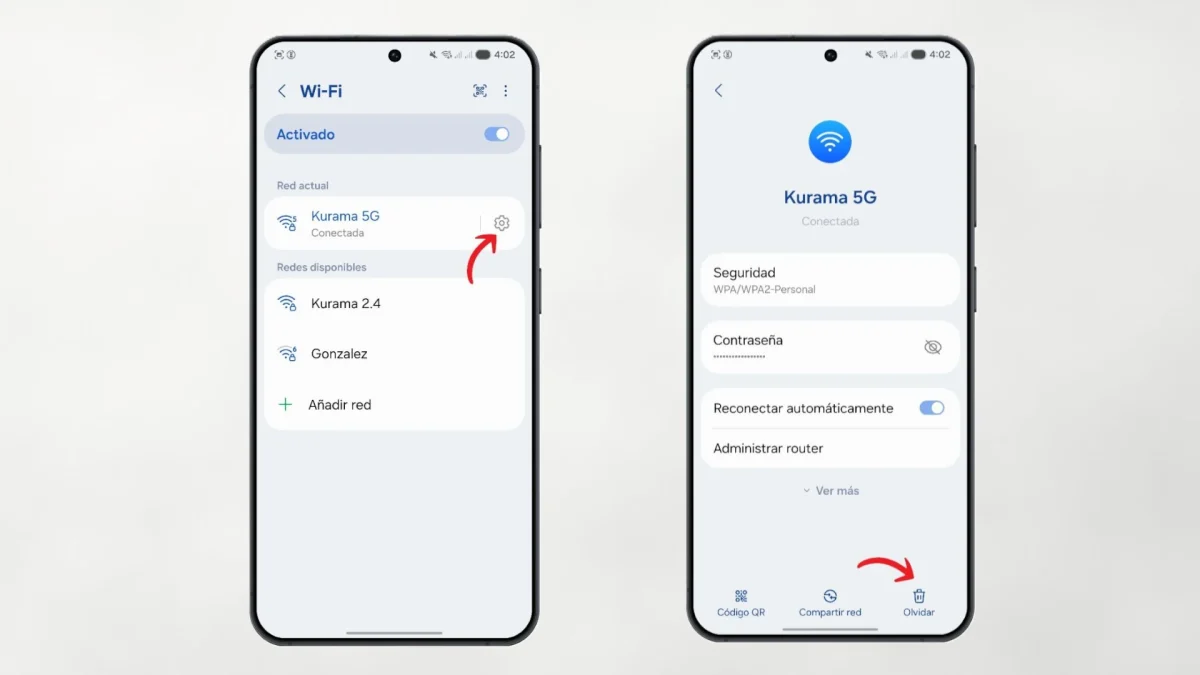
It seems like an overly simple solution, but it works more often than you might expect. Over time, your phone saves network configuration data that may remain outdated or corruptedcausing the connection to be unstable or slower than normal.
The process is quick: go to Settings > WiFi, long press your network or access its details and select “Forget network”. Then connect again by entering the password. By doing so, the phone negotiates the connection parameters with the router from scratch, which in many cases resolves speed drops that had been going on for days with no apparent explanation.
3. Change DNS servers
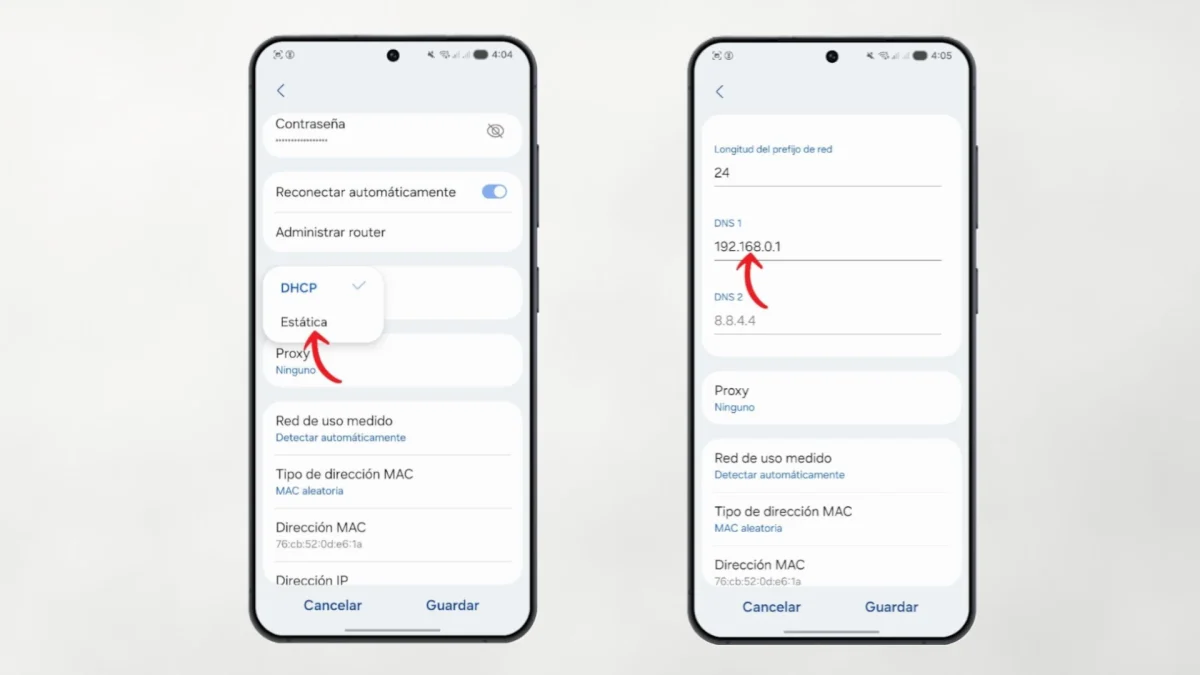
DNS is responsible for translating domain names into IP addresses that the server understands. By default, your mobile uses the DNS assigned by your operatorand they are not always the fastest or the most reliable.
Switching to a more efficient alternative such as those from Cloudflare (1.1.1.1) or Google (8.8.8.8) can significantly reduce web page loading times, especially on sites you are visiting for the first time. To do this on Android, go to Settings > Connections > WiFilong press your network, select “Modify network”, display the advanced options and change the IP settings to static. There you will see the fields DNS 1 and DNS 2 where you can enter the new values.
4. Close apps that consume bandwidth in the background
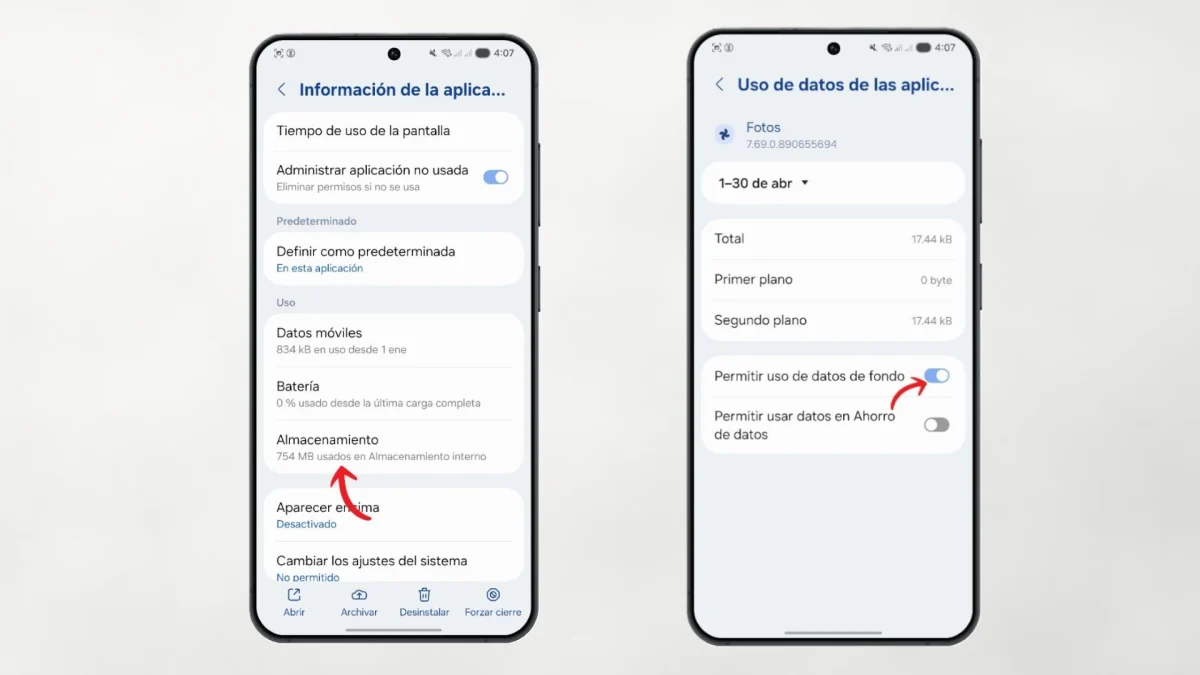
There are applications that, even if you are not actively using them, are working in the background: syncing photos with the cloud, downloading updates, sending telemetry data or refreshing the social media feed every few minutes. All that traffic is not seen, but it competes with what you are doing in closeup and can reduce speed significantly.
On Android you can go to Settings > Applications, select the most suspicious ones and restrict their background activity from the battery section. Common candidates are cloud storage apps (Google Photos, Dropbox)streaming ones and, in general, any social network that you have installed and do not use daily.
5. Disable data saving if you have it activated
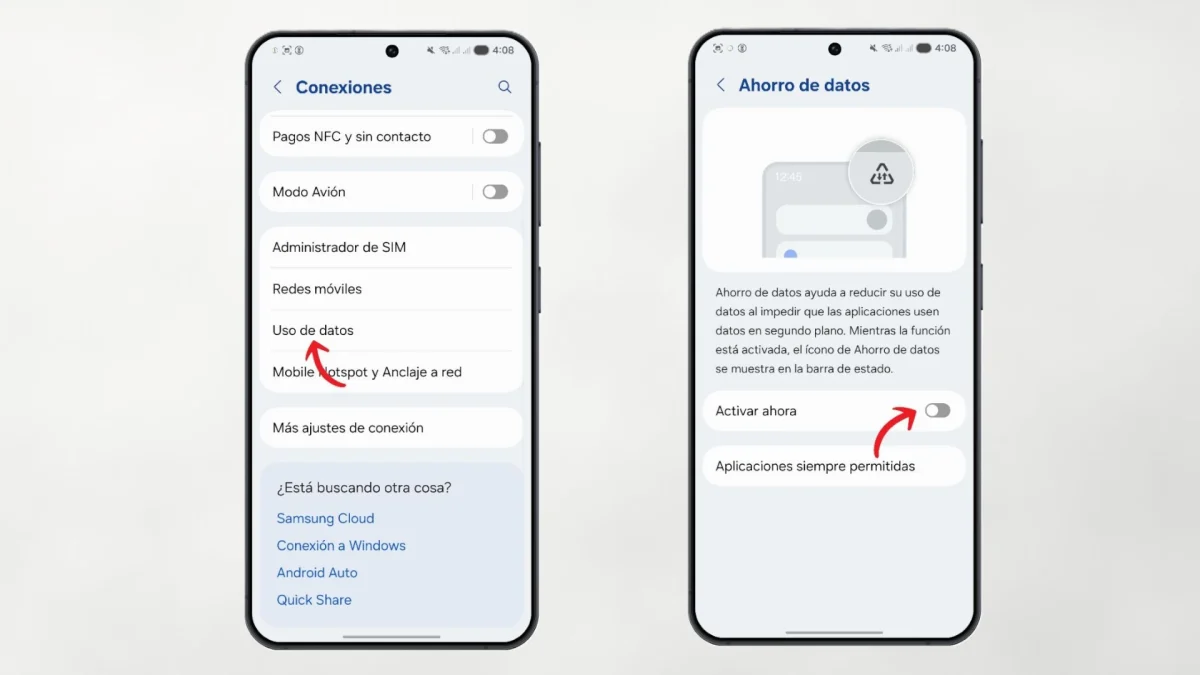
It is a detail that goes unnoticed, but the way Android data saver actively limits bandwidth consumption bandwidth of background applications and, depending on the system version and manufacturer, may also affect the overall browsing speed.
If your connection seems artificially limited even though the signal is good, check to see if you have it activated: Settings > Connections > Data usage > Data saver. Disabling it may cause an immediate change in the fluidity of navigation.
6. Restart the router correctly
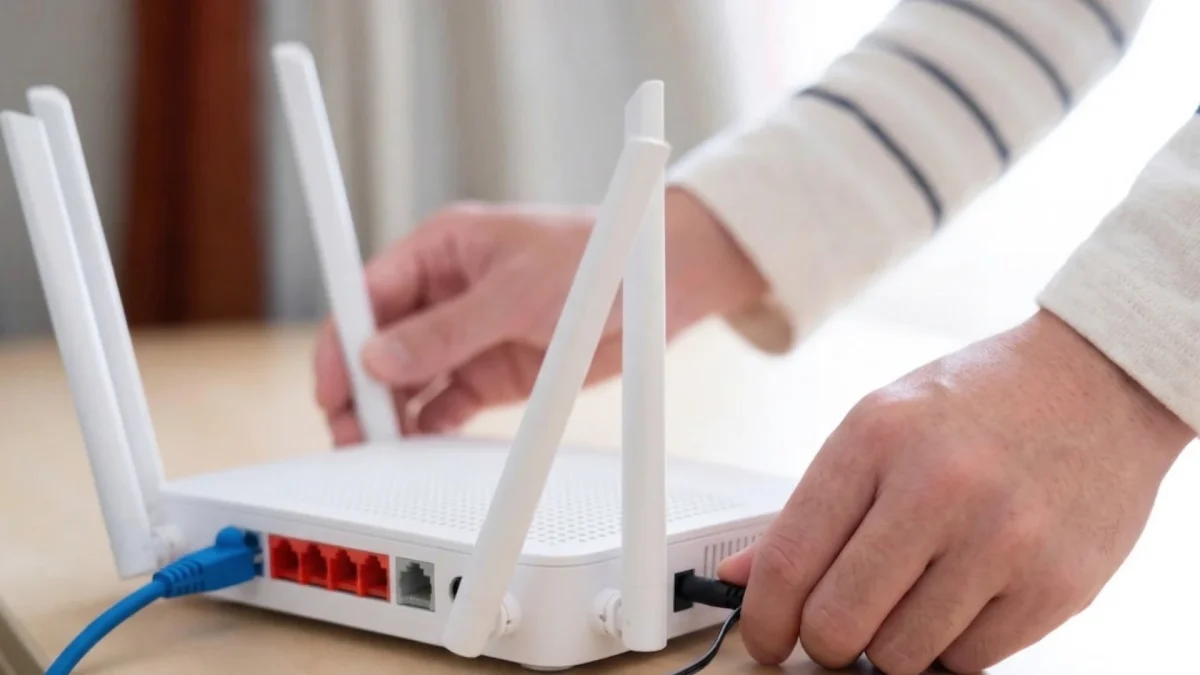
You don't have to be a technician to know that restarting the router helps, but few people do it properly. Turning it off and on in the second does not help much: The equipment's capacitors are still charged and the restart is not complete.
The correct way is disconnect it from the powerwait at least 30 seconds and connect it again. This allows the router to clear its temporary memory, renegotiate frequency channels with neighboring routers, and reset all connections from scratch. If you can't remember the last time you restarted it, there's a good chance that this step alone will already make a noticeable difference.
7. Clear the browser and app cache
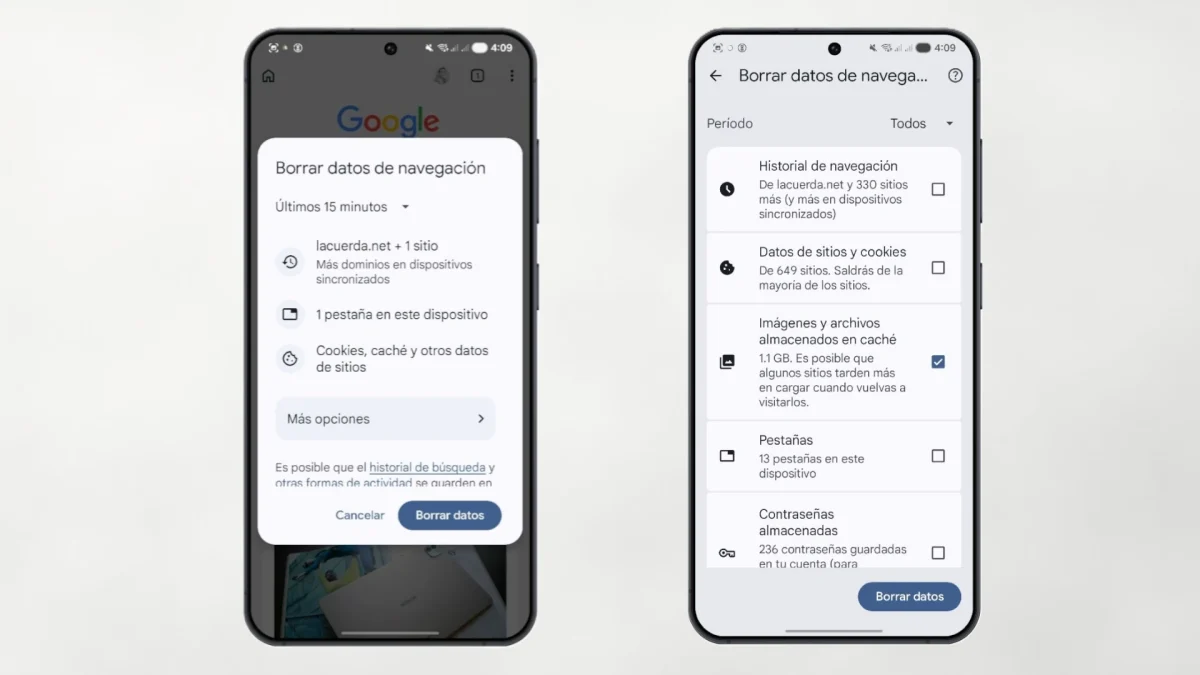
The cache accumulates temporary files that are initially there to speed up the loading of content, but when they have not been cleaned for a long time they can become the problem. A saturated cache not only takes up storage spacebut it can slow down the overall functioning of the device and, with it, the browsing experience.
In Chrome for Android, go to the three menu points > History > Clear browsing data, and select at least “Cached images and files.” For other applications, you can do it from Settings > Applications, selecting the app in question and pressing «Clear cache». It does not delete your data or disconnect you from any services; it simply deletes the accumulated temporary files.
And since we are talking about cell phone maintenance, there is something that many people neglect until someone tells them that they hear them badly on calls: the microphones. Dust and pocket lint gradually cover them, and the solution is simpler than it seems. In this guide on how to clean the mobile microphone You have the complete process to do it without risk of spoiling anything.