



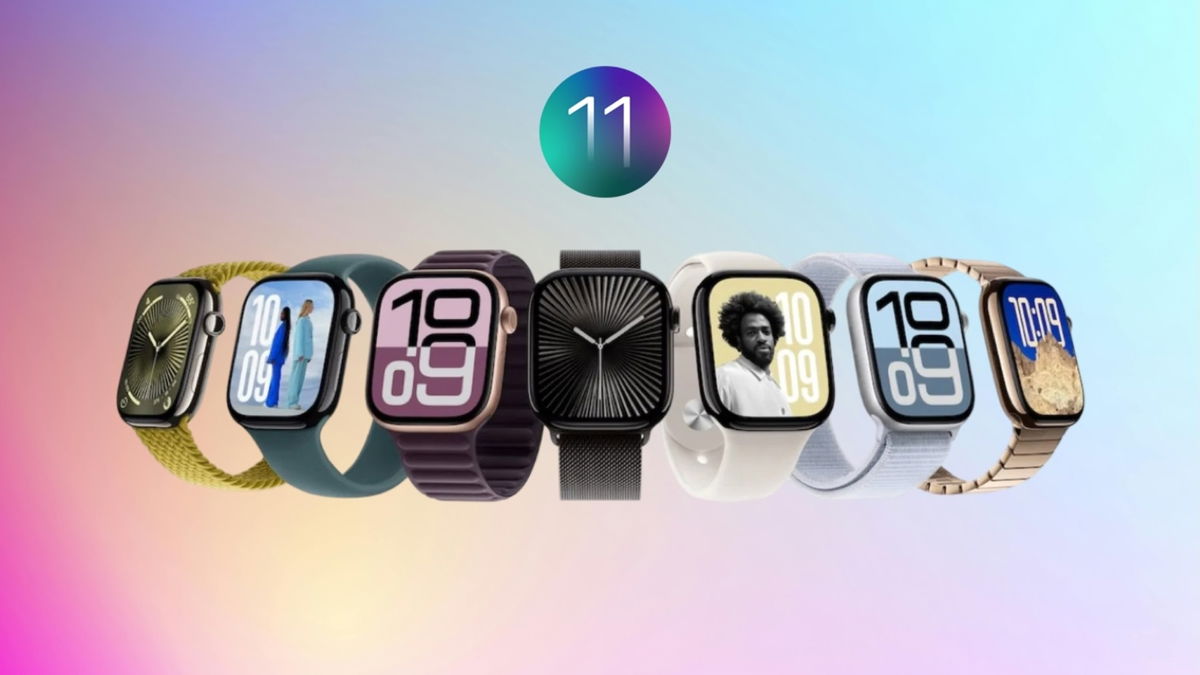

We’re about to learn about the new version of watchOS 12 at WWDC 2025 on June 9th live from Apple Park. While that date arrives, it’s a good time to remember what watchOS 11 has brought us since its release. If you felt like there was nothing new to see or explore, in this article, we’ll show you 7 watchOS 11 tricks so you can get a little more out of the experience while waiting for Apple’s new release for your smartwatch. Before you begin, remember that watchOS 11 is only compatible with Apple Watch Series 6 or later paired with an iPhone XS or later with iOS 18.
- Not in the mood to complete your rings? Pause them and don’t lose the streak.
- Does your Apple Watch feel the same because of its watch face? Explore the new options.
- An action button with a quick menu on Apple Watch Ultra
- View your notifications with the Digital Crown
- A feature that will help you notify your friends or family when you have arrived safely
- Don’t forget to quickly know what song is playing in your environment.
- Get better at your workouts with this feature
Not in the mood to complete your rings? Pause them and don’t lose the streak.
In case you didn’t know, watchOS 11 lets you pause your activity goals. Your ring won’t be at risk if you don’t do any activity for as long as you want. Tap the ring’s main screen and you’ll see the “Pause Rings” option. You can pause it for a day, a week, a month, or a custom amount of up to 90 days. To resume your activities, you’ll need to unpause them and continue working on your goals.
Does your Apple Watch feel the same because of its watch face? Explore the new options.
The best way to appreciate the new watch faces in watchOS is from the Watch app on your iPhone. If you haven’t been inspired to add your photos to your watch face, watchOS 11 now analyzes the best photos using machine learning, choosing them based on the best framing and composition, as well as the final image quality. Add the best time size, and design for you.
If you want to explore something new, the two new watch faces, called Flux and Reflections, are there to surprise you. The former changes color, measured by a horizontal line representing the seconds, and the number style changes with each passing minute. The latter features a watch face that alternates between a full screen and a circular mode, as seen on previous versions of the Apple Watch.
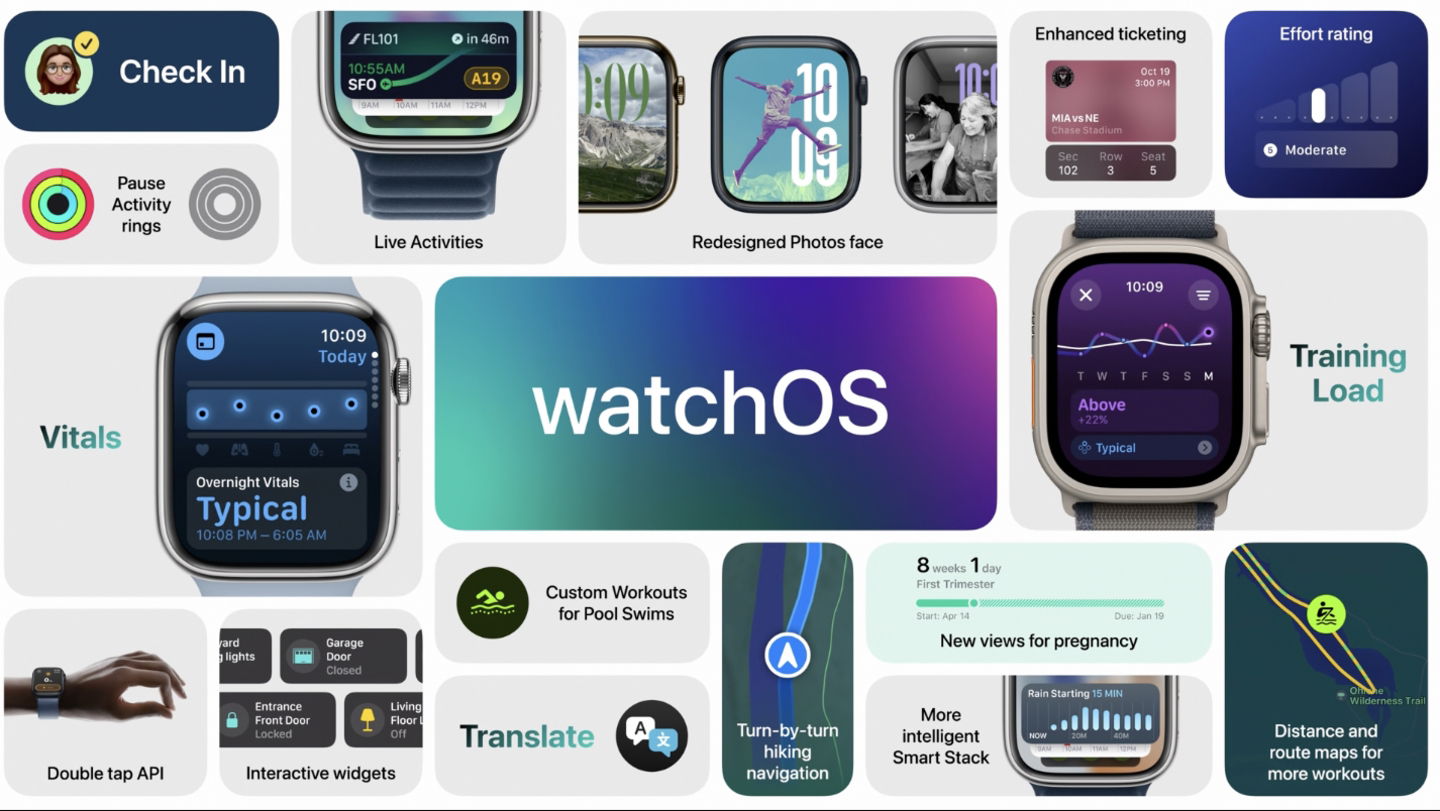
If you have an Apple Watch Ultra, you can assign a function to the Action button on your watch by long-pressing the button. You’ll see available options ranging from a workout, a stopwatch, a flashlight, a voice memo, music recognition, or another shortcut you set up. Once you select an option, it will be automatically assigned the next time you press the button.
View your notifications with the Digital Crown
You no longer need to swipe down on your screen to see your notifications when you see a red dot at the top. Simply turn the Digital Crown down to view them, so if you don’t want to have direct contact with your digital watch’s screen, this is a great way to do it with little effort.
A feature that will help you notify your friends or family when you have arrived safely
An iPhone original feature in iOS 17 is Check-In, something Apple brought back for watchOS 11. You can now start it from the Messages app by entering your destination or arrival time when you tap the More button. You can also set it up for a workout in case you’re doing something at night or risky and want to let someone know you’ve finished safely. Swipe right while in the Workout app, then swipe down to find the option.
Don’t forget to quickly know what song is playing in your environment.
If you’re a fan of Shazam on iPhone, if you have an Apple Watch with watchOS 11, your experience will be significantly improved thanks to the pre-installed feature called “Music Recognition.” It can be found in the form of widgets or activated using the Action button on your Apple Watch Ultra. You’ll never miss a song again.
Get better at your workouts with this feature
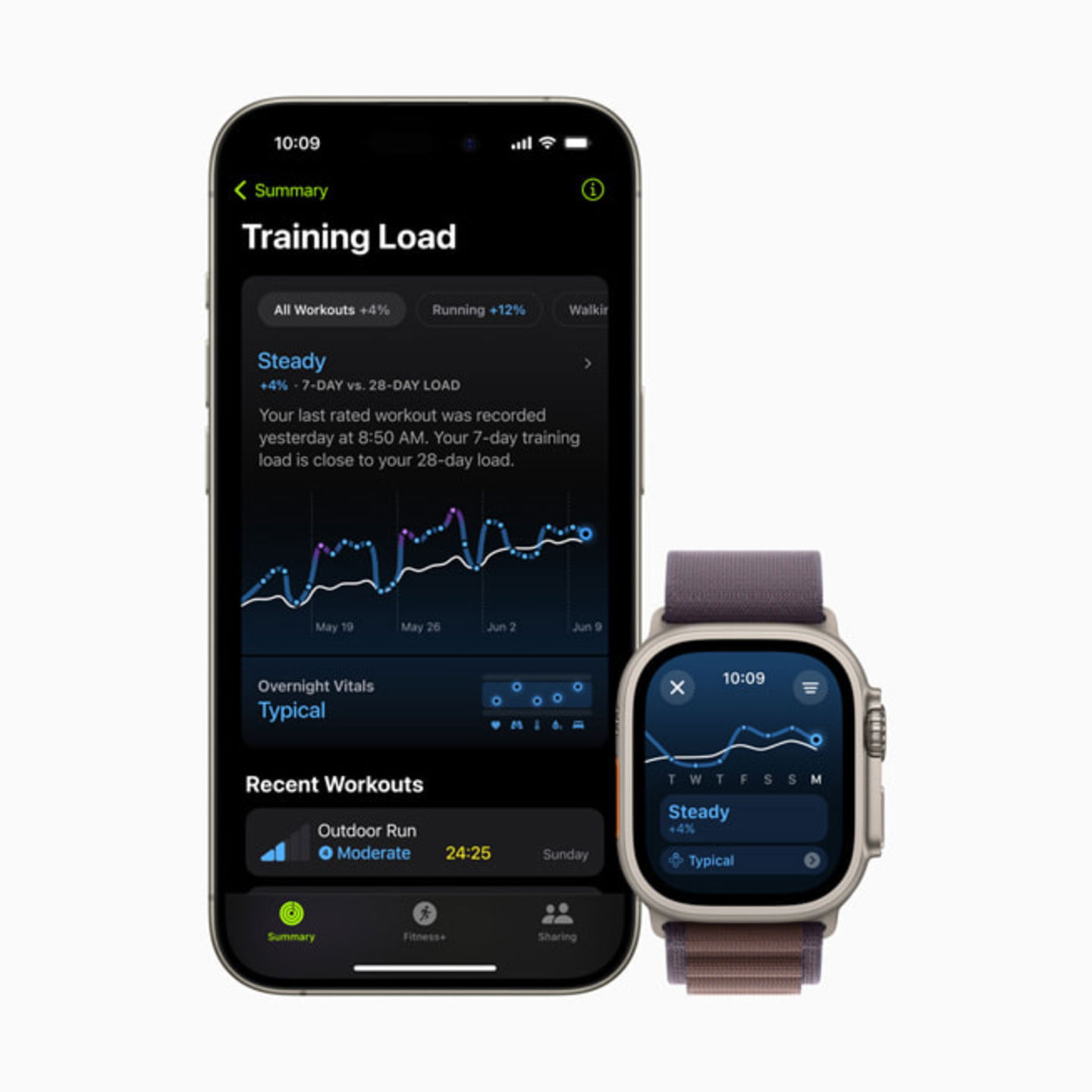
To round out this roundup of tips and new features in watchOS 11, there’s a new feature called Training Load, which lets you review and compare the intensity and duration of your workouts from the most recent 7 days to the last month—28 days, to be exact. You can check it in the Activity app on your iPhone for the best possible detail, and review the scales from low to high to see if you should push harder or be more moderate in your next sessions. And if you’re looking for even more tips, our colleague Ángel Roca recommends his best tricks based on 10 years of experience using them daily.
You still have a few months to explore what watchOS 11 has in store for you. We’re sure to see some exciting new features with watchOS 12. What software are you missing from your smartwatch in your daily life? Don’t forget that we’ll see watchOS 12 at WWDC 2025, which is something we’re hopeful will happen in a few months.