


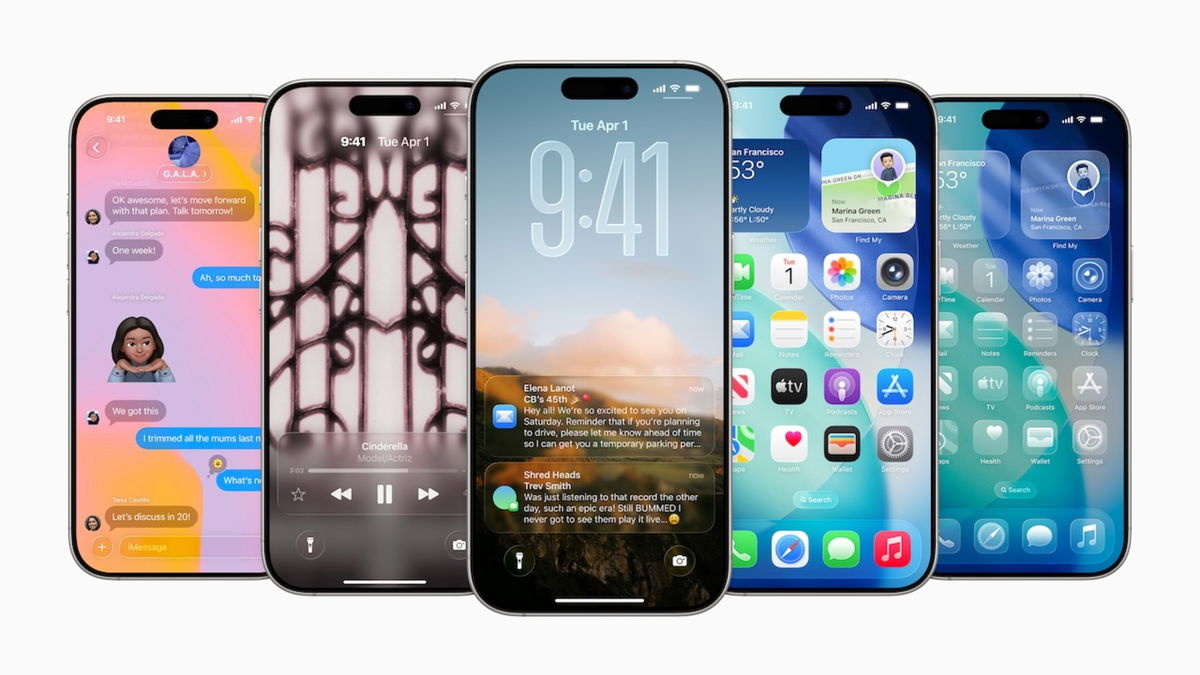

Apple has already unveiled iOS 26 with all its new features and its new design, and after its unveiling, it has released the first beta version of the new iPhone operating system. Although initially intended only for developers, any user can install the beta version on their own iPhone without too much trouble.
Everything you should consider before installing the iOS 26 beta
Installing a developer beta on your primary iPhone isn’t recommended. These types of releases are often buggy, and if you use that device daily, you could encounter significant problems. Before you rush to install the iOS 26 beta on your iPhone, keep these points in mind:
- The battery will last less with iOS 26 beta: This always happens with early versions. Battery life will be worse and may continue to be so until Apple releases several updates.
- Some apps won’t work properly (or won’t even open): Since this is a beta designed for developers to adapt their apps, it’s normal for many apps—even those you use every day—to crash or not even start.
- Going back to iOS 18 is only possible by restoring your iPhone. If the beta doesn’t work for you, you won’t be able to simply uninstall it. You’ll have to restore your iPhone from scratch and reinstall iOS 18 manually from a Mac or PC.
- iOS 26 backups don’t work on iOS 18: If you make a backup with the beta installed and then decide to go back, you won’t be able to use it. Only backups you made with iOS 18 will work.
- Make a backup before installing iOS 26 beta: Go to Settings > [your name] > iCloud > iCloud Backup, then tap “Back Up Now.” You can also back up your data from a Mac or Windows PC using a cable.
How to install the iOS 26 beta
For some time now, it’s no longer necessary to download a profile to install the iOS developer betas. Apple has simplified the process, and all you need is a free account in its developer program, which we can link to our Apple account.
- Make sure your iPhone is compatible with iOS 26.
- Link your Apple account to the Apple Developer Program.
- Open the Settings app on your iPhone.
- Go to the General section.
- Tap on Software Update.
- Wait a few seconds until the Beta Updates option appears.
- Select iOS 26 Developer Beta.
- Return to the previous screen, and you’ll be able to download and install the beta.
- You can also choose to download the firmware from Apple’s official website and perform the manual installation from your Mac or PC.
If you’re already a member of the Apple Developer Program and have been testing iOS 18 betas, you won’t need to do anything other than select iOS 26 Developer Beta, as you’ll be able to continue downloading iOS 18 betas. Once you link your Apple account, you’ll be able to install any of the iOS 26 betas that are released over the next few months.