



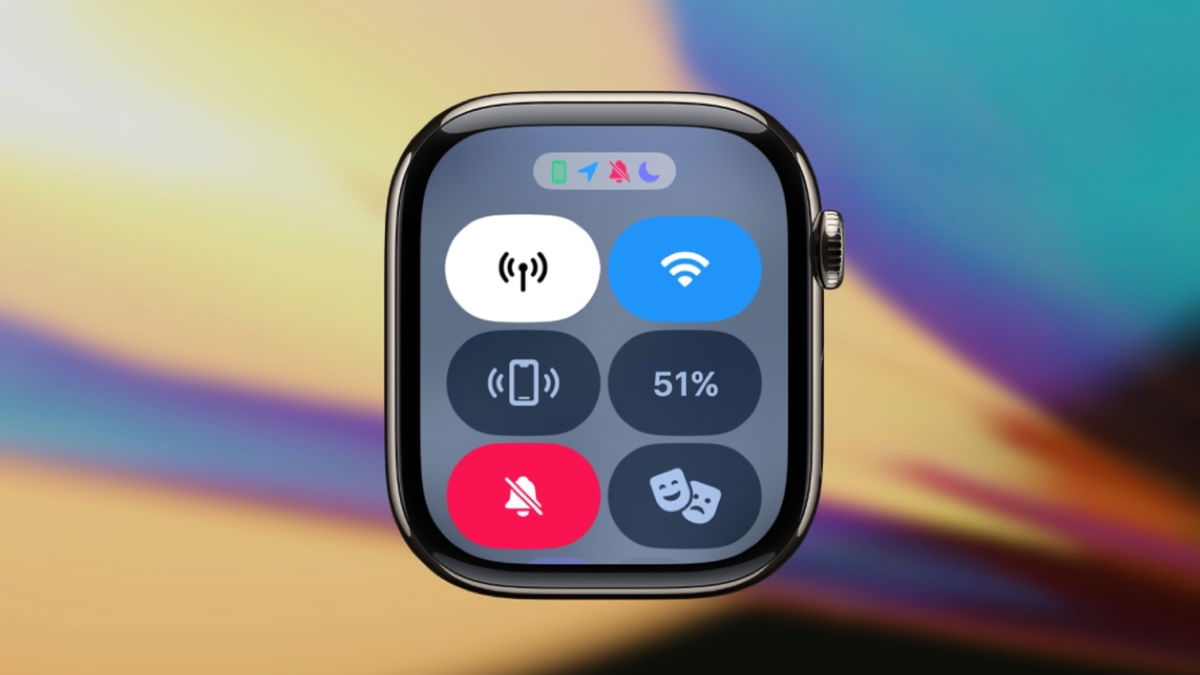

The Control Center in any of Apple’s major operating systems is incredible, allowing us to activate certain functions immediately by simply swiping the corresponding panel. In the case of the Apple Watch, it’s the smallest but functional, allowing us to review several of the smartwatch’s controls. You can see the device’s charge status and activate Theater Mode if you need to. In this article, we’ll show you 5 secret functions that could change the way you use your Apple Watch.
Choose a specific duration of silent mode
The Control Center buttons hide additional functions when you press and hold them, so it’s a good idea to explore these 5 functions that we’ll list below.
If you’re someone who balances the sounds on your devices, this feature is great because you can choose how long to silence each of the alerts and notifications that arrive on your Apple Watch. Simply press and hold the Silent Mode icon to access additional options. You can choose to activate it for an hour or until the next evening or morning, in addition to the normal option.
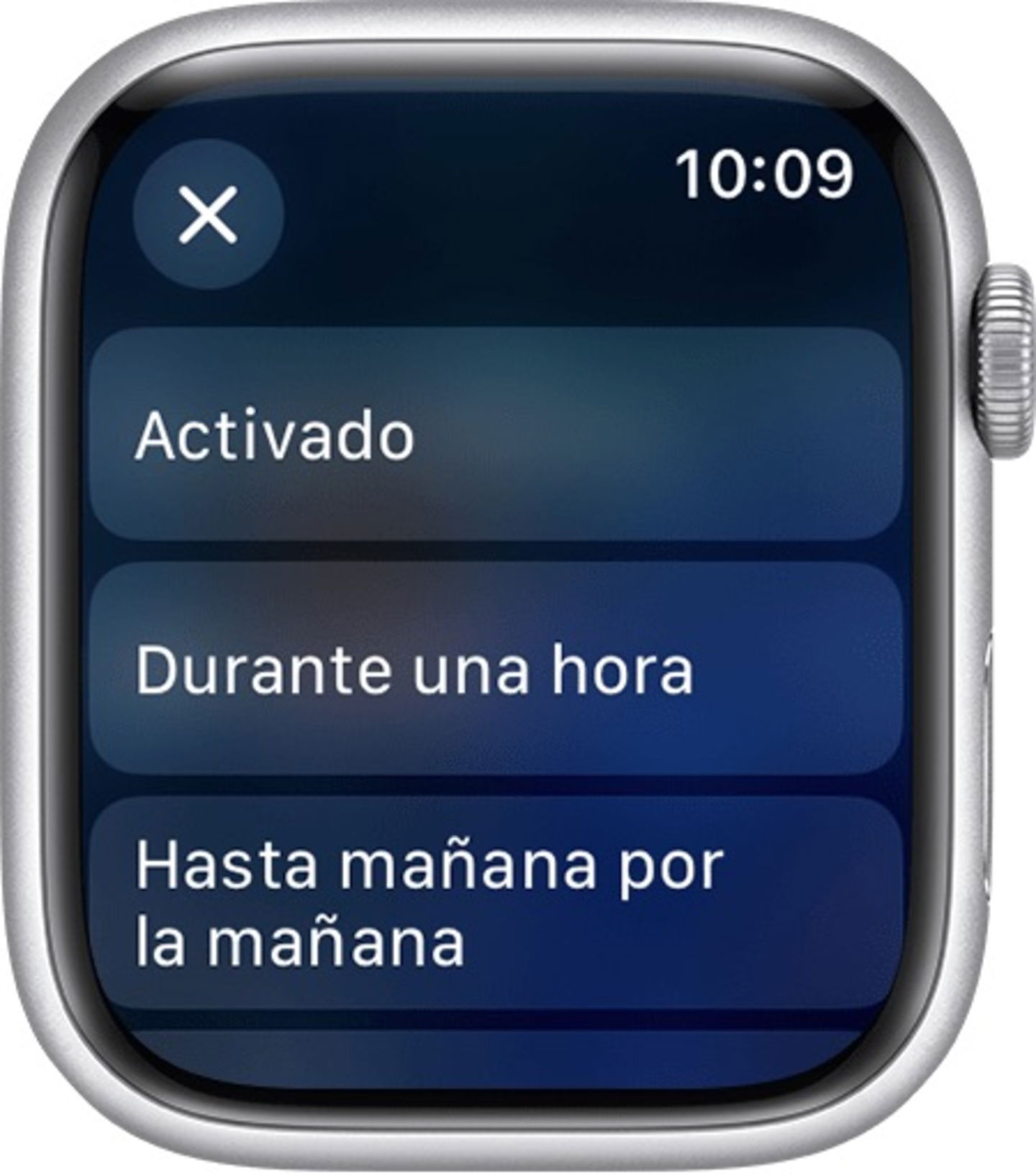
The advantage is that you can choose a duration for the mute to be temporary. If you’re in a short meeting but know you’ll need the sound on your Apple Watch afterward, activating it for an hour should be enough. If it’s time to sleep but you know you need the smartwatch to mute, choose the option to turn it on until the next morning.
Choose a preferred concentration mode
The Do Not Disturb icon is very useful when we know we don’t need the Apple Watch to turn off any notifications, sounds, or screen activations. You may not have realized it, but there’s more to it than just not having any alerts. Press and hold the Do Not Disturb icon to see the list of available options and configure the one you want. If you’re running Focus Mode before invoking the watchOS Control Center, you won’t see the typical moon icon; instead, you’ll see the corresponding Focus Mode icon.
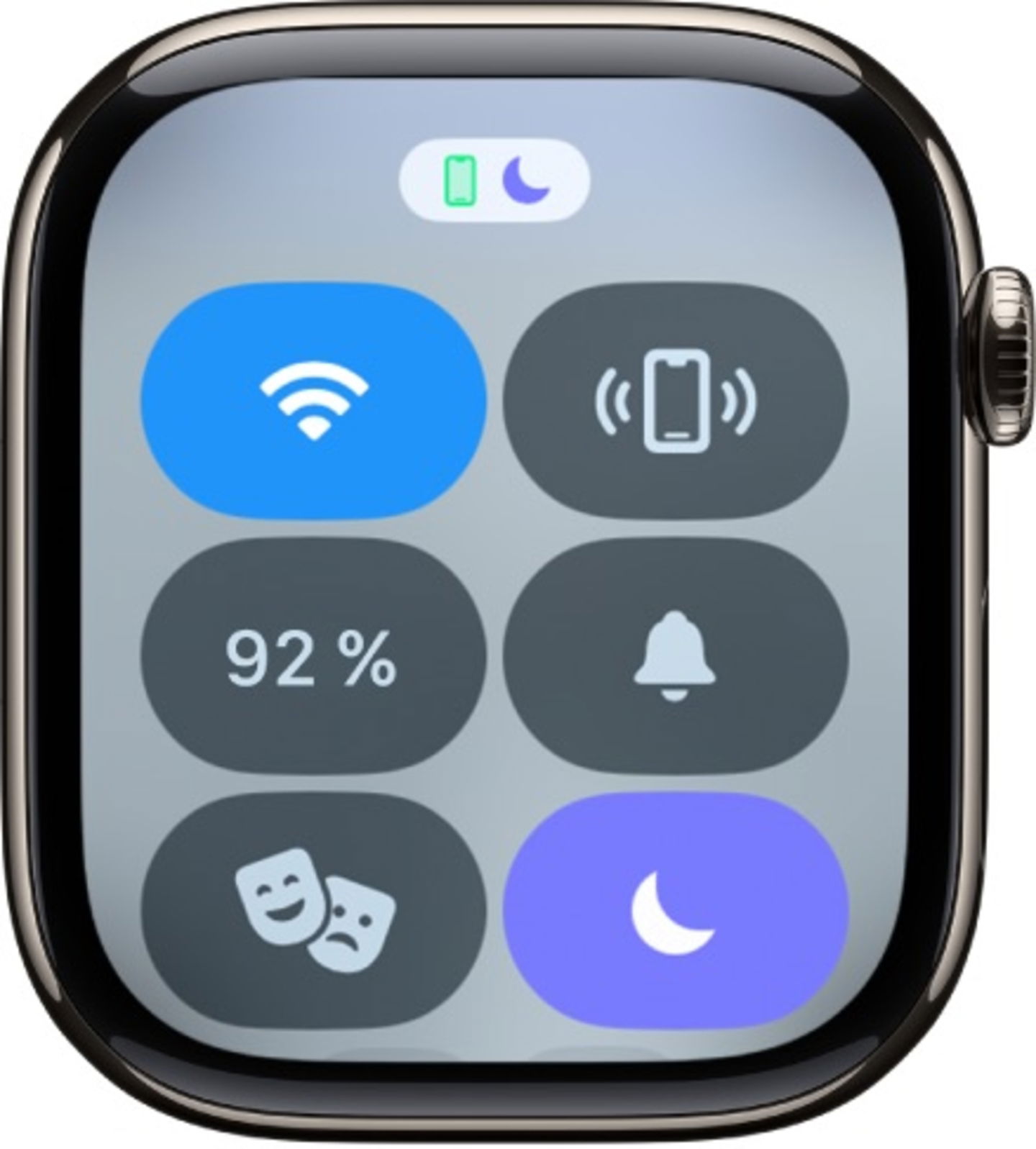
By selecting a new focus mode in Control Center, you can choose to have it enabled permanently, for an hour, until the next evening or morning, and, if you have location enabled, until you leave a specific location. You no longer need your iPhone to switch between focus modes throughout the day; you can do it right from your wrist.
Integrate accessibility shortcuts into your watchOS Control Center
This feature is the most hidden because the icon doesn’t appear by default in the watchOS Control Center. You’ll need to access the Settings menu on your Apple Watch. Select Accessibility, then tap Accessibility Shortcut. Select the features you need to use in Control Center.
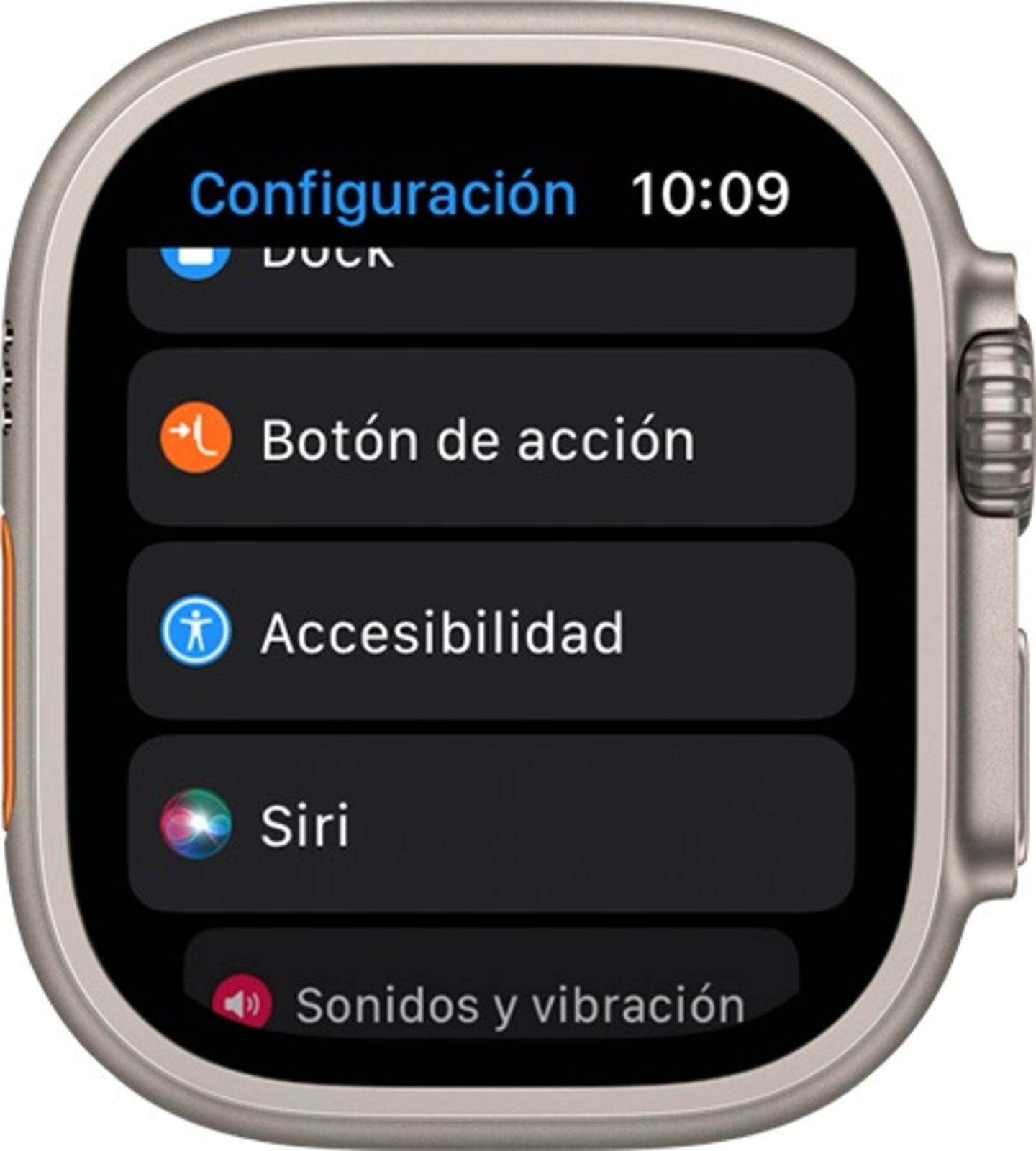
You can add AssistiveTouch, Color Filters, Contrast Boost, Dictation, and more. The best part is that you don’t have to activate Control Center to use them at the right time, since you can triple-tap the Digital Crown. If you only activate one Accessibility feature, the shortcut will work for that specific function.
Activate the flashlight on your iPhone when pinging
The ping feature is the most commonly used feature on both the Apple Watch and the iPhone itself. Finding it after being without your phone for a while is a relief. Tapping the dedicated icon in Control Center emits a loud ping to help you find it. But what if we can’t hear it?
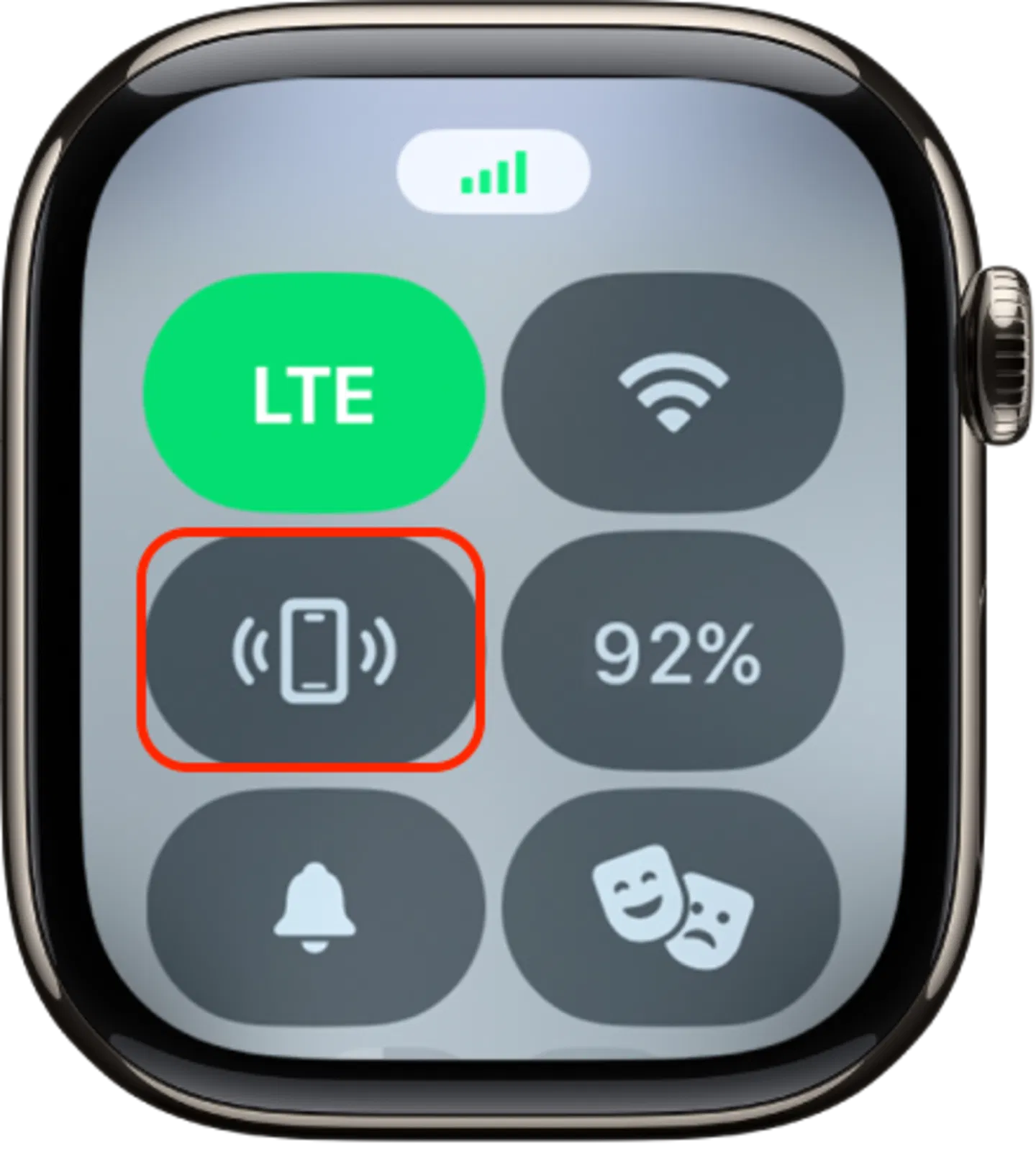
There’s a handy feature with ping: you can activate the flashlight to blink and find it more easily; at night, it’s practically impossible to miss. Next time you use ping, press and hold the icon instead of tapping it, and you’ll see what happens.
Select a Wi-Fi network from Control Center
It’s a very basic thing, but some users are completely unaware of it. Just as your iPhone has a section dedicated to choosing a network to connect to, so does the Apple Watch. If you connect to a network on your iPhone, your smartwatch will automatically do so. What happens if you want to decide to choose another network or check the available networks from the watch in Control Center?
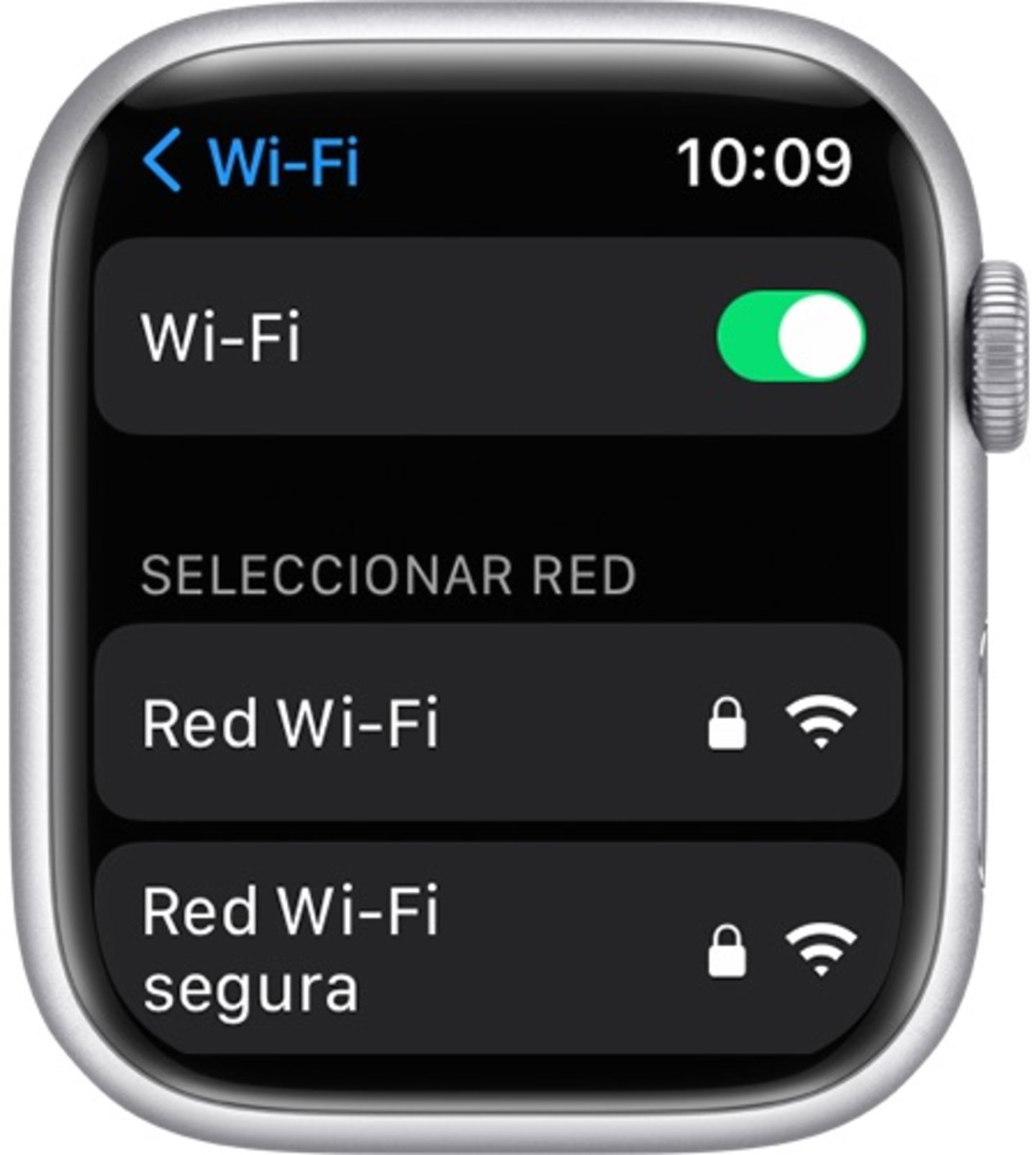
A single tap on the Wi-Fi icon will toggle it on or off. Holding down the icon will open a new screen, just like choosing from available networks. If you need to choose a new network, you can enter the password on the Apple Watch screen. You can also toggle your hotspot options to Automatic, Ask to Join, or Never.
What do you think of these additional options? It never hurts to have extra options when using some of the Apple Watch’s features on a daily basis. Since it’s a watch, a small device, it’s very useful to have some features that can add value and optimize our activity flows.