




There are situations in which you do not want certain apps to be visible on your mobile: someone taking a look at your screen, a child having access to something they shouldn't, or simply You prefer to keep part of your digital life a little more private. The good news is that Samsung phones with One UI have been offering tools for this for years, and they are more powerful than many people imagine.
Depending on what you need —hide them in plain sight or actually password protect them—there are two main methods. Here they are explained step by step.
Method 1: Hide apps from the app drawer
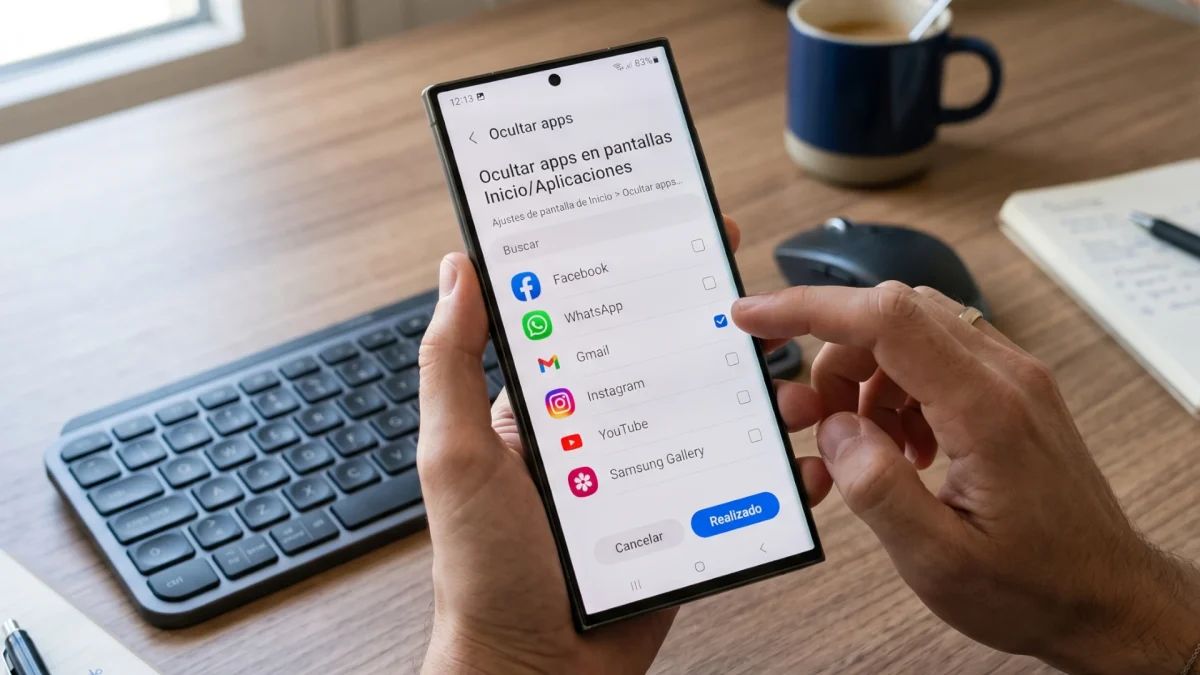
This is the fastest and easiest option. What it does is remove an application icon from the app and desktop drawerwithout uninstalling it. The app is still on the mobile, it still works and it still appears in Settings > Applications, but it disappears from the place where anyone would look first.
This is how it is done:
- Open the app drawer by swiping up from the home screen.
- Press the icon three points in the upper right corner.
- Select Settings.
- Tap the option Hide apps on the Home and Apps screens.
- Find the app you want to hide, select it and press Made.
Ready. The icon will disappear from both the desktop and the drawer. To open that app while it is hidden, you can go to Settings > Applicationssearch for it in the list and open it from there. And if at any time you want to recover its icon, repeat the same process and delete it from the list of hidden apps.
It is a practical method, but it has an important limit: it does not add any real layer of security. The application is still accessible from the mobile search engine or from the system settings. If someone knows how to look, they will find it. For something more serious, the following method is much better.
Method 2: Secure Folder, to truly protect
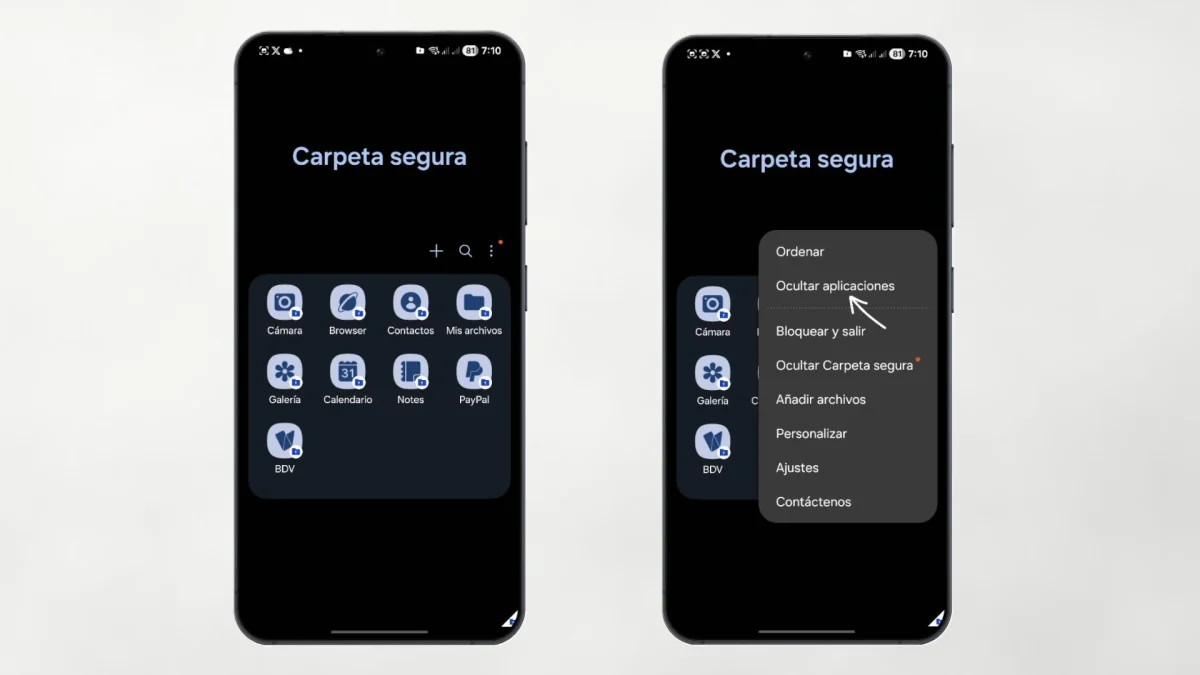
Samsung includes a tool called One UI Secure folderwhich goes far beyond simply hiding icons. Creates an encrypted space within the mobile phone, protected by the Samsung Knox security platform, which can only be accessed with a PIN, pattern, password or fingerprint.
Everything you put inside —apps, photos, videos, files— is completely isolated from the rest of the system. Neither the Android image selector, nor other apps, nor anyone who has the unlocked phone in their hand will see what is inside, as long as the folder is closed and hidden.
To activate it:
- Go to Settings > Security and privacy.
- Look for the option Secure folder and touch it.
- Sign in with your Samsung account and follow the setup steps.
- Define a locking method: PIN, pattern, or biometrics.
Once configured, to add an application:
- Open Secure Folder and tap Add applications.
- Select the apps you want to protect and tap Add.
Here comes an important detail that is worth knowing: Samsung does not move the application to the Secure Folder, but rather create a copy of it. This means that if you take WhatsApp to the Secure Folder, you will have two installations of WhatsApp: one normal and one protected. The most common thing is to uninstall the original version and only keep the one inside the folder. Of course, the copy is installed from scratch, without the previous data, toyes you will have to log in to the app again.
How to also hide the Secure Folder itself
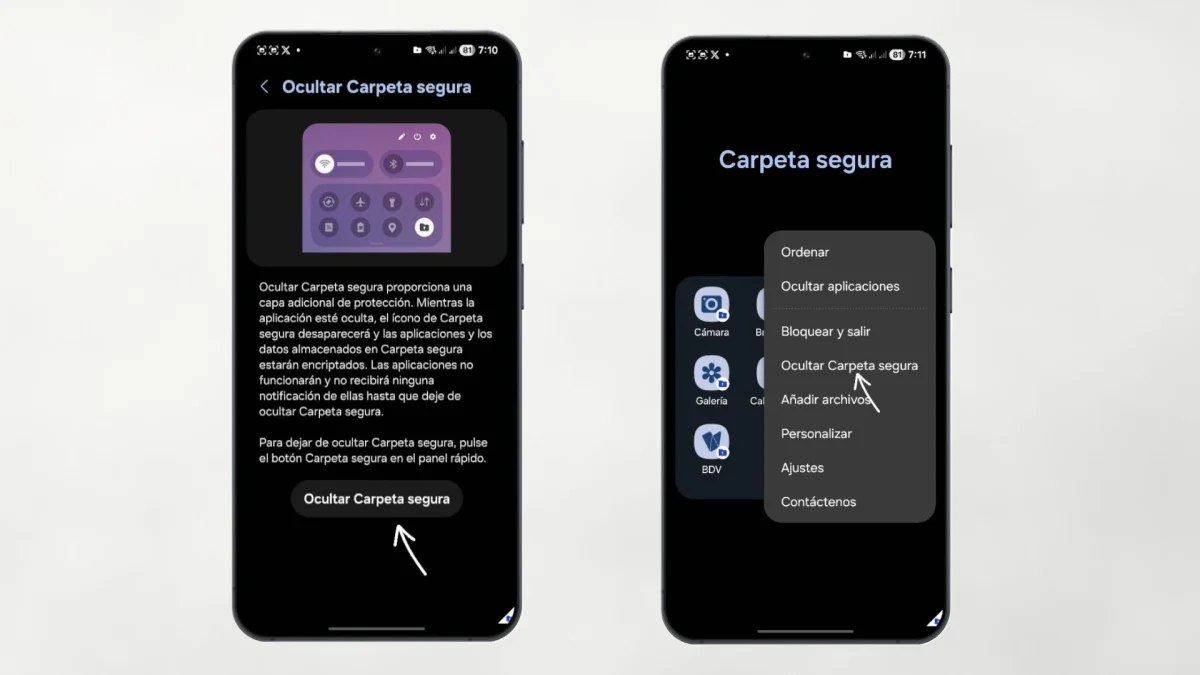
If you want to go one step further and not even see the Secure Folder icon in the app drawer, you can hide it too:
- Go to Settings > Security and privacy > Secure folder.
- Disable the option Add Secure Folder to Apps Screen (either Show icon on applications screendepending on the version of One UI you have).
With this, the icon disappears completely. To access it again, you can do so from the quick settings panel—by swiping down twice from the top of the screen—if you've added the shortcut there, or by going directly to Settings > Security and privacy > Secure folder.
Additionally, when Secure Folder is hidden and closed, all of your content is automatically encrypted and the applications inside stop running in the background. This is especially relevant since One UI 8, where Samsung significantly improved the security of this private space to prevent other system applications from viewing its content.
What method to use according to your case?
If you just want an app to not be visible when someone picks up your phone without it being something critical—a gaming app, for example, or something you just don't want to appear in the foreground—the app drawer method It is more than enough and is done in thirty seconds.
If what you have is truly sensitive data, the Secure Folder is the right option. It is more laborious to configure at first, but offers a much higher level of privacy and security. It's not just “hiding”: it's encrypting and isolating.
And since you are taking advantage of the native functions of your Samsung, you may be interested to know that One UI also allows you to create personalized stickers with AI directly from the Gallery or the keyboard, without having to install any extra application. We explain how to do it in our guide on how to create stickers on your Samsung phone without installing anything.