


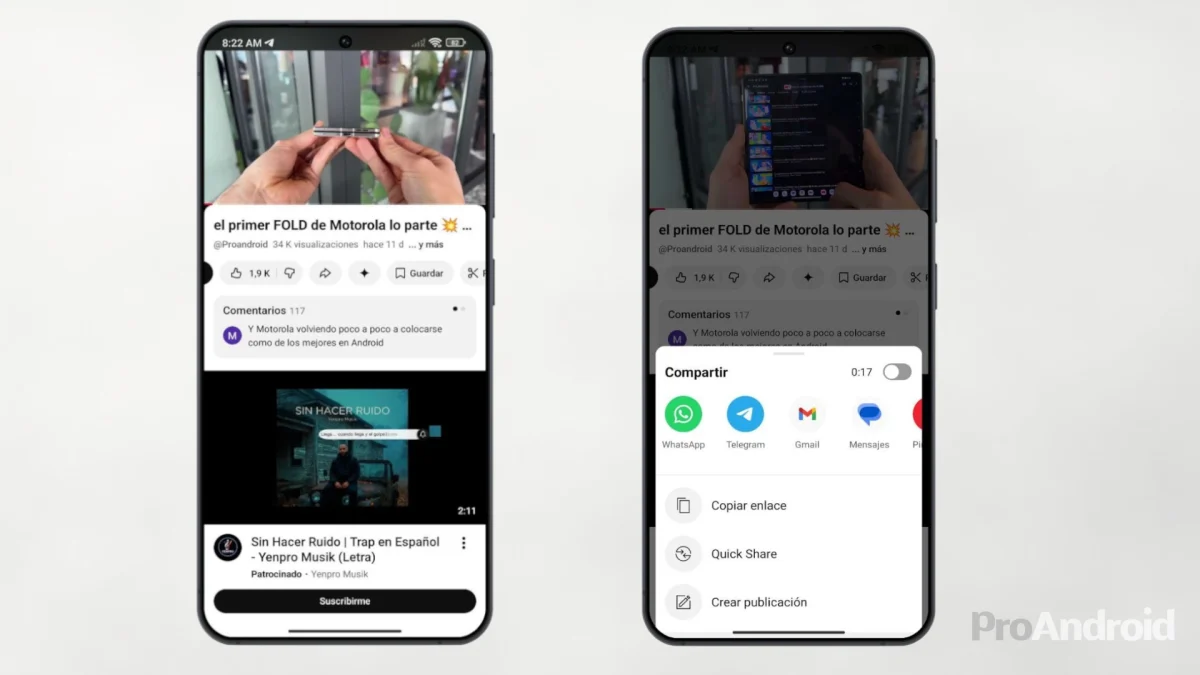

YouTube is much more than a video platform. Millions of people use it daily to listen to music, podcasts, hourly mixes or directly as a substitute for Spotify. The problem is that the official app has a rather irritating limitation: as soon as you turn off the screen or change applications, playback stops. If you want to avoid that, Google pushes you to pay for YouTube Premium, which costs around 11.99 euros per month.
You don't need to pay anything. There are several methods completely free and legal to ensure that YouTube continues playing even if the mobile is blocked.
The Universal Method: Browser with Media Player Trick
It is the most widespread trick and works on practically any Android, regardless of the brand. Instead of using the official YouTube app, open the video in the browser. From there, the operating system treats playback as if it were any other multimedia content and allows you to control it from the lock screen.
The specific steps are as follows:
- Open the official YouTube app and navigate to the video you want to listen to.
- Press the “Share” button and select «Copy link» to save the URL to the clipboard. You can also directly tap your browser icon if it appears in the share menu.
- Open your browser (Chrome, Firefox, Samsung, Xiaomi…) and paste the URL in the address bar.
- Start playing the video from the browser.
- Lock your phone by pressing the side button. The audio will stop, what is expected.
- Turn on the screen without unlocking the phone. The media player with playback controls will appear on the lock screen. Press the play button.
- You can now turn off the screen again. He Audio will continue without interruptions.
It's one more step than just pressing play, but once you do it, you don't have to repeat it anymore: the audio continues alone.
The most comfortable method: Brave Browser
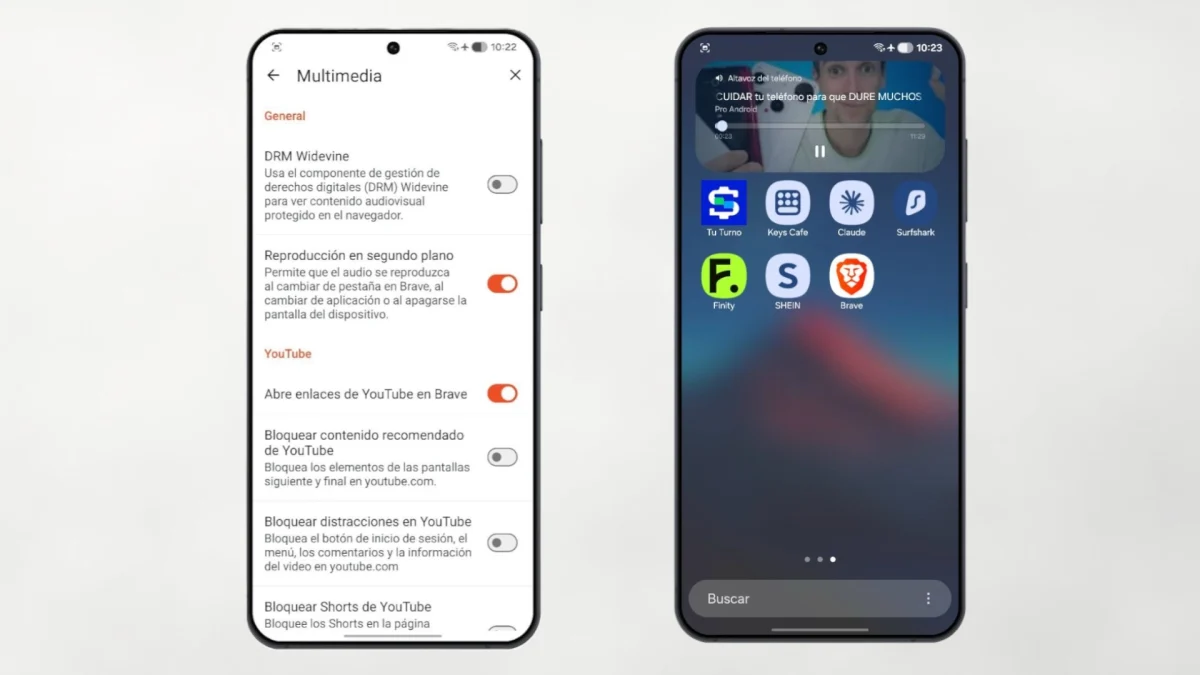
If the above process seems cumbersome to you, the smoothest alternative is install Brave. This browser, free and available in the Play Store, has a specific function for background playback that does not require any additional steps after the initial configuration.
To activate it:
- Open Brave and click on the three dots menu (lower right corner).
- Go to Settings > Multimedia.
- Activate the option «Background playback».

From that moment, open YouTube in Brave, play the video you want and turn off the screen. He Audio continues without you having to do anything elseand you can pause or resume playback directly from the notification bar. It is the most convenient option if you use YouTube to listen to long lists or music sessions lasting several hours.
The method for Samsung: the own browser already does it on its own
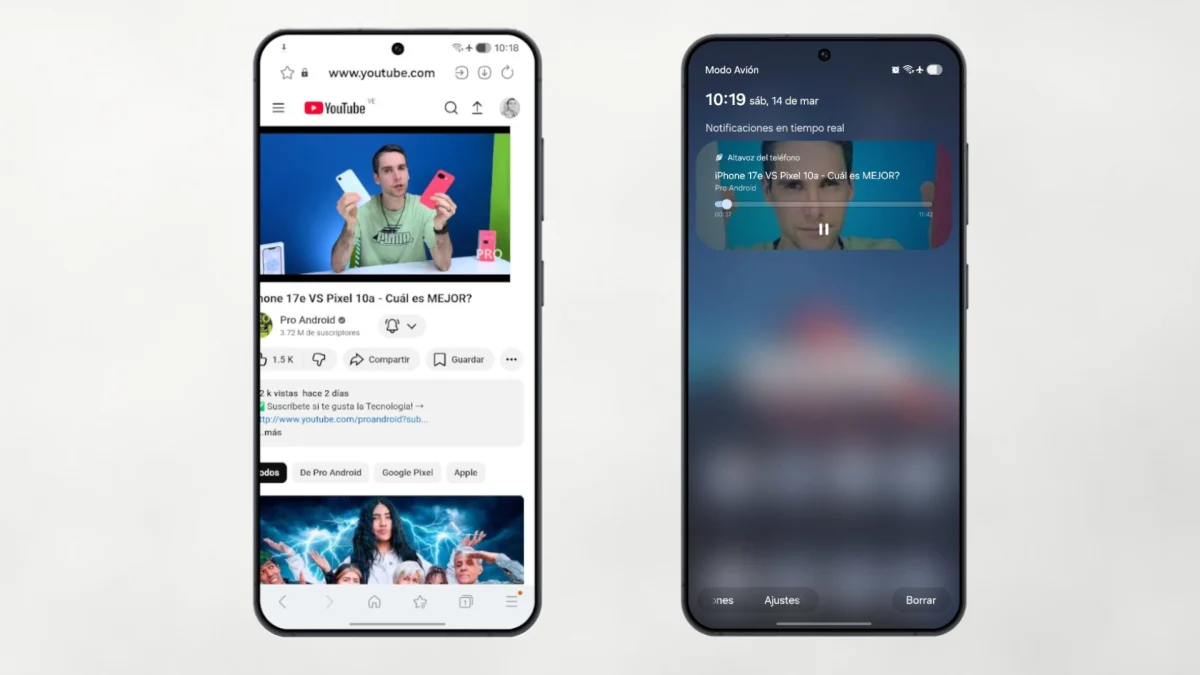
If you have a Samsung Galaxy mobile, there is an even more direct solution: the native Samsung browser now allows YouTube background playback without activating any additional options.
- Open the Samsung browser (the one that comes preinstalled on all Galaxy).
- Go to YouTube and play play the video you want.
- Exit the browser or turn off the screen.
The audio continues playing automatically and you can control it from the lock screen or the notification bar. No extra steps, no prior configuration.
The trick of desktop mode in Chrome
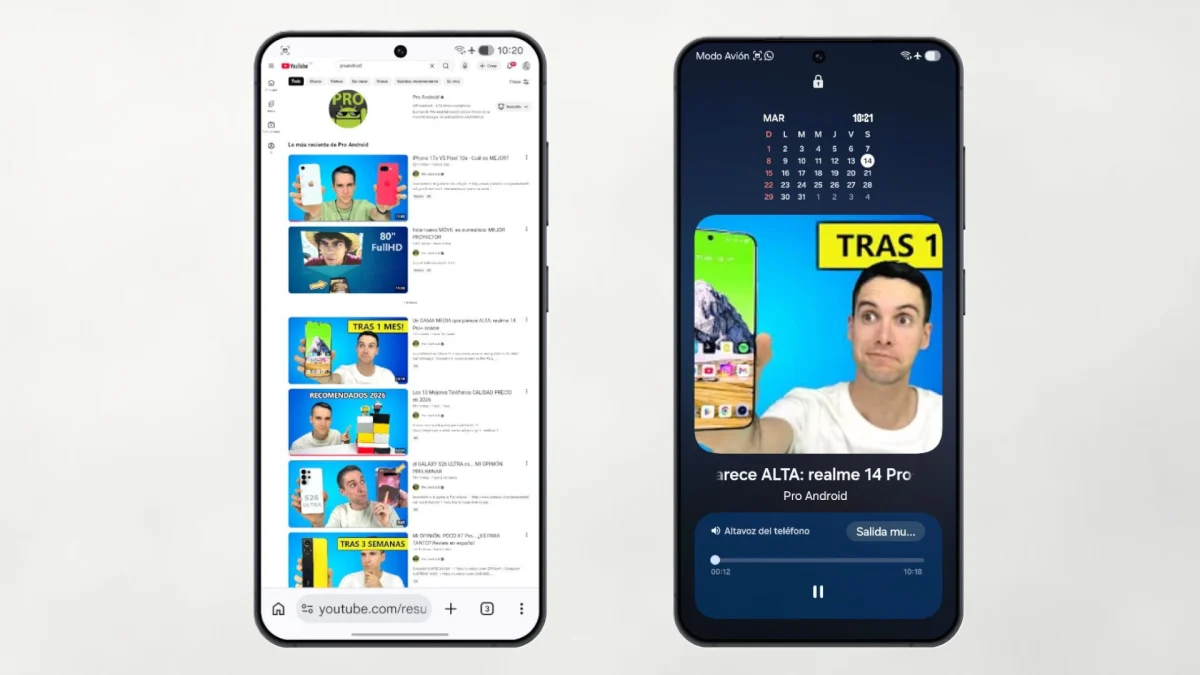
There is another method that works in Chrome, although it is somewhat less elegant. It consists of making YouTube believe that you are browsing from a computer– When you activate desktop mode, the web version does not detect that you are on mobile and does not apply the background playback restriction.
- Open Chrome and go to youtube.com.
- Press the three points from the top menu.
- Activate the option «Desktop site».
- Play the video and lock the mobile.
The result is similar to the other methods, although the interface in desktop mode may be uncomfortable on small screens.
Which one to use?
It depends on what you have on hand. If you already have a Samsung Galaxy, its own browser solves it without installing anything. If you want the most comfortable and universal solution, brave It is the best option because it does not require any additional tricks after the initial setup. And if you don't want to install anything new and use any other Android, the media player method works fine with the browser you already have.
In all cases: free, without rootwithout system modifications and without applications of dubious origin. It's just about taking advantage of what own operating system already allows to do.
And since you're getting the most out of your Android, you might also be interested in taking a look at how to block spam calls and unknown numbers. It is another of those settings that almost no one configures and that, once activated, makes a notable difference in day-to-day life.