



We've all been there: You need to open your camera quickly to capture a once-in-a-lifetime moment, send an urgent message, or simply check a map, but your phone decides to take its time. Your screen freezes, apps take forever to load, and you're tempted to throw your device out the window. Before you panic or start looking at prices for new phones, take a deep breath.
Slowness on smartphones, whether Android or iOS, is a natural symptom of daily use. Over time, we accumulate files, pending updates, and invisible processes that drain system resources. Fortunately, you don't need to be a computer engineer to solve this. Below, I present seven simple, universal and extremely effective tricks to restore the fluidity of the first day to your mobile.
1. The power of reset: your first line of defense
It may sound like a tech support cliché, but turning your device off and on again is the most underrated and effective trick out there. Imagine that your brain has been working non-stop for weeks, solving math problems without sleep; Eventually, it would collapse. The exact same thing happens to your phone.
By restarting your computer, you are completely closing all background processes, freeing up RAM and stopping applications that could have been “stuck” silently consuming resources.
How to do it: On most Androids, simply hold down the power button for a few seconds and select “Restart.” If you have a modern iPhone, press the side button and the volume up button until the power off slider appears, wait a few seconds, and turn it back on. Make this a habit: restarting your phone at least once a week will do wonders for its performance.
2. Free up space: give oxygen to your storage
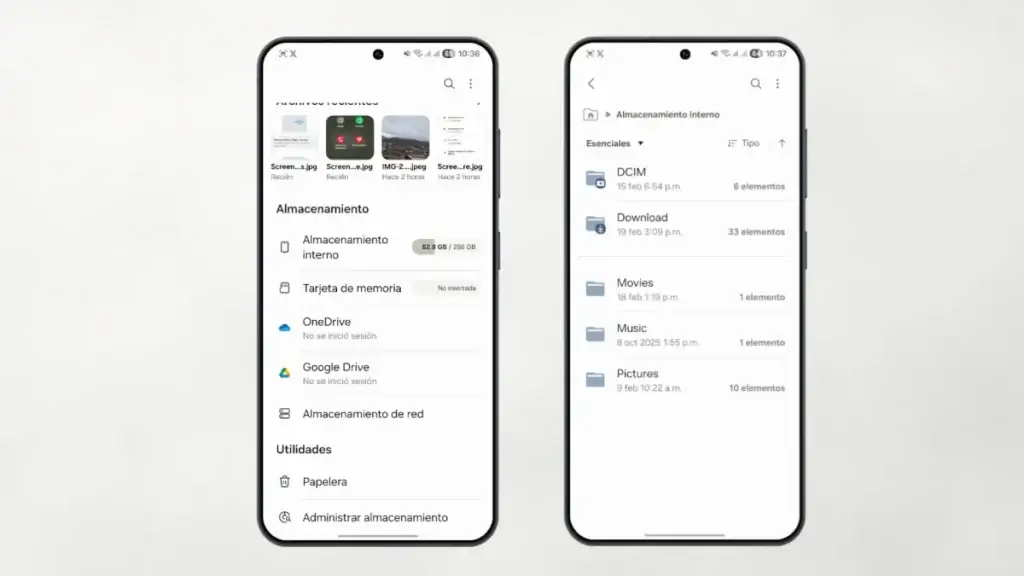
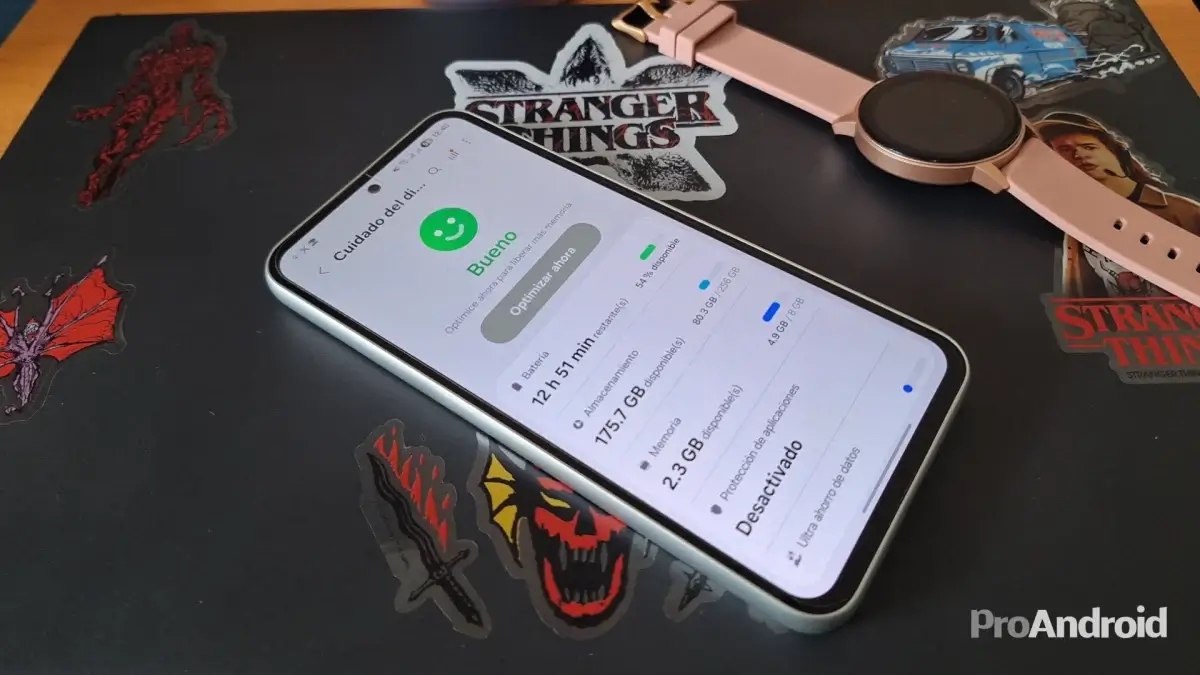
Did you know that a phone needs free space simply to think? Just as it is difficult to move in a room full of boxes, your cell phone's operating system suffers serious setbacks when storage is at its limit. As a general rule, your device should always have at least 10% (ideally 20%) of its total capacity free to handle temporary files and updates.
When memory fills up, every basic action, like opening the keyboard or loading a photo, becomes an ordeal.
Practical steps: Spend a few minutes doing general cleaning. Delete those heavy WhatsApp videos that were sent to you months ago and that you will never see again. Uninstall the games you already finished. Both iOS and Android have storage managers built into their settings that show you exactly which files are hogging up space. Move your photos to the cloud (like Google Photos or iCloud) and delete local copies. You will notice the difference in speed almost immediately.
3. Keep the system and apps always updated
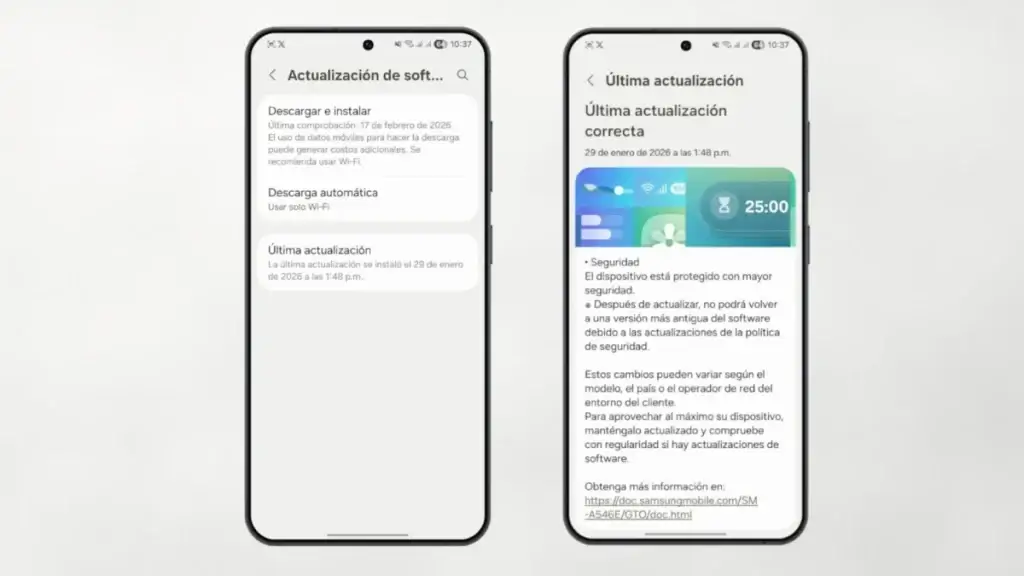
There is a widespread myth that updating your phone makes it slower to force you to buy a new one. Except in very specific cases of extremely old devices, this is false. Operating system and application updates are vital because they include security patches, bug fixes and, most importantly, performance optimizations.
Developers are constantly working to make their software consume less battery and memory. If you have an old version of an app or your system, you could be suffering from performance issues that were fixed months ago.
What you should do: Go to your phone's settings, look for the “System” or “General” section and check if there is any pending “Software Update.” Likewise, go to your app store (App Store or Google Play Store) and make sure to update all your apps.
4. Control and close rogue apps
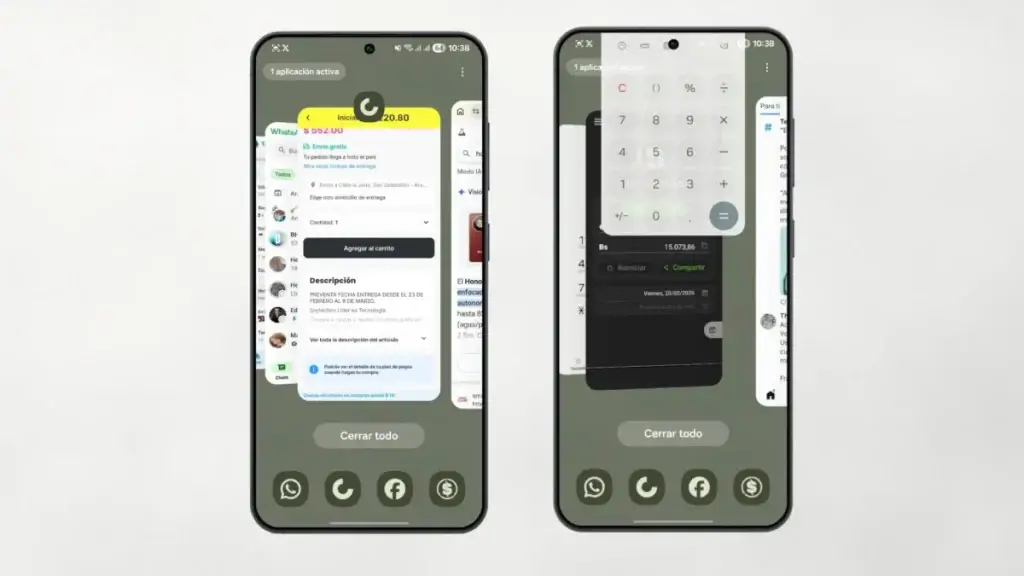
Nowadays, phones are great at handling multitasking, but everything has a limit. If you are one of the people who opens the browser, social networks, a heavy game, the bank app and the music player, and then simply returns to the home screen without closing anything, you are drowning your computer's resources.
Some applications are poorly optimized and continue to consume processing power and RAM even when you are not viewing them on the screen.
How to fix it: Open the recent apps menu (by swiping from the bottom up on the screen or tapping the corresponding navigation button) and slide out the apps you're no longer using. On Android, if you notice that a specific app always slows down your phone, you can go to Settings > Applications, select it and click on “Force stop.”
5. Beware of “Battery Saving Mode”
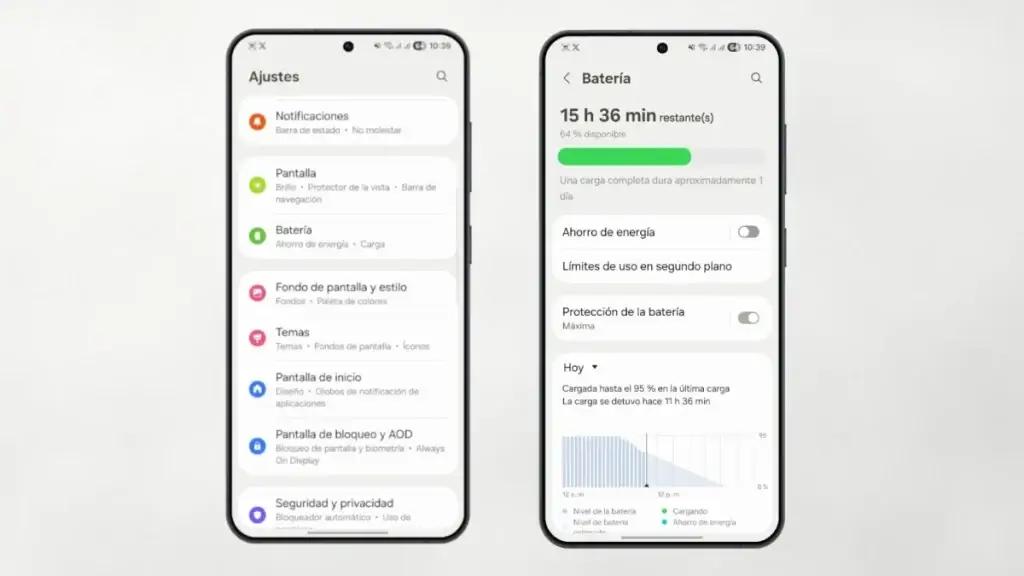
Power saving mode is a lifesaver when you're at 10% battery and need to get home. However, many users leave it activated permanently without knowing its consequences.
To make the battery last longer, this mode literally “throttles” the capabilities of your phone. It drastically slows down the processor, stops background syncing, and slows down the screen refresh rate. In short: you sacrifice speed and fluidity in exchange for a few extra hours of autonomy.
The trick: If you notice that your cell phone jerks and you have enough battery, check if this mode is on. On Android it is usually in the quick notification panel, and on iOS within Settings > Battery. Disable it when you need the phone to perform at its maximum capacity.
6. Clear the accumulated cache
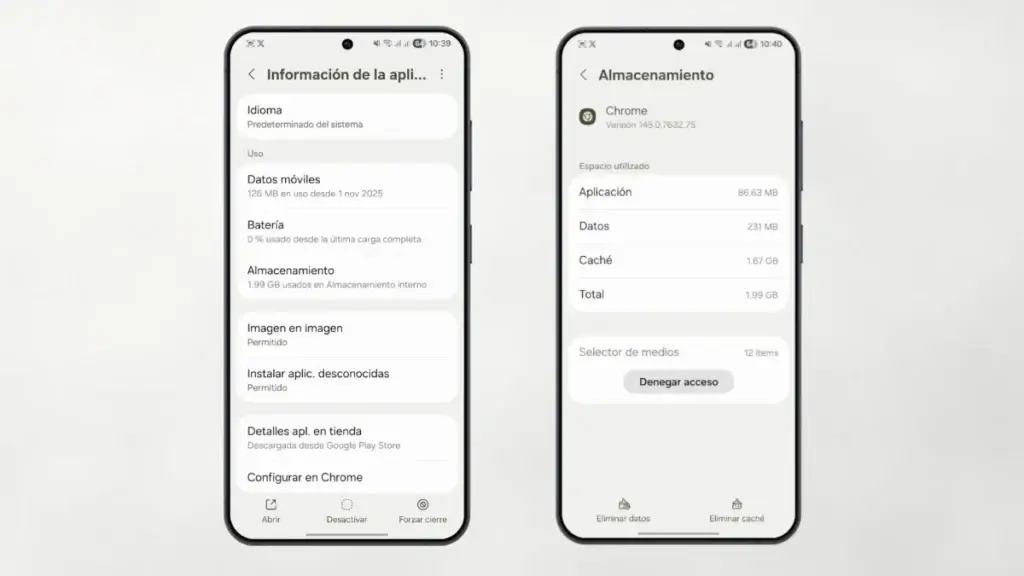
As you use apps like Instagram, TikTok, Facebook, or your web browser, they save small temporary files (images, scripts, profiles) to load faster the next time you log in. This is known as cache memory. The problem arises when, after months of use, this cache accumulates several gigabytes of obsolete information that ends up slowing down the reading of the internal disk.
Clearing the cache will not delete your passwords, photos or conversations, it will simply delete those unnecessary residual files.
How to clean it: On Android, the process is very direct: go to Settings > Apps, choose the ones you use the most (especially social networks), tap “Storage” and then select “Clear cache.” In the case of iPhones, the system manages the cache in a slightly more closed way, but you can achieve the same effect by uninstalling the heavy application and redownloading it from the App Store; It will come in completely clean.
7. Go for “Lite” versions or reduce animations
If after applying all the previous steps your phone is still not up to par, it is likely that its hardware is already a little tight for the demands of modern applications. But there is still an ace up his sleeve.
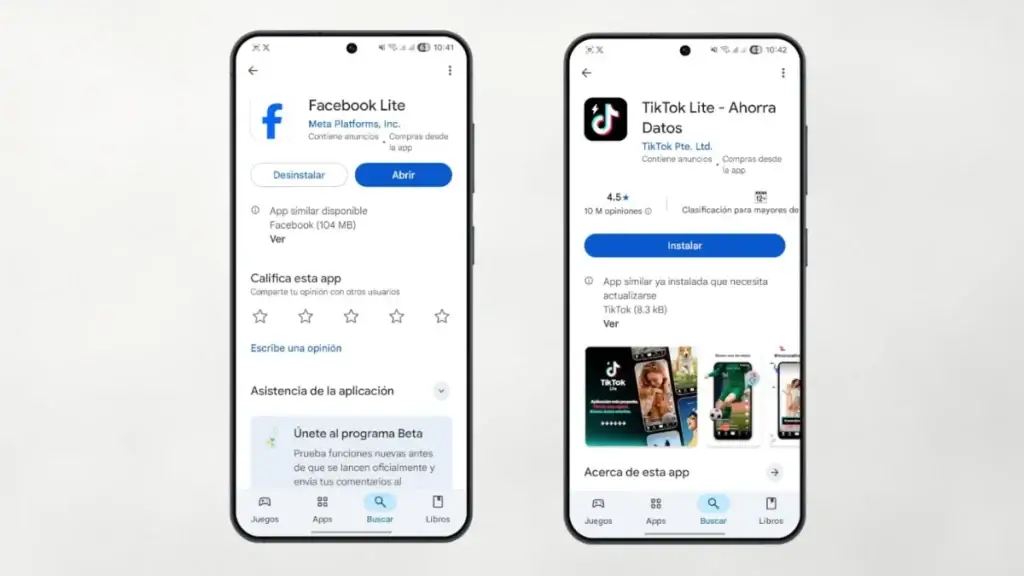
First of all, you can replace heavier applications with their “Lite” versions. Facebook Lite, TikTok Lite, or Google Go are official versions designed specifically to consume a minimum fraction of memory and data. They are visually simpler, but they perform the same function and will take enormous weight off your processor.
Secondly, you can trick the eye and the processor by reducing system animations. Every time you open an app or change screens, the system plays a fluid animation that requires graphical power.
How to disable them: On iOS, go to Settings > Accessibility > Motion, and turn on Reduce Motion. On Android, you need to first enable “Developer Options” (by tapping 7 times on 'Build Number' in the phone info) and then look for window, transition and duration animation scales, reducing them from 1x to 0.5x or disabling them completely. You will notice that the phone reacts almost instantly to your touches.
Giving your smartphone a break doesn't require magic or expensive visits to technical service. With a little routine maintenance, common sense, and applying these seven tricks, you can extend the life of your device and regain that speed you thought you lost. Also if you want to continue delving into this topic and discover more specific settings that you can apply today, I recommend taking a look at this article where they are detailed more options to squeeze your autonomy.