

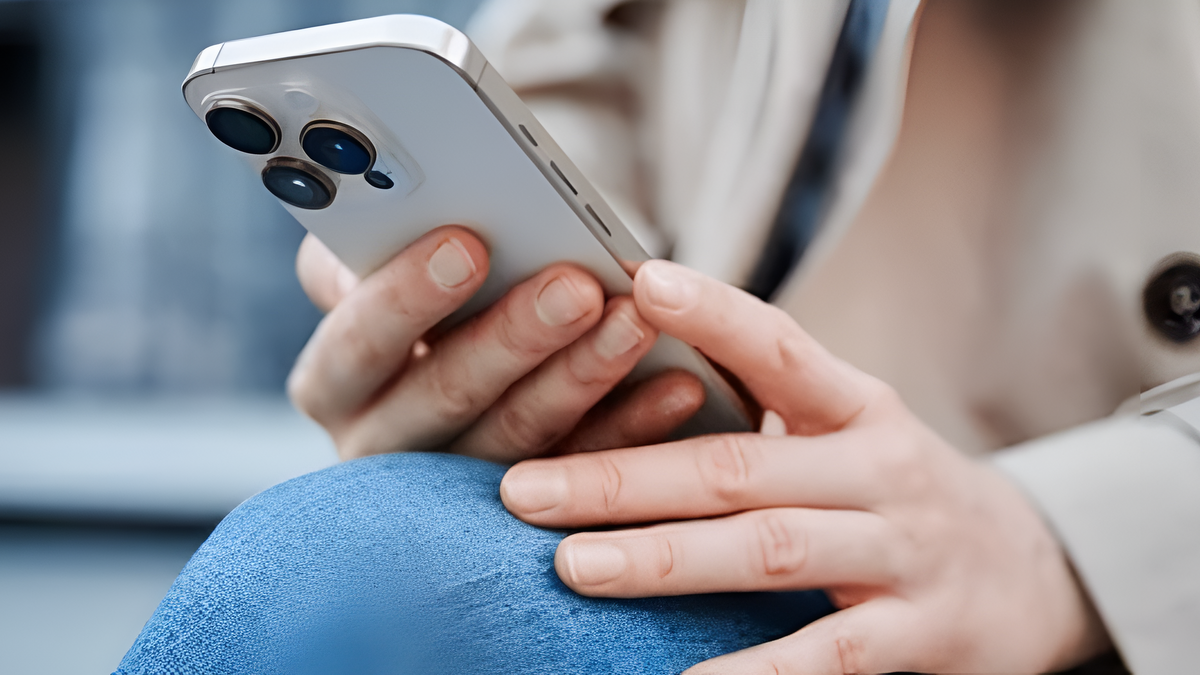

One of the most useful accessibility features in iOS has been designed to allow iPhone users to reach any area of the screen with just one hand. This is especially useful on larger devices like the iPhone 16 Pro or iPhone 16 Pro Max, and something Apple has considered for several iPhone generations.
Since the days of the iPhone 6 and its then-considered “massive” 4.7 and 5.5-inch displays, Apple introduced an ingenious and often overlooked feature that can make a significant difference in everyday usability: Reachability.
This feature, whose name in Spanish could be translated as “Easy Reach”, has remained somewhat hidden, its activation method evolving with the transition from Touch ID to Face ID, which has led many users to be unaware of its existence or its simple implementation.
Easily reach your iPhone
Imagine the following situation: You’re walking down the street with a bag in one hand and need to open an app located in the upper left corner of your 6.7- or 6.9-inch iPhone screen. Without Reachability, you’d have to juggle the bag, use both hands, or perform an awkward thumb stretch and risk dropping your phone. With Reachability, a simple swipe brings that top corner closer to you, allowing you to tap any app icon safely with one hand.
How to use Reachability
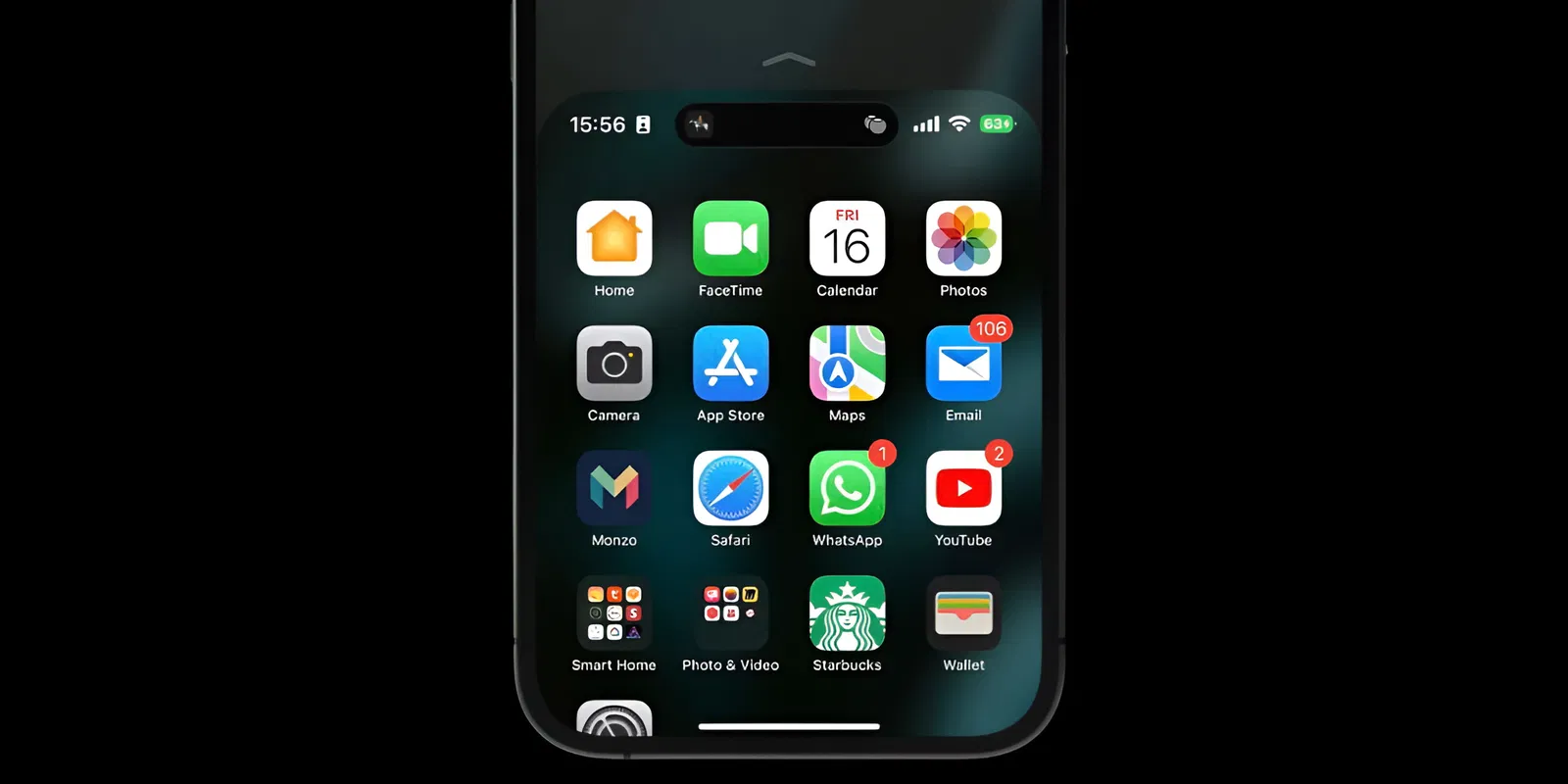
The process varies slightly depending on the iPhone model:
For models with Face ID (those without a physical home button):
- Unlock your iPhone and stay on the Home screen
- Gently swipe down from the bottom edge of the screen, right where the navigation bar is. It’s not a swipe from the bottom, but a short downward movement from that area.
- The screen will slide down, bringing the top part within reach of your thumb.
- Once you have touched the desired item, the screen will automatically return to its original position.
For models with Touch ID (those with a physical home button):
- Unlock your iPhone and stay on the Home screen.
- Perform a light touch (without pressing the home button) and slide your finger down on the home button.
- The screen will slide down similarly to models with Face ID.
- Touch the desired item, and the screen will return to its position.
If Reachability isn’t working for any reason, it’s possible the feature isn’t enabled. To enable it, follow these simple steps:
- Open Settings on your iPhone
- Click on Accessibility
- Press Play
- Activate Easy Reach, slide it to the right, and turn it green
Reachability is much more than a simple iOS settings tweak. It’s a cleverly designed accessibility tool that directly addresses the ergonomic challenge of increasingly large smartphone screens. Whether you’re an iPhone Max user or simply find yourself in a situation where only one hand is available, mastering this trick will turn previously awkward tasks into fluid and easy actions.