


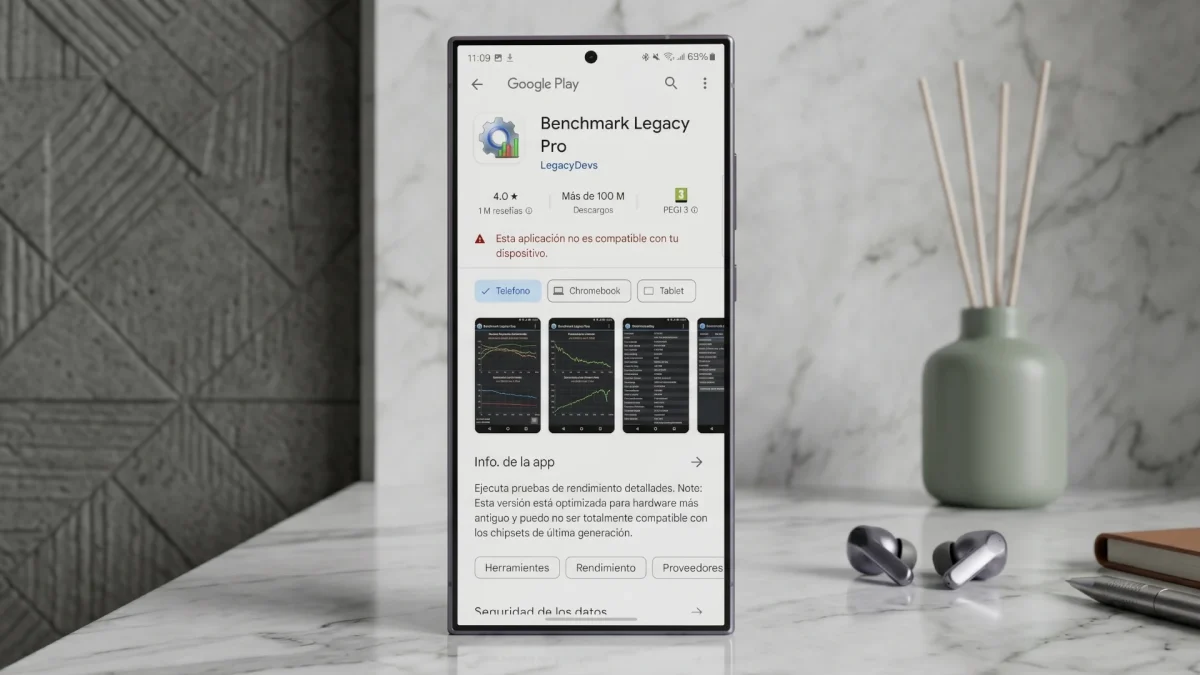

You're in the Play Store, you're looking for an app you want to install and suddenly that annoying message appears: “Your device is not compatible with this version”. The first thing you think is that your cell phone is obsolete or that something is wrong. Don't worry, that's usually not the case.
Why does that message appear?
The message has nothing to do with your phone being broken or your internet connection. The explanation is simpler and, at the same time, more frustrating: is the app's own developer who has decided that that application is not available for your device.
When a company publishes an app on Google Play, it has a control panel with very precise filters at its disposal. You can set, for example, that your app is only installed on phones running Android 12 or higher, with at least 4 GB of RAMor with a specific processor architecture. If your phone does not meet any of these requirements, the store simply blocks the download. In fact, in many cases you will not even see the app in the search results: the Play Store automatically filters it for you and you only see that notice if you enter the file directly through a link.
There is another quite common scenario: apps that you used without problems and that a day they stop being compatible with your mobile. This occurs because the developer has updated the application and raised the minimum requirements. WhatsApp, without going any further, stops supporting certain models every year. It's not that your phone broke overnight; The app has simply evolved and your hardware is no longer on the list.
There is also the possibility that the incompatibility by region. There are applications that developers restrict to certain countries, and if you try to install one not available in Spain you will see exactly the same message.
What can you do to solve it
1. Try the basic solutions first
Before complicating your life, it is worth trying a few simple things. Sometimes the problem is temporary and has nothing to do with actual compatibility:
- Restart the mobile. It sounds obvious, but a clean reboot fixes specific errors more often than it seems.
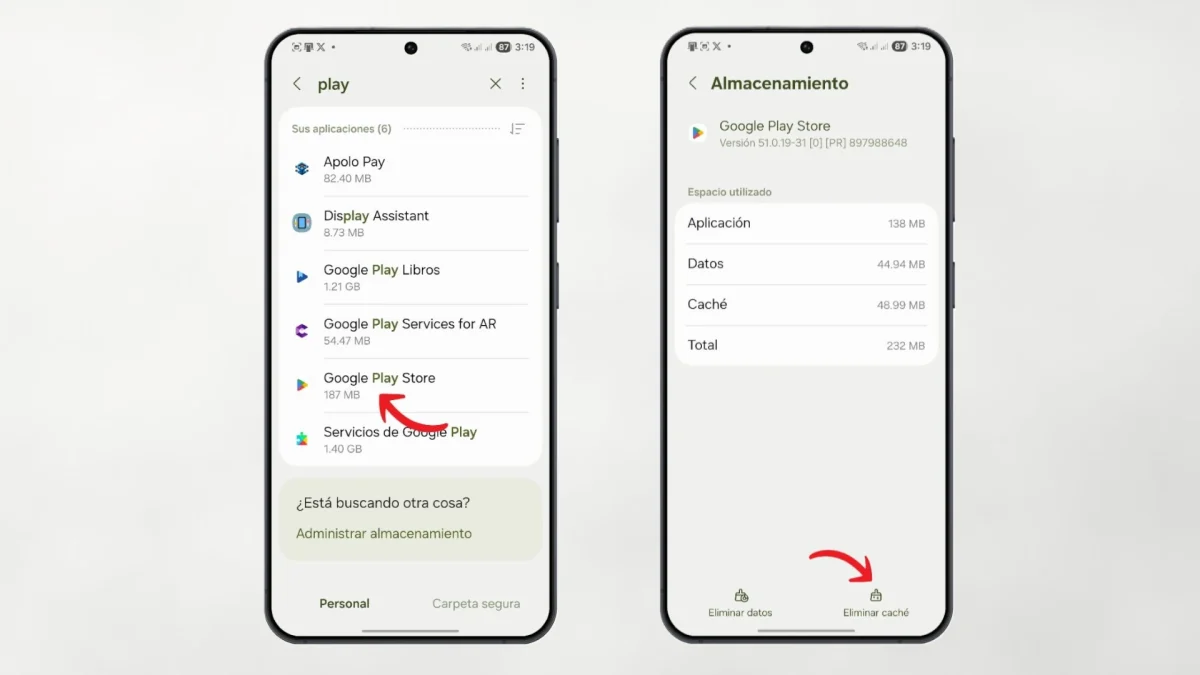
- Clear the Google Play Store cache. Go to Settings → Applications → Google Play Store → Storage → Clear cache. This does not affect your apps or your purchases; it simply deletes temporary data that may be causing the problem. Reboot and try again.
- Also clear the Google Play Services cache. Follow the same process but searching Google Play Services in the application list. This service works in the background and a failure in it can cause compatibility errors that do not actually exist.
- Update the system. If you have a pending Android update, install it. In some cases, an outdated version of the operating system is precisely what causes the crash.
2. Install the app using an APK
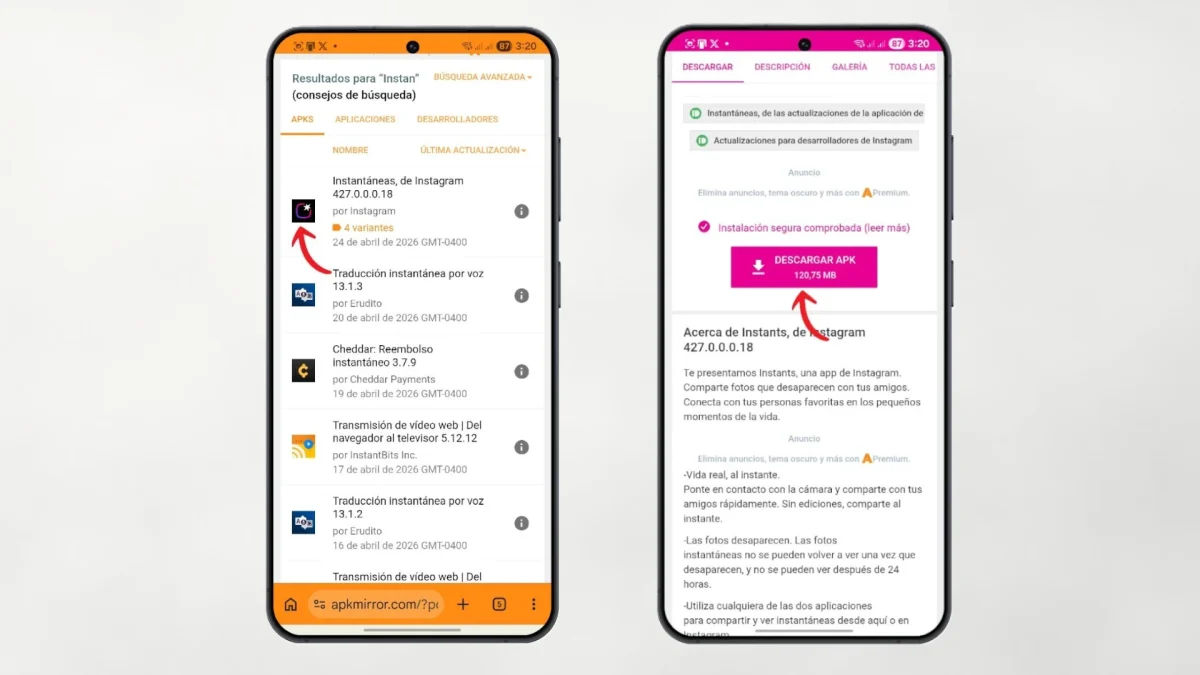
If the above solutions don't work, the real reason is that the developer has bricked your device. In that case, the only alternative is to skip the Play Store and install the application manually through an APK file.
APKs are the equivalent of files .exe Windows: the application installation package, which you can download and install directly. To do it safely, it is best to use trusted repositories such as APKMirror either Uptodownwhich verify the authenticity of the files.
The process is as follows:
- Find the application in APKMirror either Uptodown.
- Take a good look at the architecture of your mobile processor (ARM, ARM64, x86…) to download the correct version. You can consult it at Settings → About phone or with apps like CPU-Z.
- Download the APK on your phone.
- Before installing it, you will have to activate the option install apps from unknown sources. In modern Android this is managed by application: when you try to open the APK, the system will ask you directly for permission to the browser or file manager you used to download it.
- Follow the steps of facility and that's it.
An important notice: if the app has blocked your device for real technical reasons (low RAM, old Android version)it may malfunction or not start at all. In that case, it's worth trying an older version of the app, which probably has less demanding requirements.
3. Change region if the problem is geographical
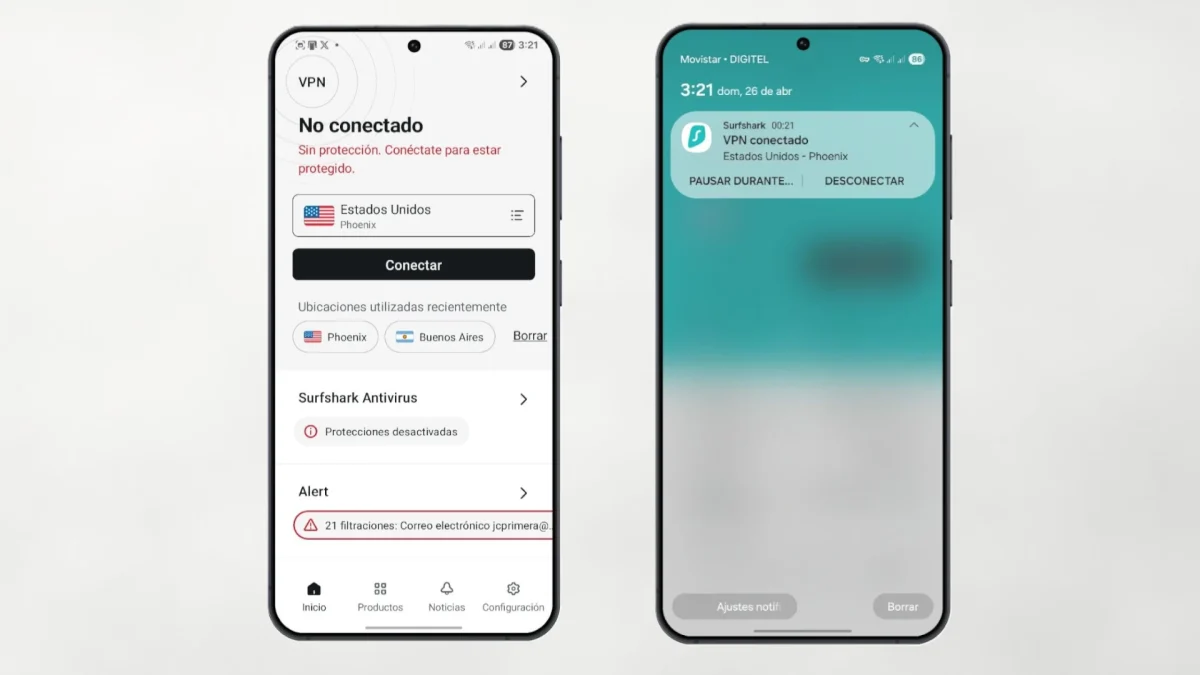
If the app is not available in Spain but is available in other countries, one option is to temporarily change the region of your account. Google Play or use a VPN. Of course, there are no guarantees that it will work in all cases, and some applications check your real location even after installing.
When there is no solution
There are situations in which there is no choice but to accept it. If an app requires a version of Android that your phone can't update, or requires hardware that your phone simply doesn't have, no trick is going to solve that. In these cases, the alternative is to search Similar apps that are compatible with your device.
By the way, if you have a Samsung and are looking for more control over the apps you have installed, you may also be interested in knowing how to hide applications on your Samsung mobilesomething quite useful to keep the screen organized without having to uninstall anything.