


Google begins to enable Gemini Live a simple but crucial mute button which allows you to instantly mute the microphone in the middle of a conversation with the AI. Although it seems like a minor improvement, it changes the experience: it offers more control, fewer interruptions and a greater sense of privacy when talking to the assistant from your mobile.
Until now, if you wanted to pause Gemini Live you had to hang up the session or wait for the system to finish speaking to resume the thread, something impractical if you receive a call, if someone interrupts you or if you need to consult something on the screen. The new control solves this weak point and fits with the rest of the functions that have arrived this year in Live, such as share screen or use the camera so that the assistant understands what you are seeing.
The addition is direct: during a chat, you will see an icon switchable microphone to activate or mute voice capture on the fly. When silent, Gemini Live doesn't listen to you or process your audio, so you can think, type or move through apps without the assistant reacting half-heartedly. By pressing again, you resume the conversation right where you left it, without losing the context accumulated by Live.
Beyond comfort, it is an improvement of usability and privacy. Avoid out of place responses when someone speaks next to you, reduce interruptions when you dictate steps while browsing an app, and make it easier to coexist with other phone tasks: music, maps, video calls or any app that uses the microphone. It also helps in noisy environments where Gemini could confuse orders and trigger actions you didn't want.
Availability and how it will be activated on your Android mobile
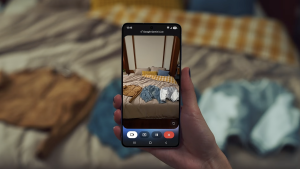
The deployment will be progressive within the app. Gemini for Android (and in stages on iOS), as happens with the rest of Live's new features. You don't need to configure anything special: the button will appear on the voice session interface along with the usual controls. To try it out, open Gemini, tap the Live shortcut in the bottom bar, and start a conversation. When you see the microphone control, tap it to mute or unmute.
Remember that Gemini Live already allows share screen and use the camera so that the assistant understands objects, documents or menus in real time. With the mute button, a more natural use is achieved: you speak when you want, you shut up when you need to and you speak again without losing the context. A logical step for Gemini compete better with other assistants and for Android (and iPhone) users to truly integrate it into their daily lives.
A small movement that greatly improves the experience
Since the arrival of the subtitles on Gemini Livesuch an important change had not been noticed for some like this. Without a doubt, it is the typical function that does not appear in a headline, but makes the difference when you use it: immediate control, less friction and fewer “gaffes” from accidental activations. If you use Live to study, cook with on-screen instructions, or solve mobile tasks while you dictate, silence at the touch becomes the missing shortcut. Have you already received it and do you find it useful? We read you in the comments.


