


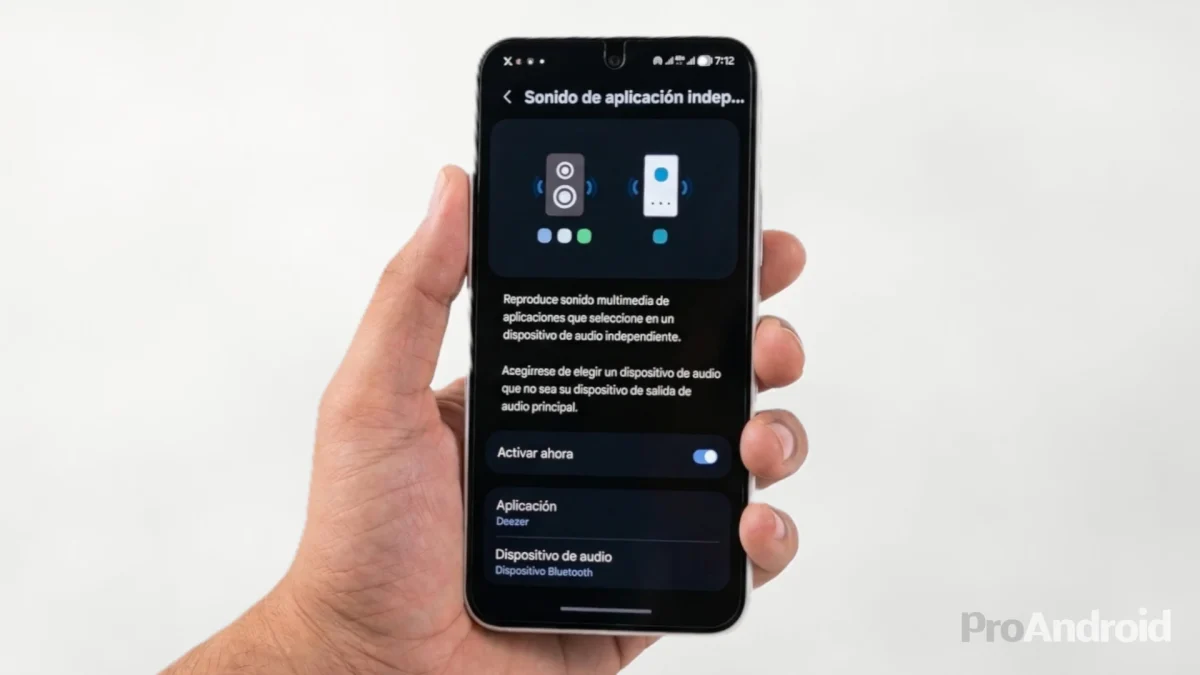

If you have a Samsung Galaxy mobile, it is likely that you have had a function installed as standard for years that you have never opened. It is not hidden in the developer menu nor does it require any advanced configuration. Is called Independent application sound (Separate App Sound in English), and allows you to route the audio of a specific application to a different output device than the one used by the rest of the system.
What is it for?
The use cases are more everyday than it seems. The most common: you have music playing through a Bluetooth speaker and a notification interrupts playback at full volume. With this feature, the speaker only plays what you want; the rest of the system sounds continue to come through the phone.
Another common scenario: you are in the car with your mobile phone connected to the radio via Bluetooth, and the audio from a WhatsApp video or Instagram cuts the song. By setting up independent app sound, only the music app uses the car's Bluetooth; anything else plays through the phone's speaker without interfering.
It also works the other way around: if you're on a Google Meet or Teams video call with headphones, you can make the rest of the system sounds—alerts, notifications, other apps— come out through the mobile speaker without interrupting the call.
How to activate it
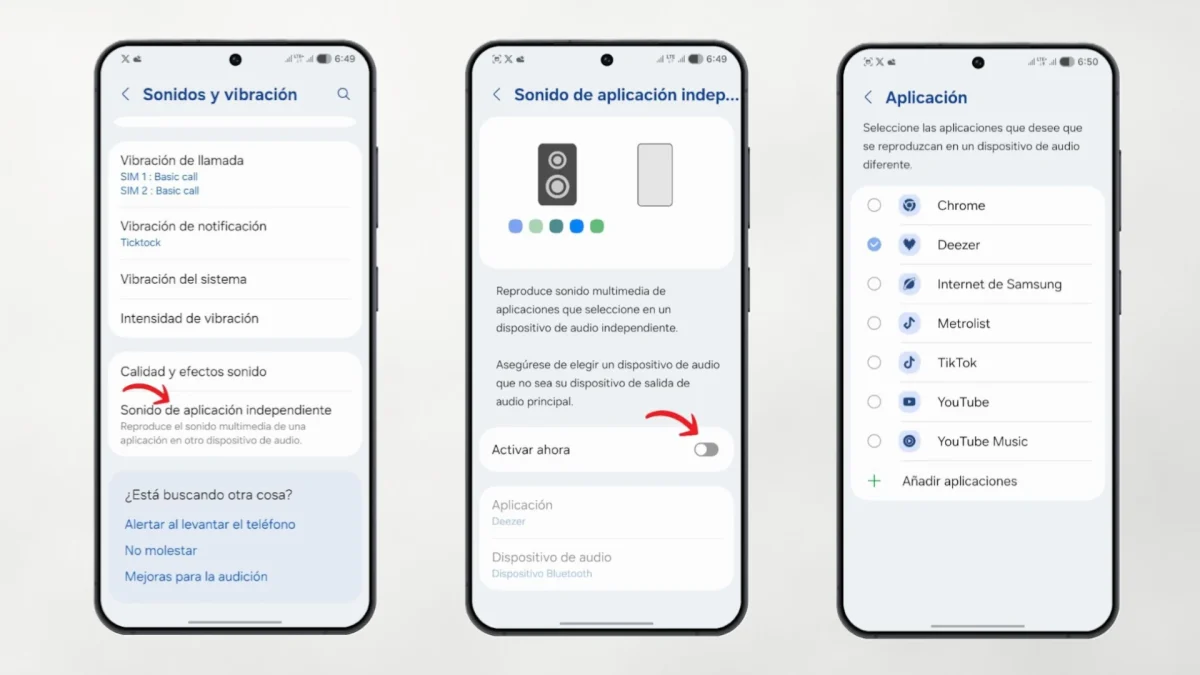
The first thing is to connect the Bluetooth device you are going to use (headphones, speaker, car audio system). Once paired and active:
- Open the Settings of the phone.
- Enter Sounds and vibration.
- Scroll to the bottom of the screen.
- Touch Independent application sound (may appear as Separate app sound depending on the configured language).
- Activate the switch next to Activate now.
- Press Select in the pop-up message.
- Choose the app or apps whose audio you want to redirect.
- Select the destination audio device: your phone itself or the connected Bluetooth device.
An important detail: the function only takes effect when the audio device assigned to the app is different from the one configured as the system's main output. If your Bluetooth headphones are already the main output and you also assign them as the destination of the app, nothing special will happen. The function creates an exception so that that app goes to a different place than the rest.
For example, if you connect a Bluetooth headset and it becomes the main output, you can go into settings, select YouTube, and assign the phone's speaker as a destination. Thus, YouTube will play through the mobile phone while everything else continues through the headphones.
Compatibility
The feature is available on virtually all Galaxy with Android 7 or higher, which covers a very wide swath of devices. It appeared with the Galaxy S8 series in 2017, so it has been available for almost a decade. Not all apps are guaranteedalthough the most popular ones—Spotify, YouTube, YouTube Music, Apple Music, Google Maps, browsers, video calling apps—work without problem. If a specific app doesn't respond as you expect, the only way to know is to try it.
It is advisable not to confuse it with Dual audio from Samsung, which does something different: send the same audio to two Bluetooth devices simultaneously. This is about separating sounds between different sources, not duplicating them.
Why does it not exist on other Androids?
Google has not implemented anything equivalent in stock Android, and no other brand in the ecosystem has incorporated it into its customization layer. It's a Samsung-exclusive feature that, for those who use it regularly, weighs quite a bit when the time to consider whether to change platforms.
If you have a Samsung, you know what you have to do tonight: open the settings, locate this option, and give it a try. It probably won't take long to find your ideal use case. And if you want to continue making the most of the audio on your Galaxy, you may also be interested in knowing how to listen to YouTube with the screen off, another function that Samsung allows you to do as standard without having to pay for YouTube Premium.